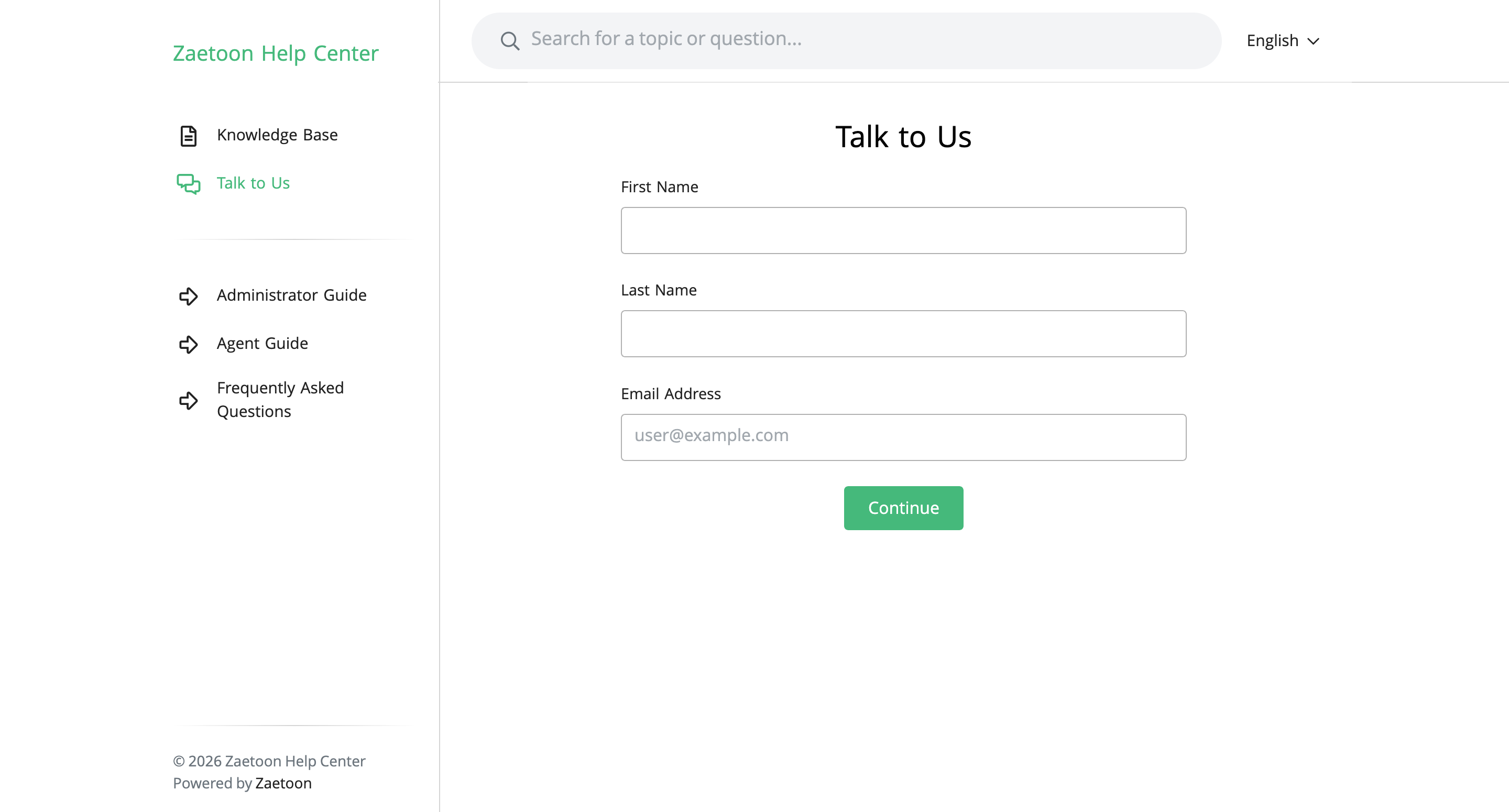
Organize your Knowledge Base navigation with links that help visitors find articles, explore resources, and contact your support team.
The Primary Menu displays the main navigation links, while the Secondary Menu provides additional links to useful resources.
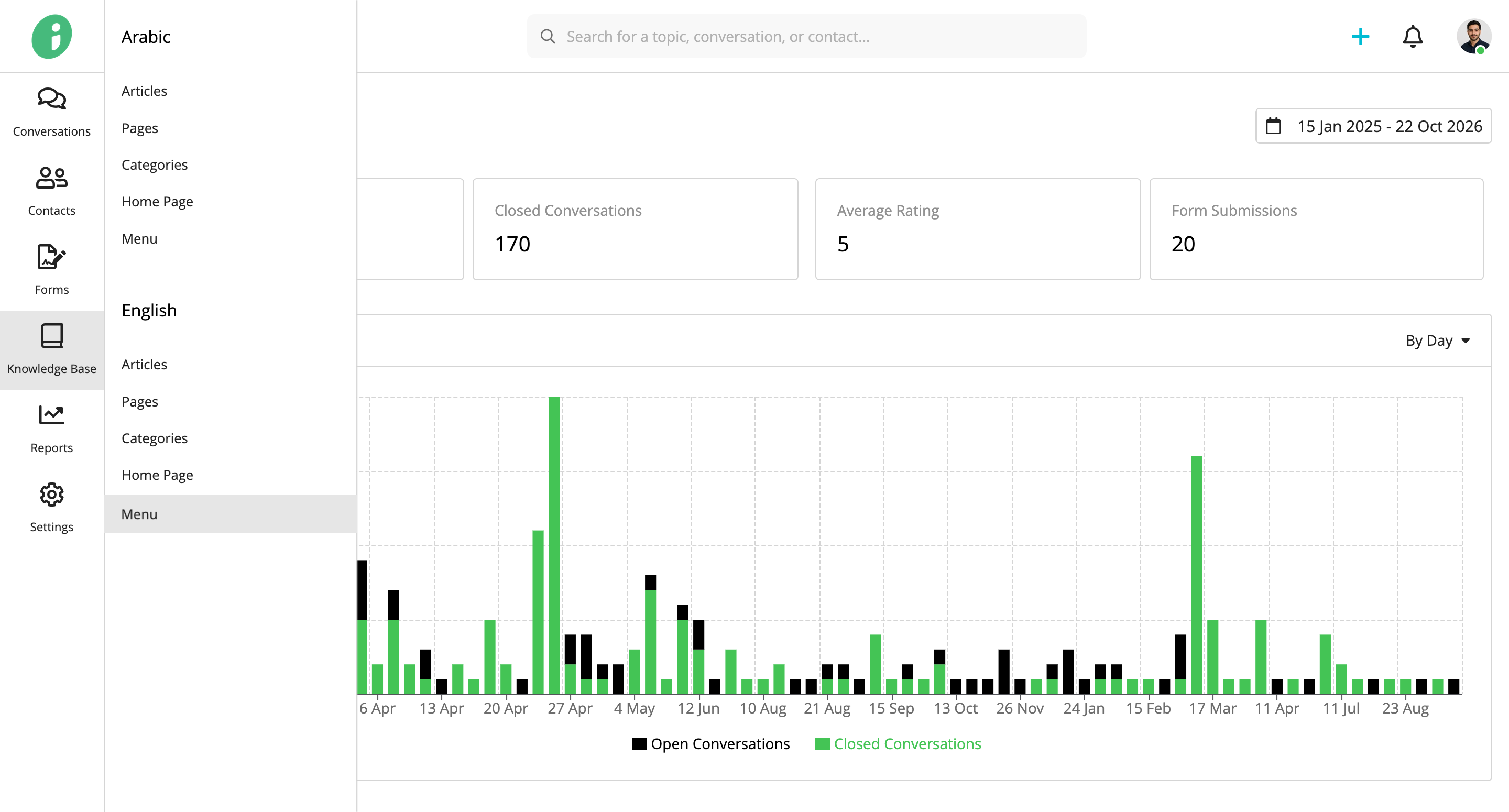
From your Helpdesk, go to Knowledge Base → English → Menu.
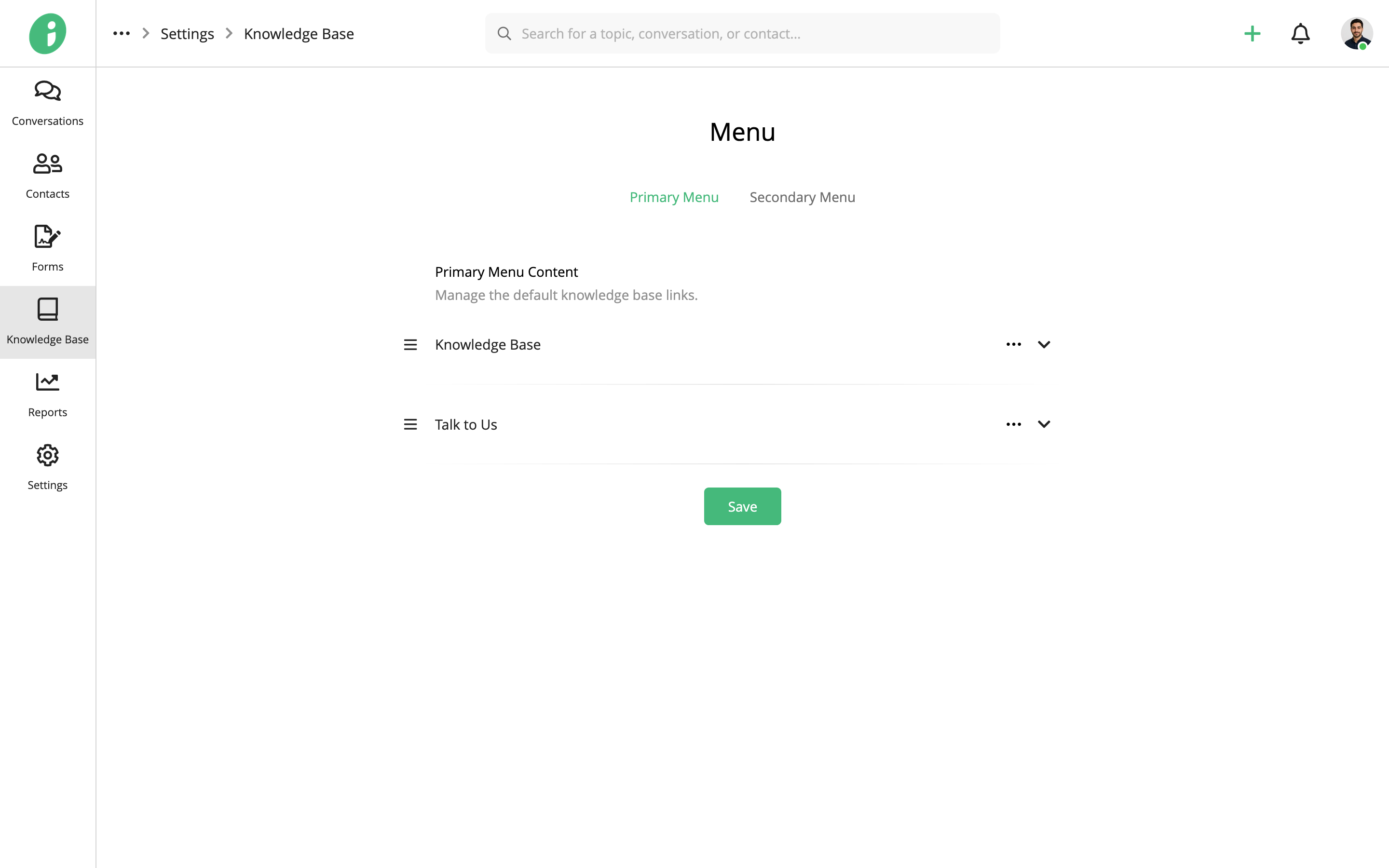
Customize the Primary Menu
Select Primary Menu to manage the main navigation links.
By default, the menu includes Knowledge Base and Talk to Us. Both can be customized.
Expand a menu item to configure the following settings:
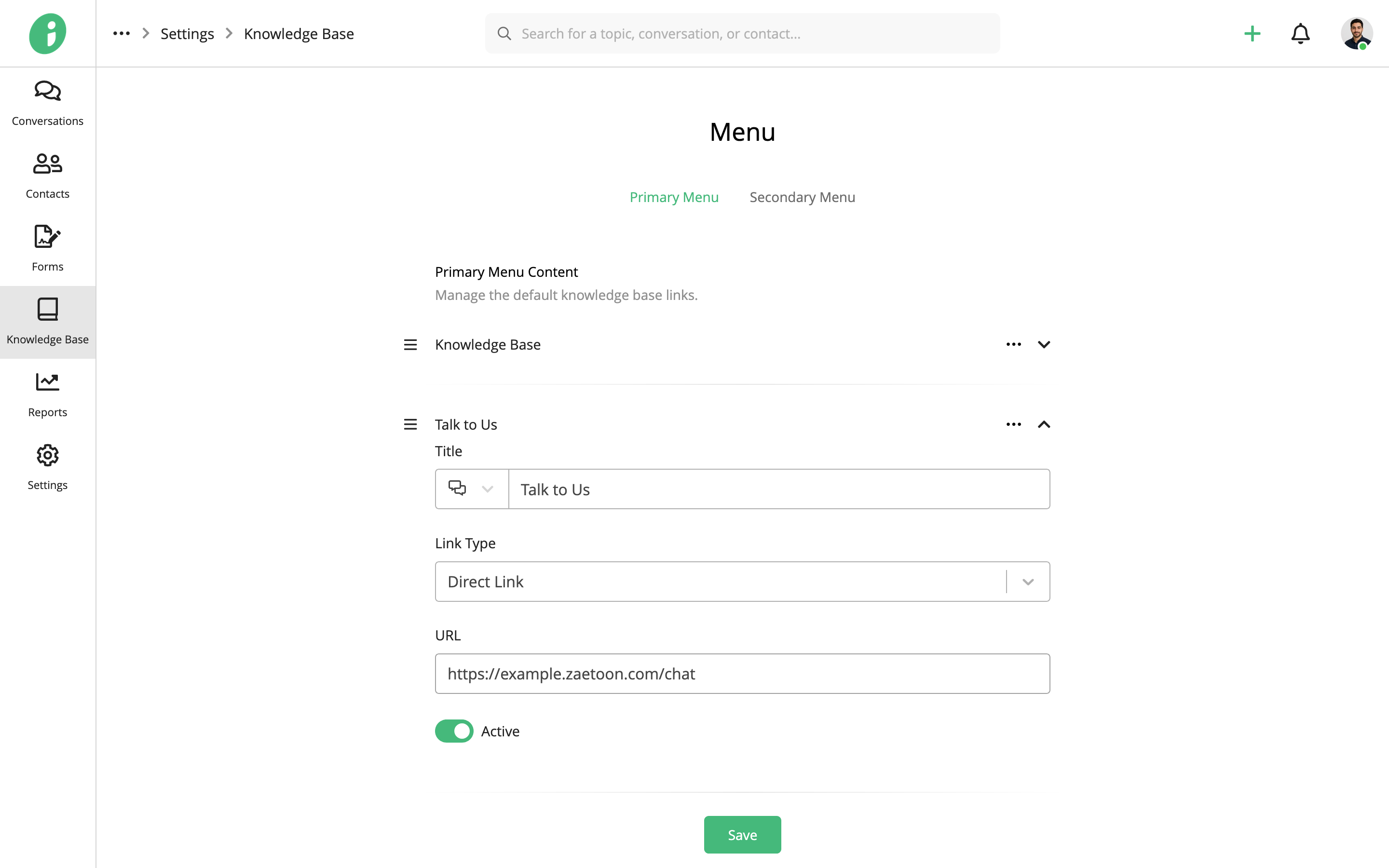
- Title: Enter the text displayed in the menu and select an icon.
- Link Type: Choose where the link directs visitors.
- Active: Enable or disable the menu item.
Under Link Type, select one of the following options:
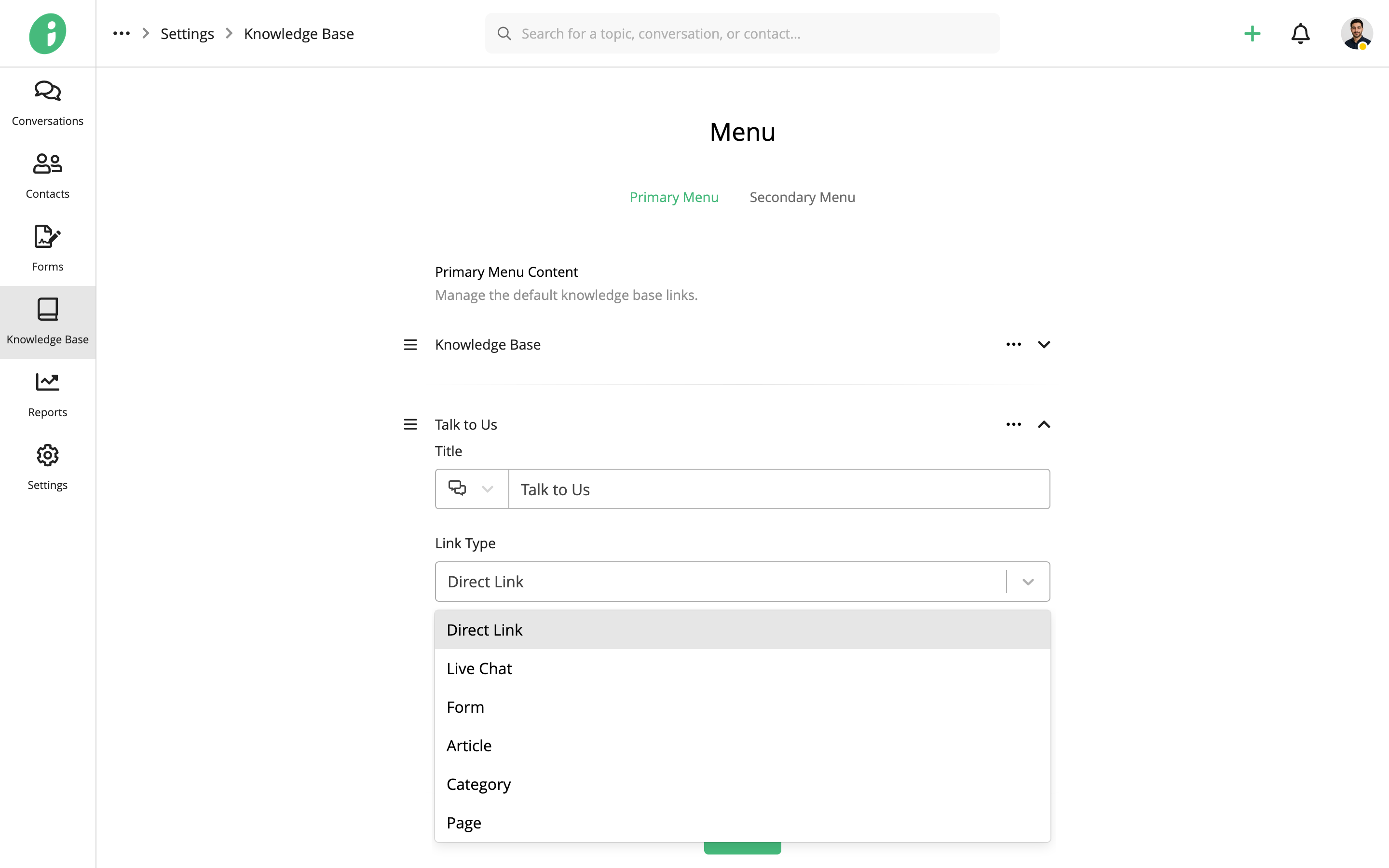
- Direct Link: Enter any destination URL.
- Live Chat: Select a live chat from your Helpdesk.
- Form: Select a form from your Helpdesk.
- Article: Select a Knowledge Base article.
- Category: Select a Knowledge Base category.
- Page: Select a Knowledge Base page.
Use the drag handles to rearrange menu items.
Customize the Secondary Menu
Select Secondary Menu to manage additional navigation links.
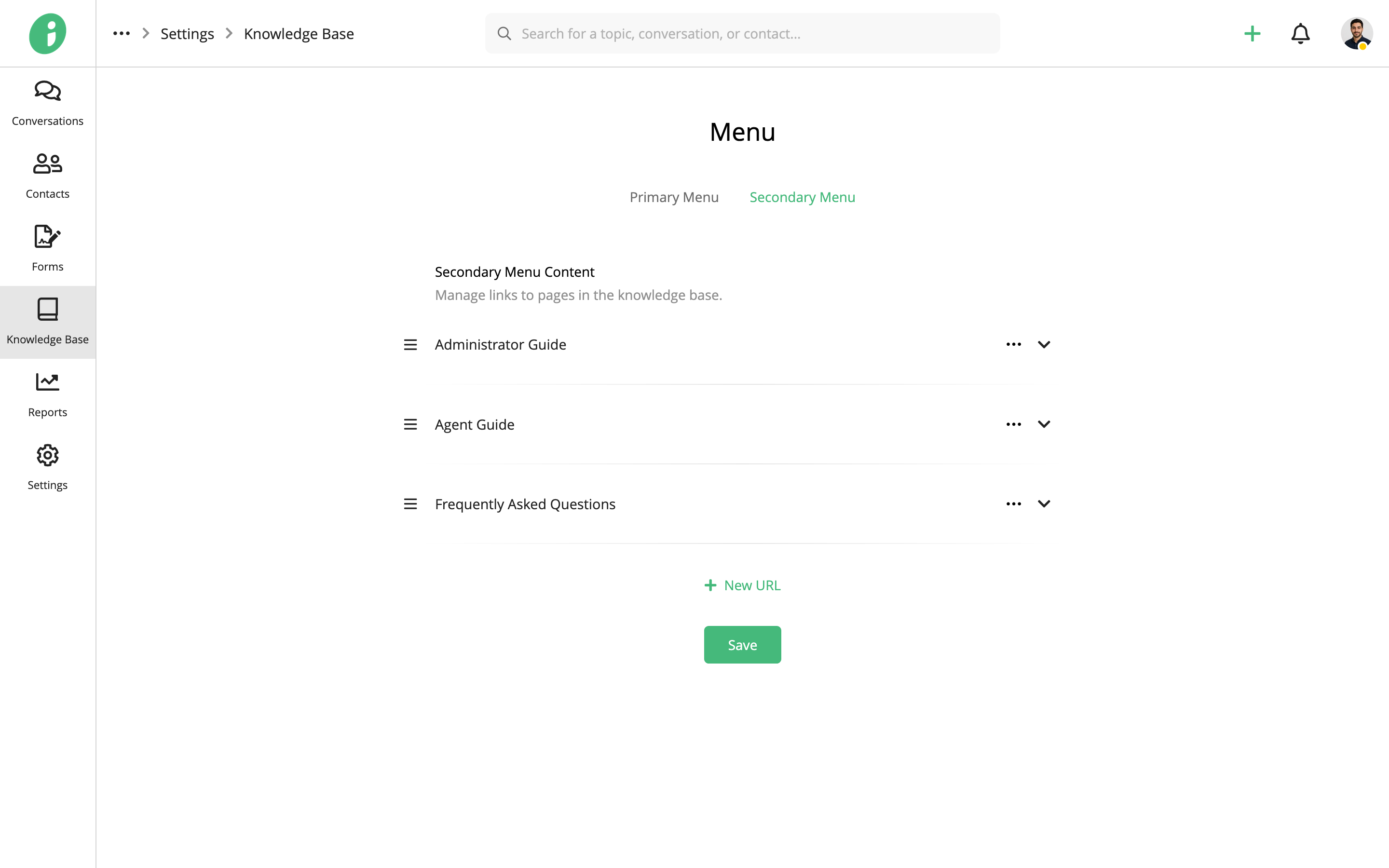
Click New URL to add a link, or expand an existing item to edit it. Configure its Title, Link Type, and Active status using the same options as the Primary Menu.
Use the drag handles to rearrange menu items.
Click Save to apply your changes.