Knowledge Base categories help you organize articles by topic, making it easier for visitors to find relevant information.
You can create, edit, delete, filter, and reorder categories in your Zaetoon Helpdesk.
Create a Category
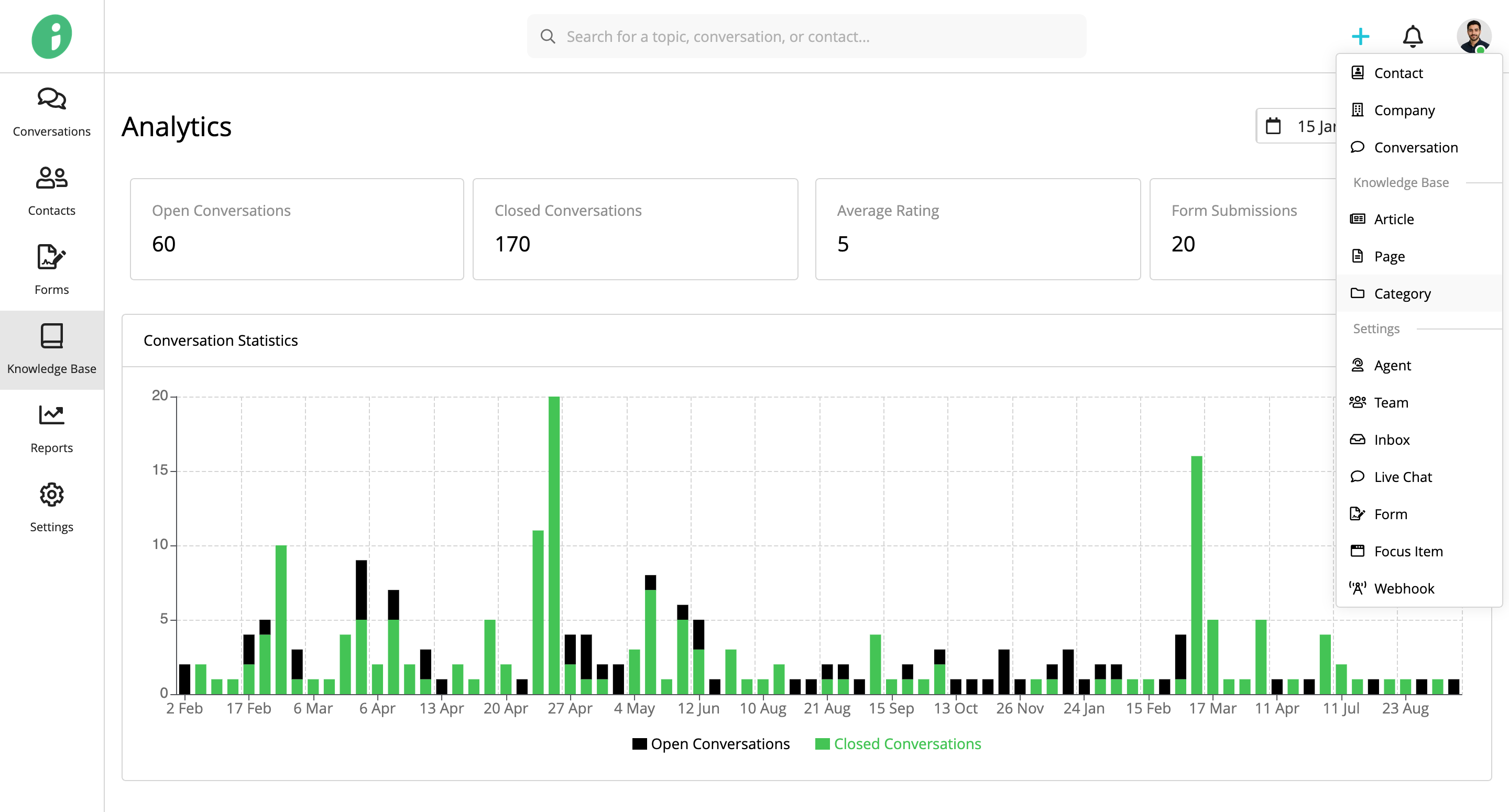
From your Helpdesk, click + Add in the top-right corner and select Category.
Configure the category details:
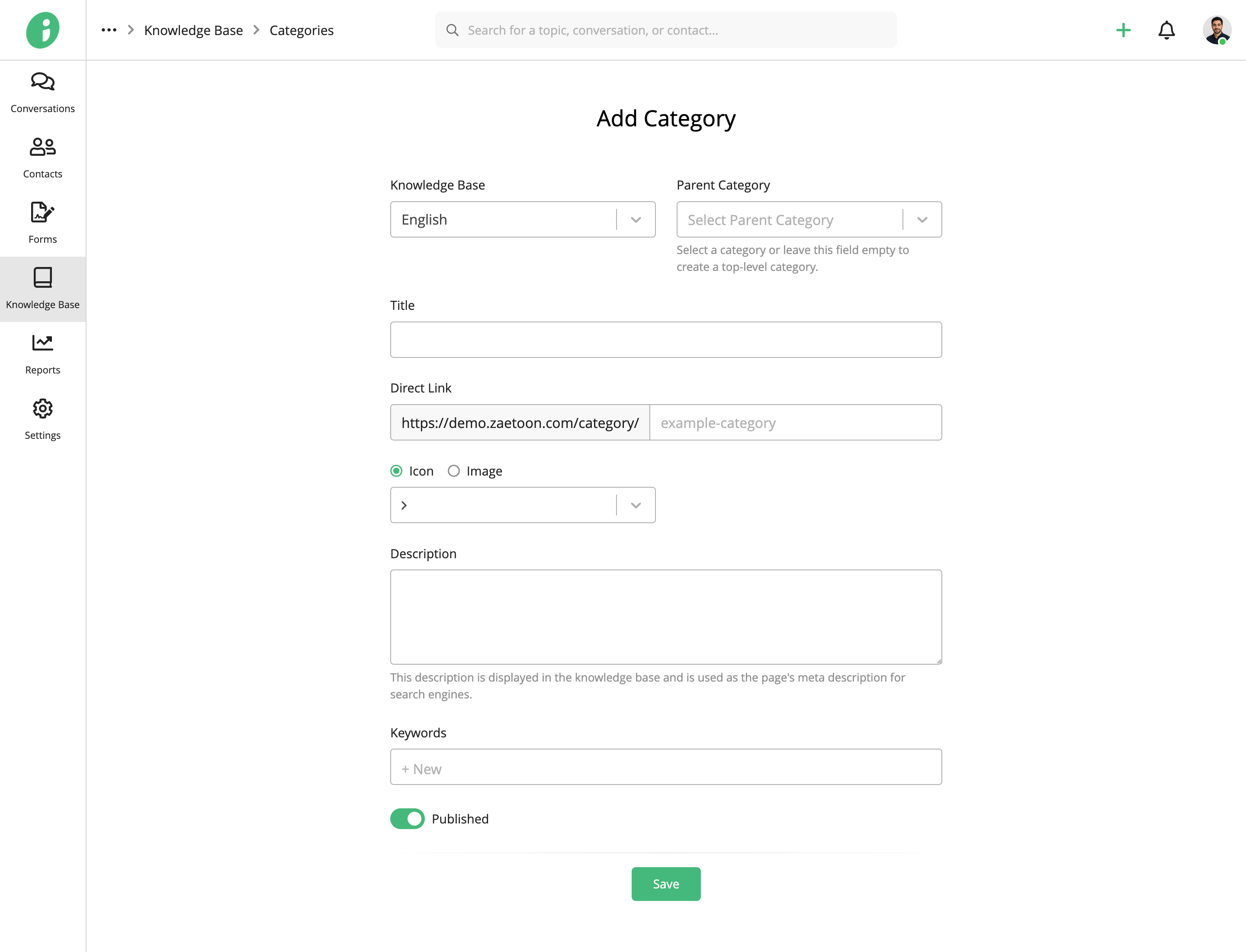
- Knowledge Base: Choose whether to add the category to your English or Arabic knowledge base.
- Parent Category: Select an existing category to create a subcategory, or leave this field empty to create a top-level category.
- Title: Enter the category name.
- Direct Link: Set the URL slug for the category.
- Icon / Image: Choose an icon or upload an image to represent the category.
- Description: Enter a description displayed in the knowledge base and used as the page’s meta description for search engines.
- Keywords: Add relevant keywords for the category.
- Published: Enable this option to publish the category, or disable it to save the category as a draft.
Click Save to create the category.
Edit or Delete a Category
From your Helpdesk, go to Knowledge Base → English → Categories.
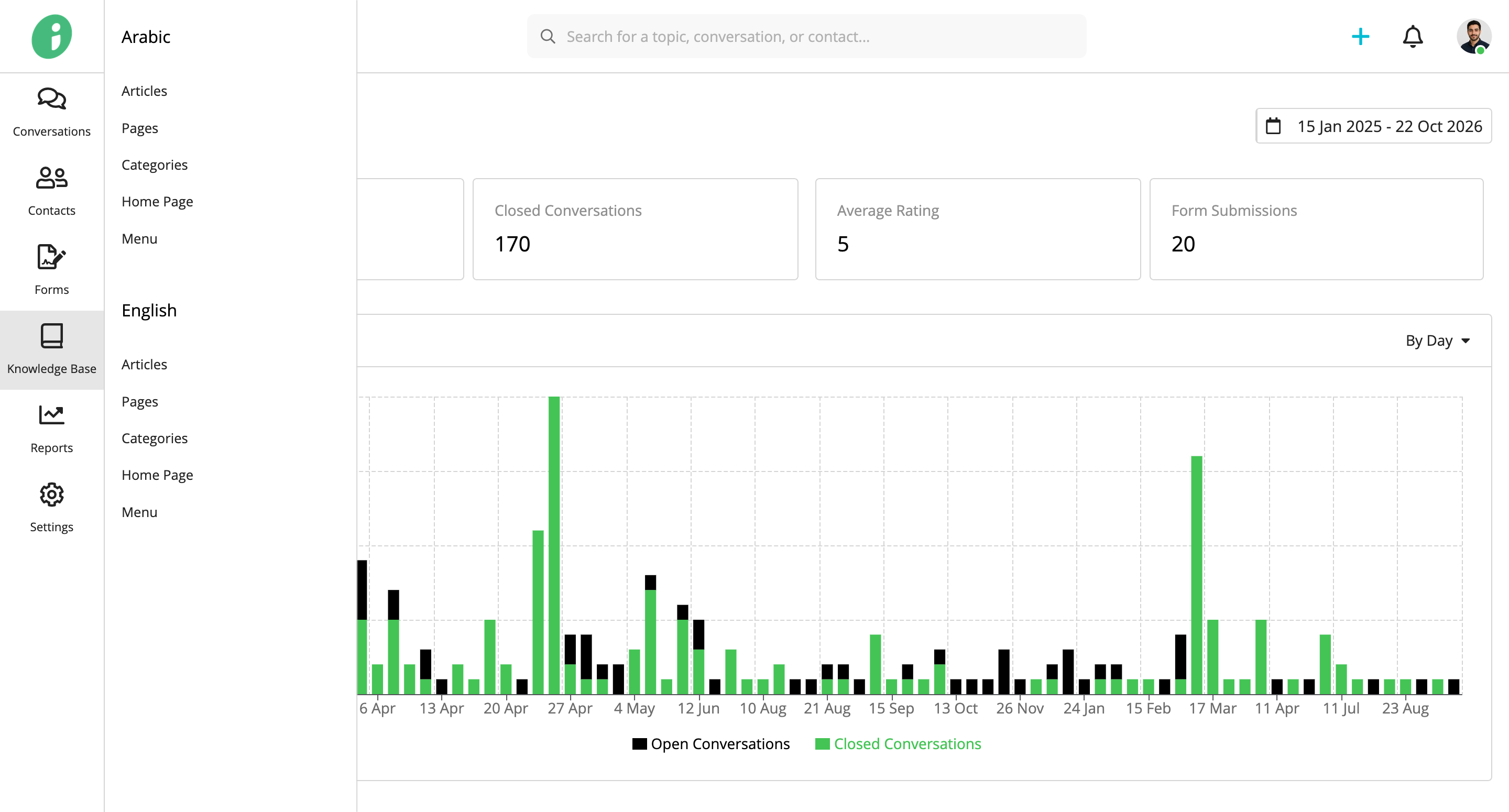
Find the category you want to manage, open its options menu.
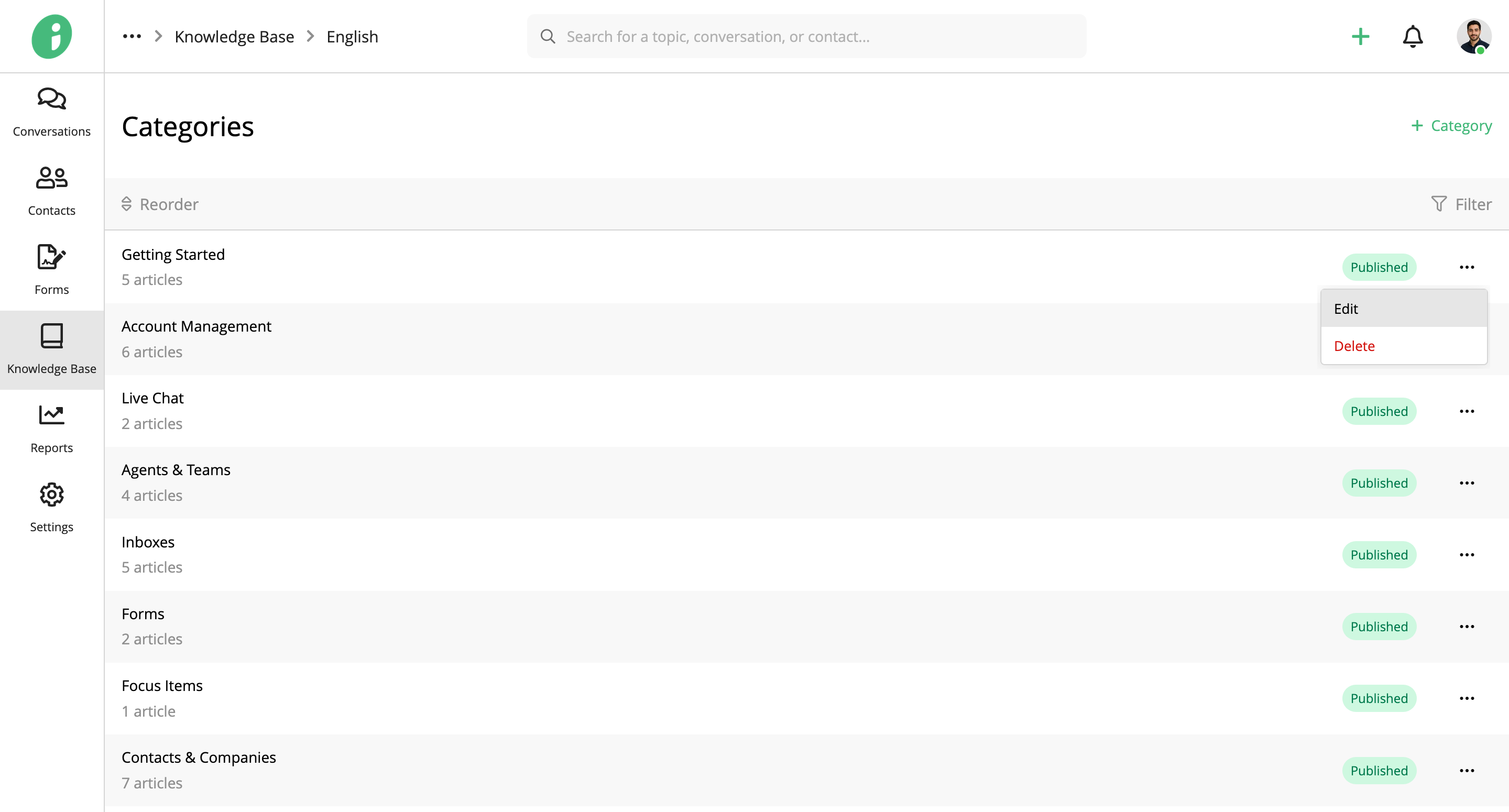
Select Edit to update the category’s settings.
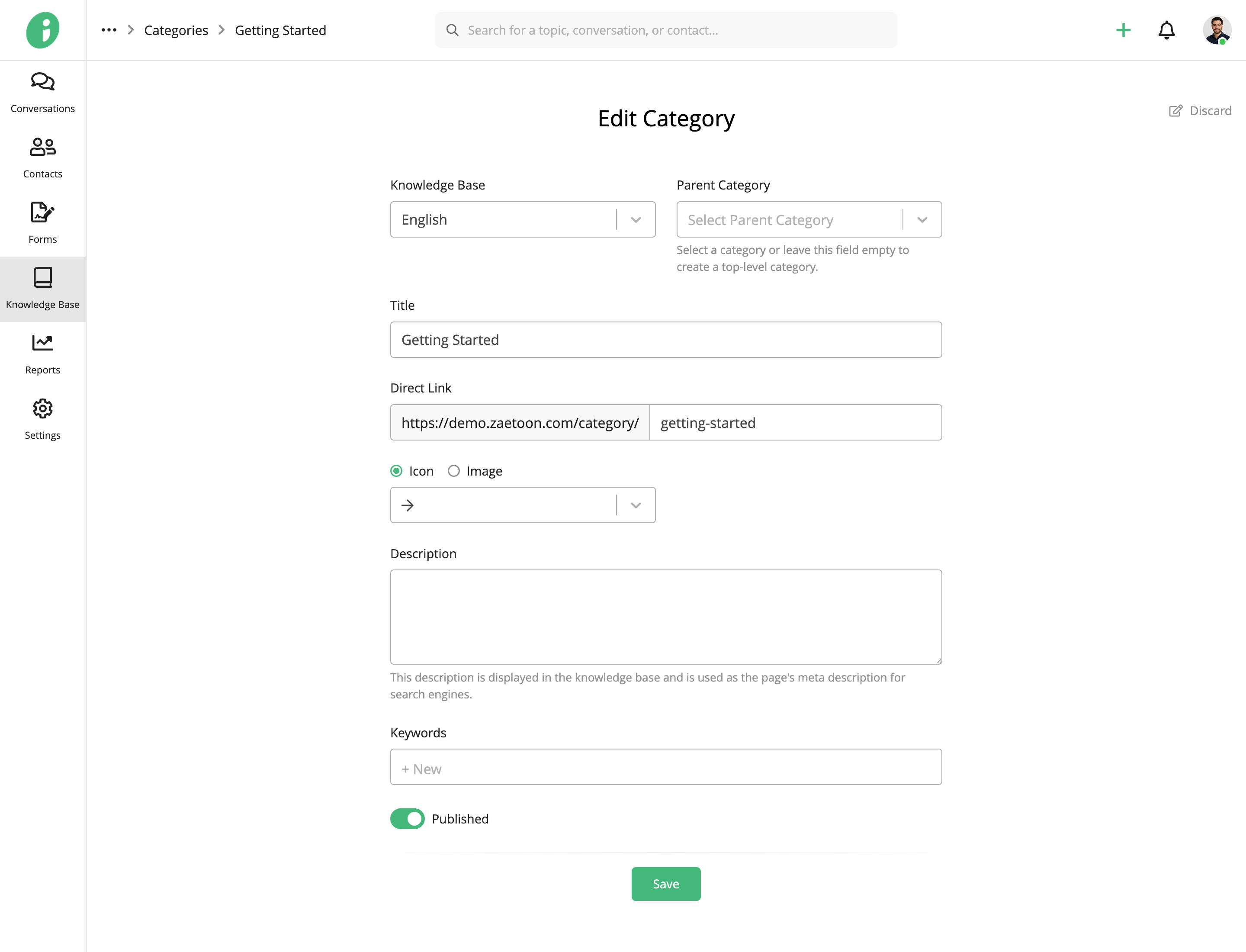
Click Save to apply your changes.
To delete a category, select Delete from its options menu.
Reorder Categories
On the Categories page, click Reorder, then drag categories into your preferred order using the handles on the left.
The order you set determines how categories appear on your public knowledge base website.
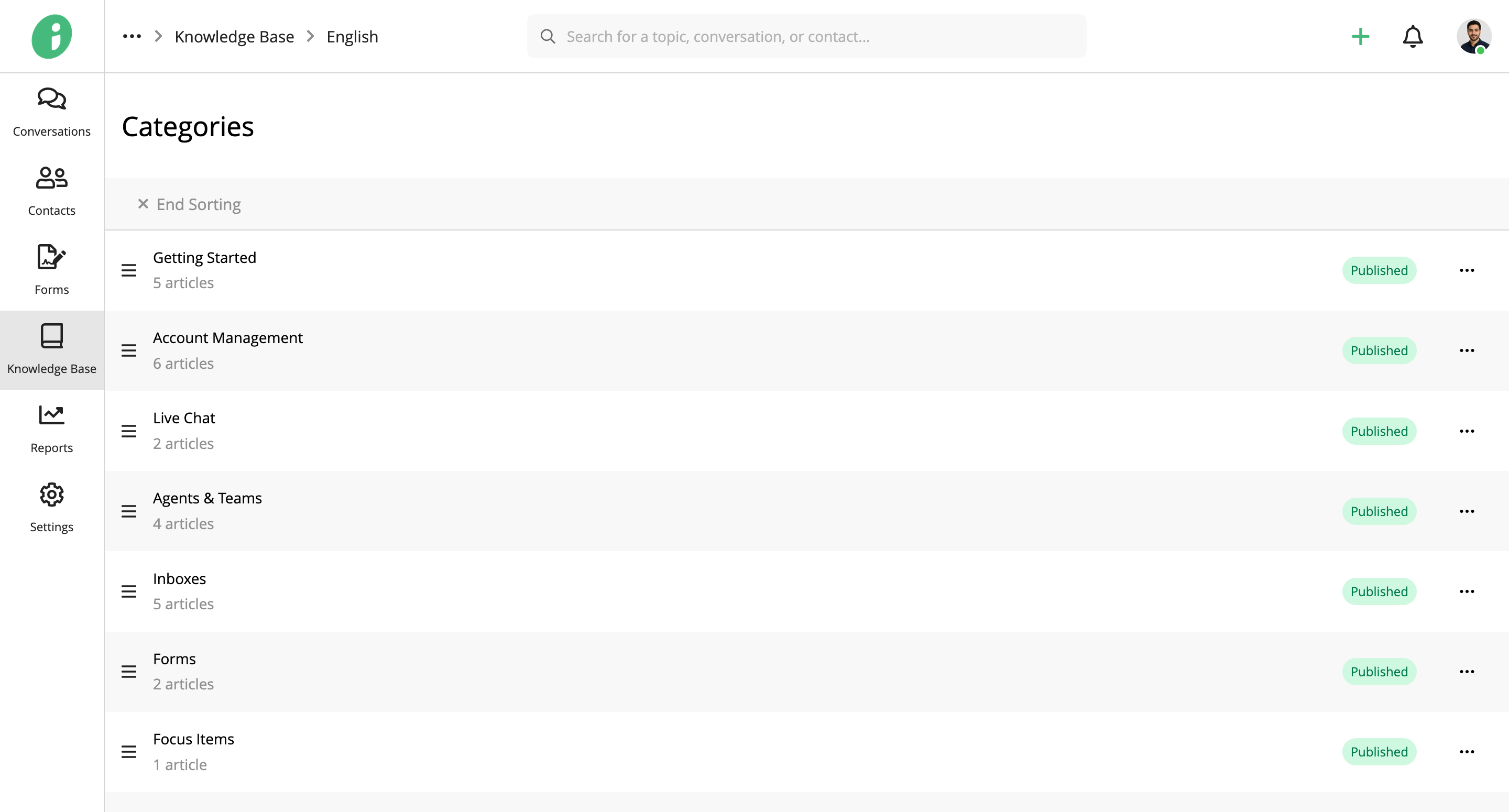
Click End Sorting to apply your changes.
Filter Categories
On the Categories page, click Filter to narrow the category list by Parent Category or Status.
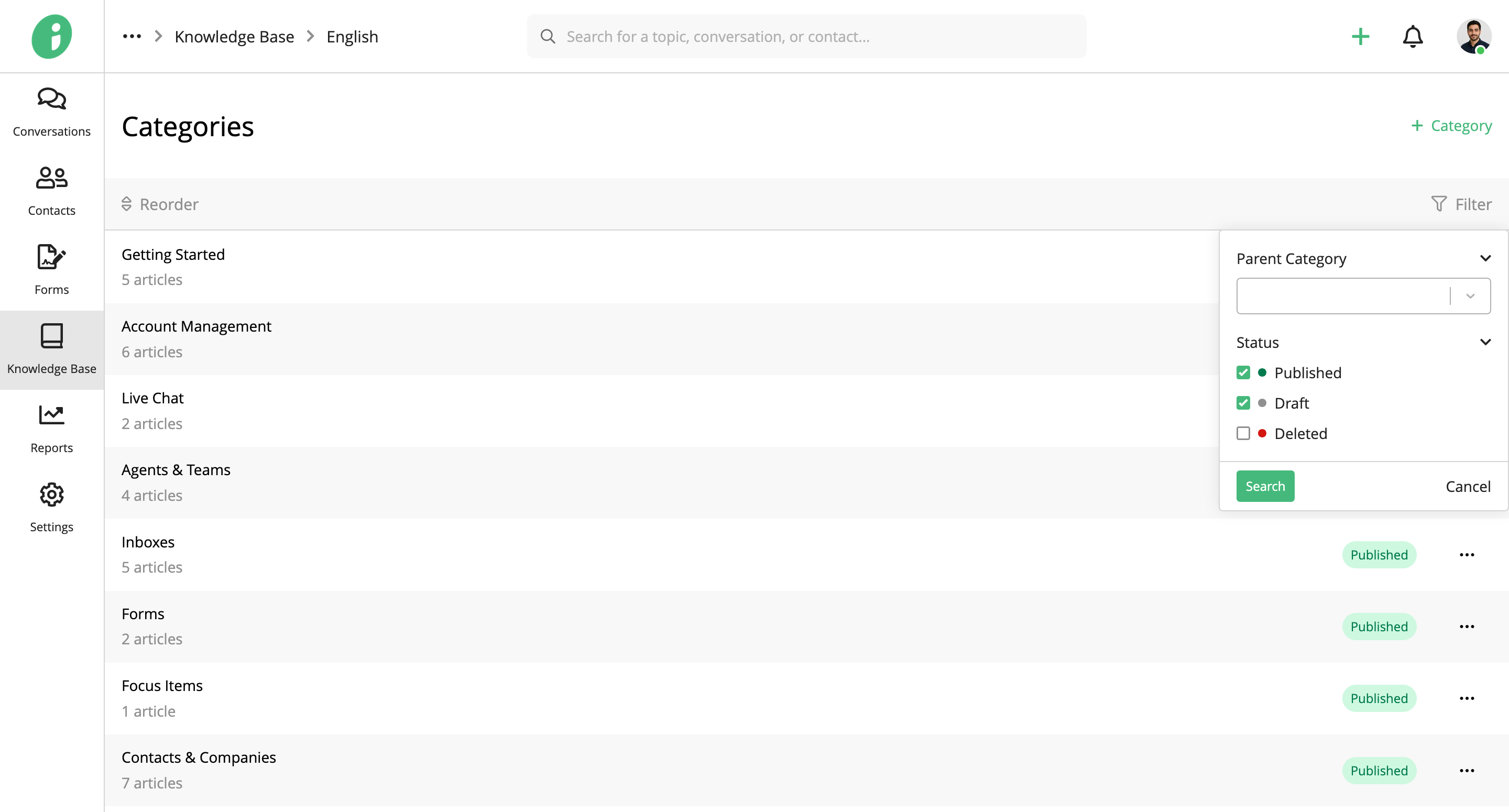
Select your criteria and click Search to display matching categories.