Knowledge Base articles help you share guides, answers, and useful information with visitors to your Zaetoon Helpdesk.
You can create and manage articles, organize their display order, feature important content, and update multiple articles at once.
Create an Article
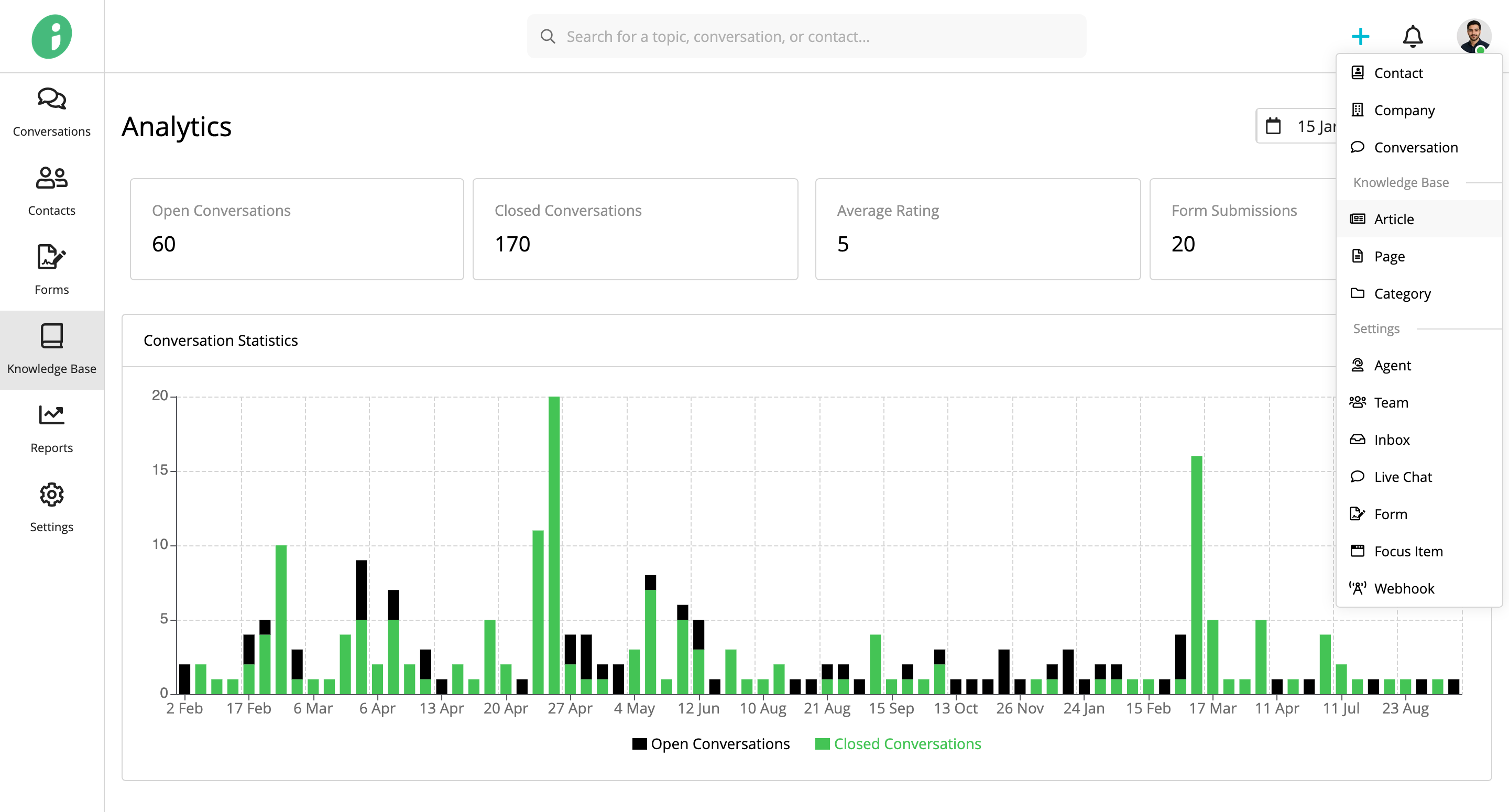
From your Helpdesk, click + Add in the top-right corner and select Article.
Configure the article details:
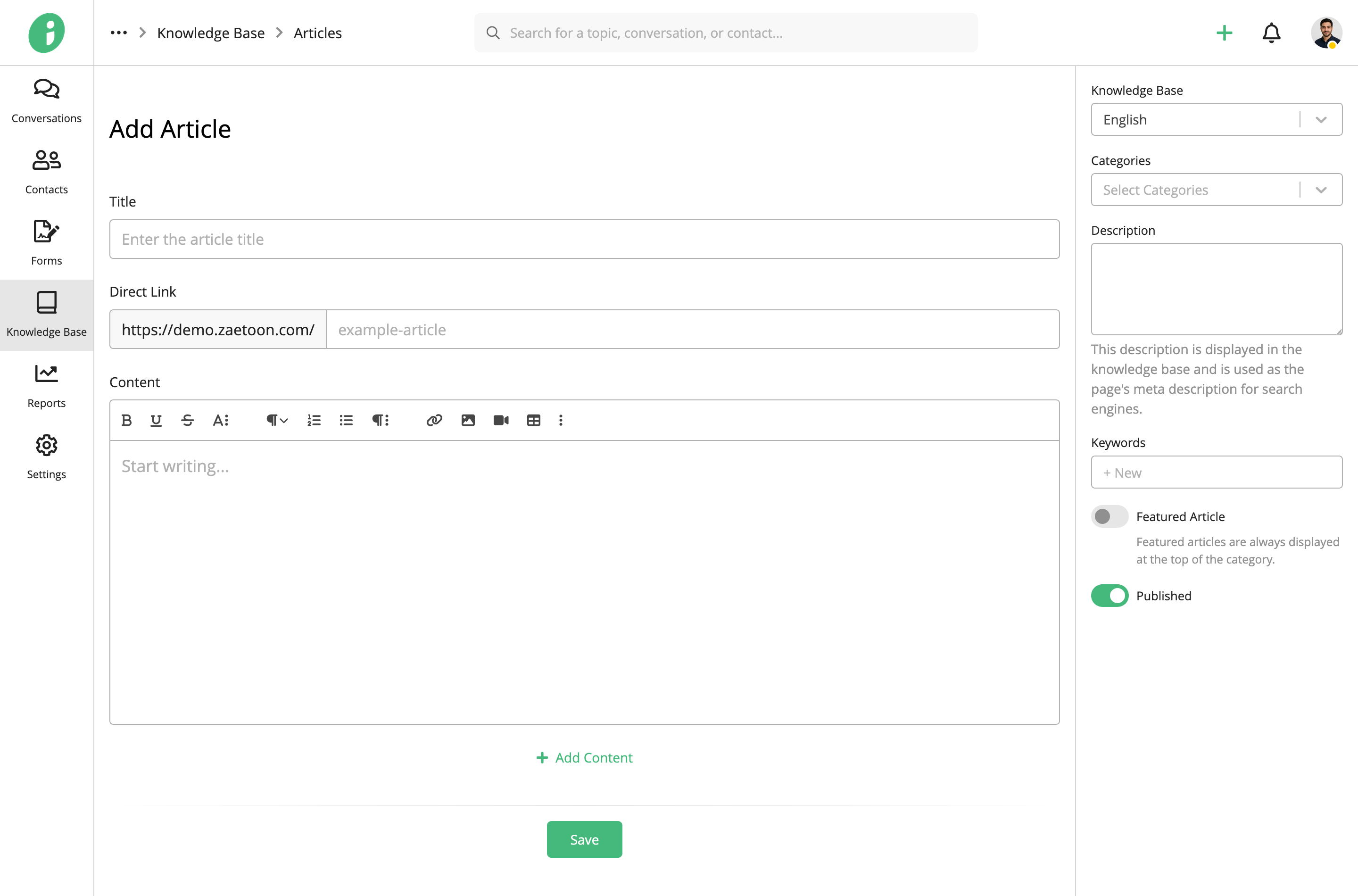
- Title: Enter the article title.
- Direct Link: Set the URL slug for the article.
- Content: Write and format the article using the editor. You can also insert images, videos, tables, and other content.
- Knowledge Base: Choose whether to add the article to your English or Arabic knowledge base.
- Categories: Select the categories where the article should appear.
- Description: Enter a description displayed in the knowledge base and used as the page’s meta description for search engines.
- Keywords: Add relevant keywords for the article.
- Featured Article: Enable this option to display the article at the top of its category.
- Published: Enable this option to publish the article, or disable it to save the article as a draft.
Click Save to create the article.
Edit or Delete an Article
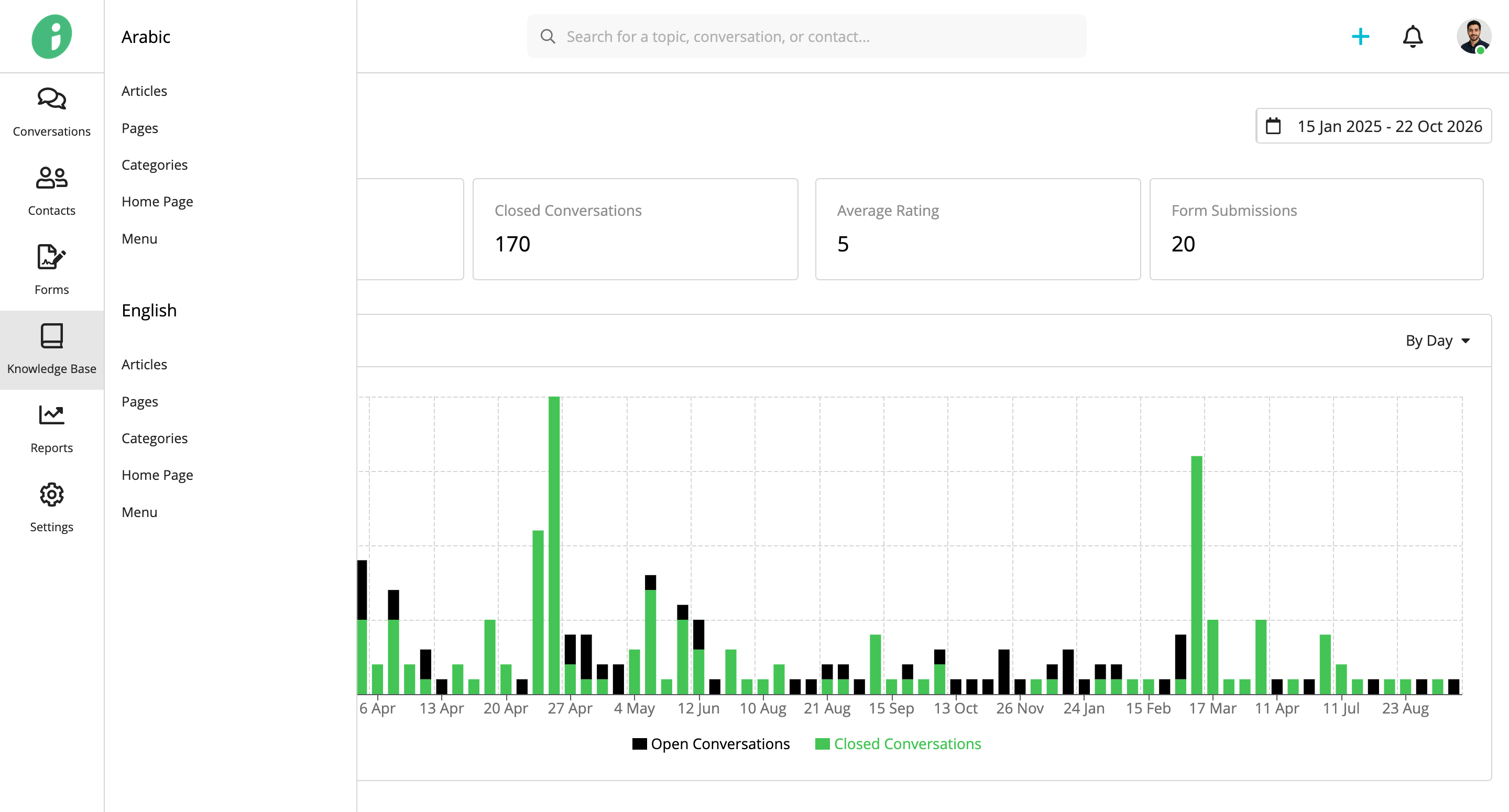
From your Helpdesk, go to Knowledge Base → English → Articles.
Find the article you want to manage and open its options menu.
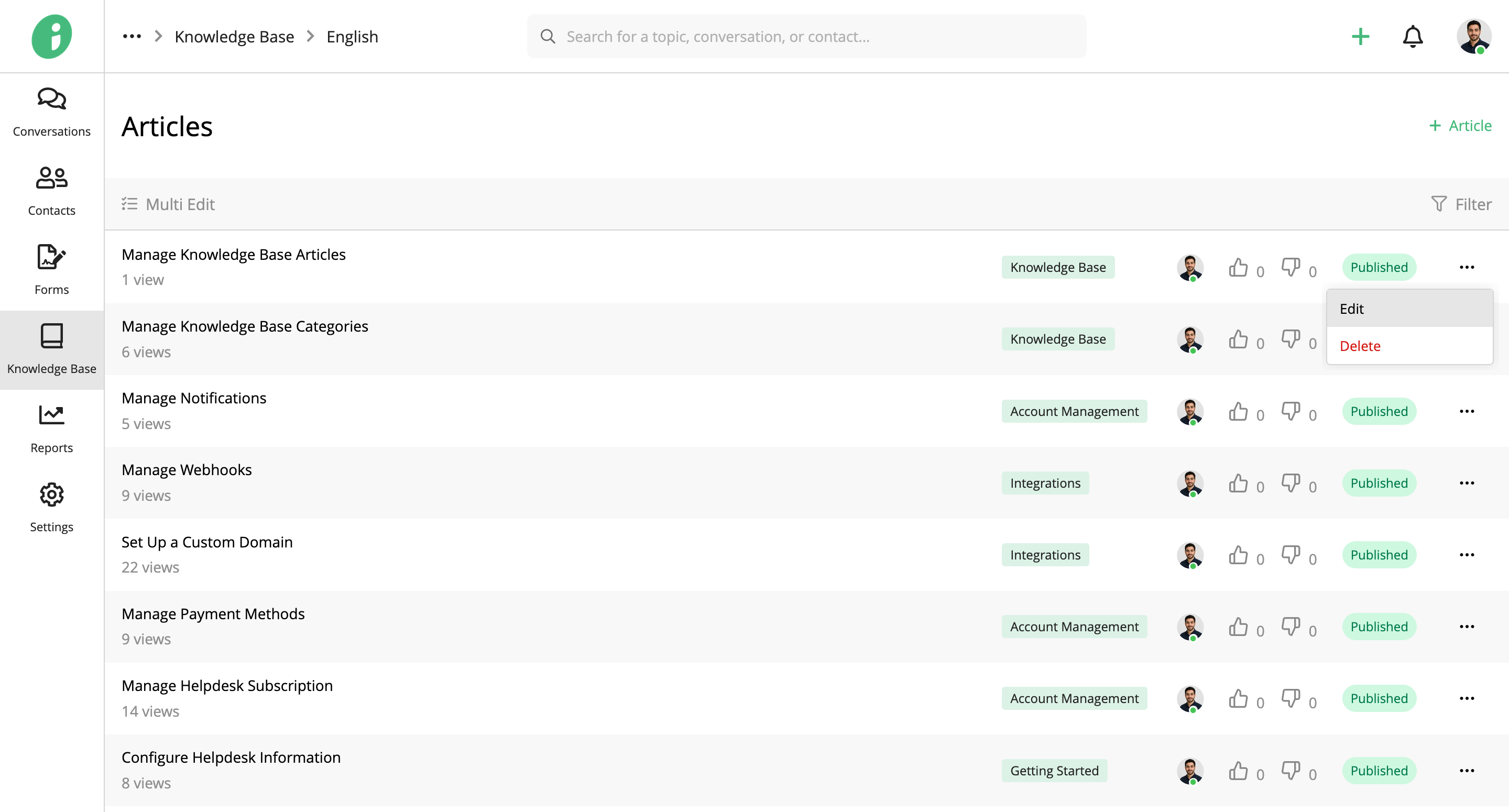
Select Edit to update the article’s content and settings.
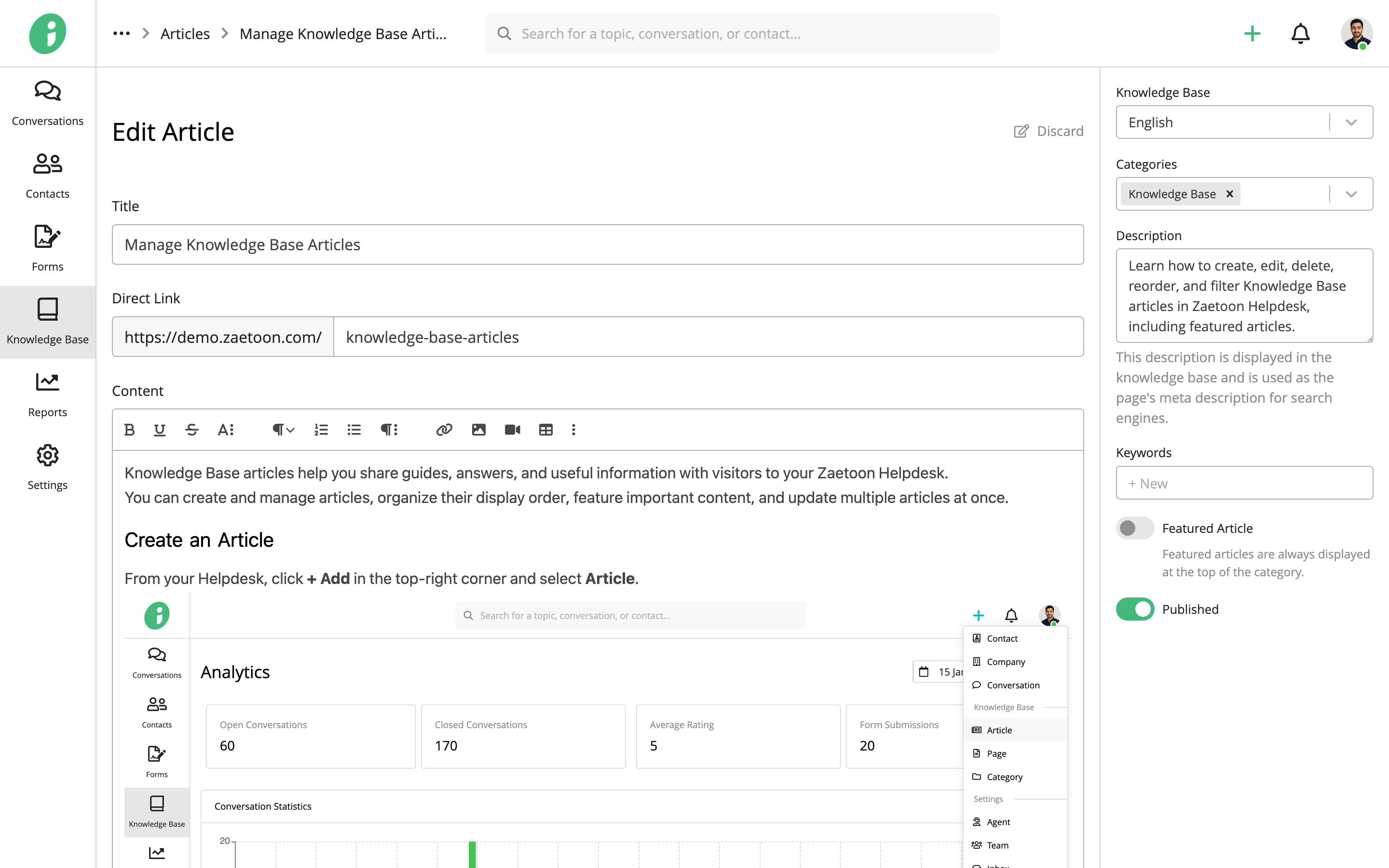
Click Save to apply your changes.
To delete an article, select Delete from its options menu.
Reorder Articles
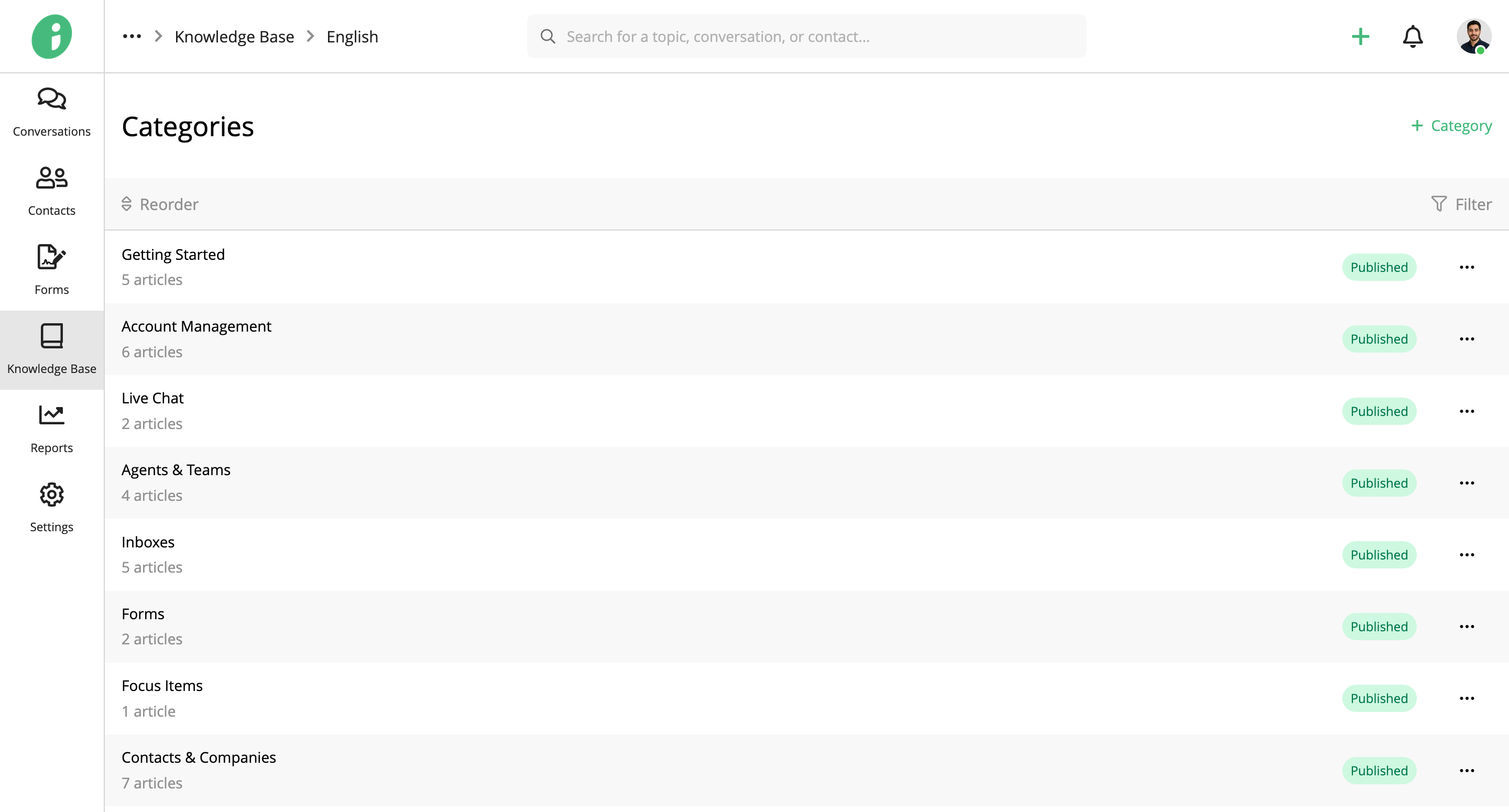
From your Helpdesk, go to Knowledge Base → English → Categories.
Click the category containing the articles you want to reorder, such as Getting Started.
Drag the articles into your preferred order using the handles on the left. The new order is applied automatically.
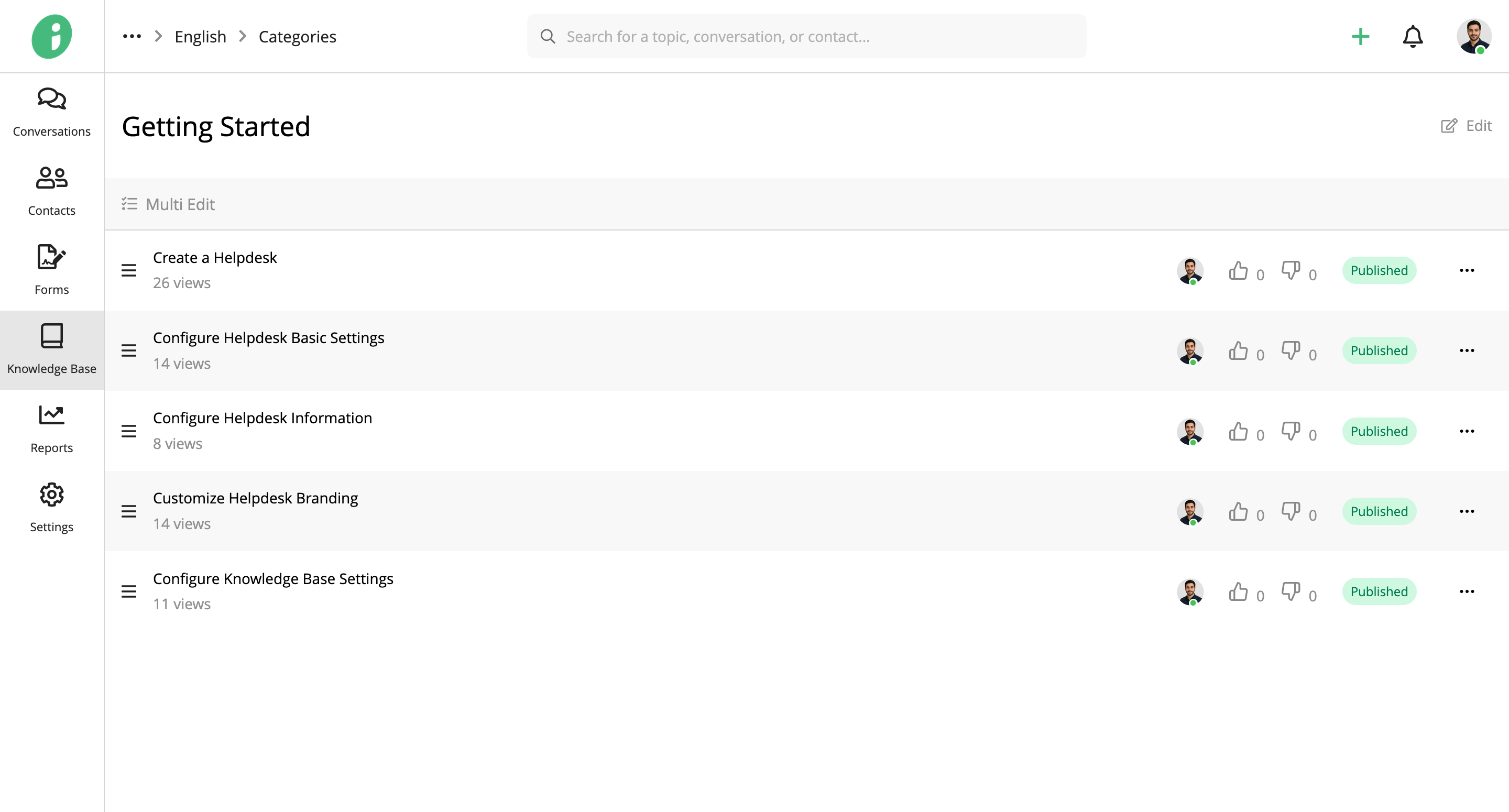
The order you set determines how articles appear within that category on your public Knowledge Base website.
Filter Articles
From your Helpdesk, go to Knowledge Base → English → Articles.
Click Filter to narrow the article list by Category, Author or Status.
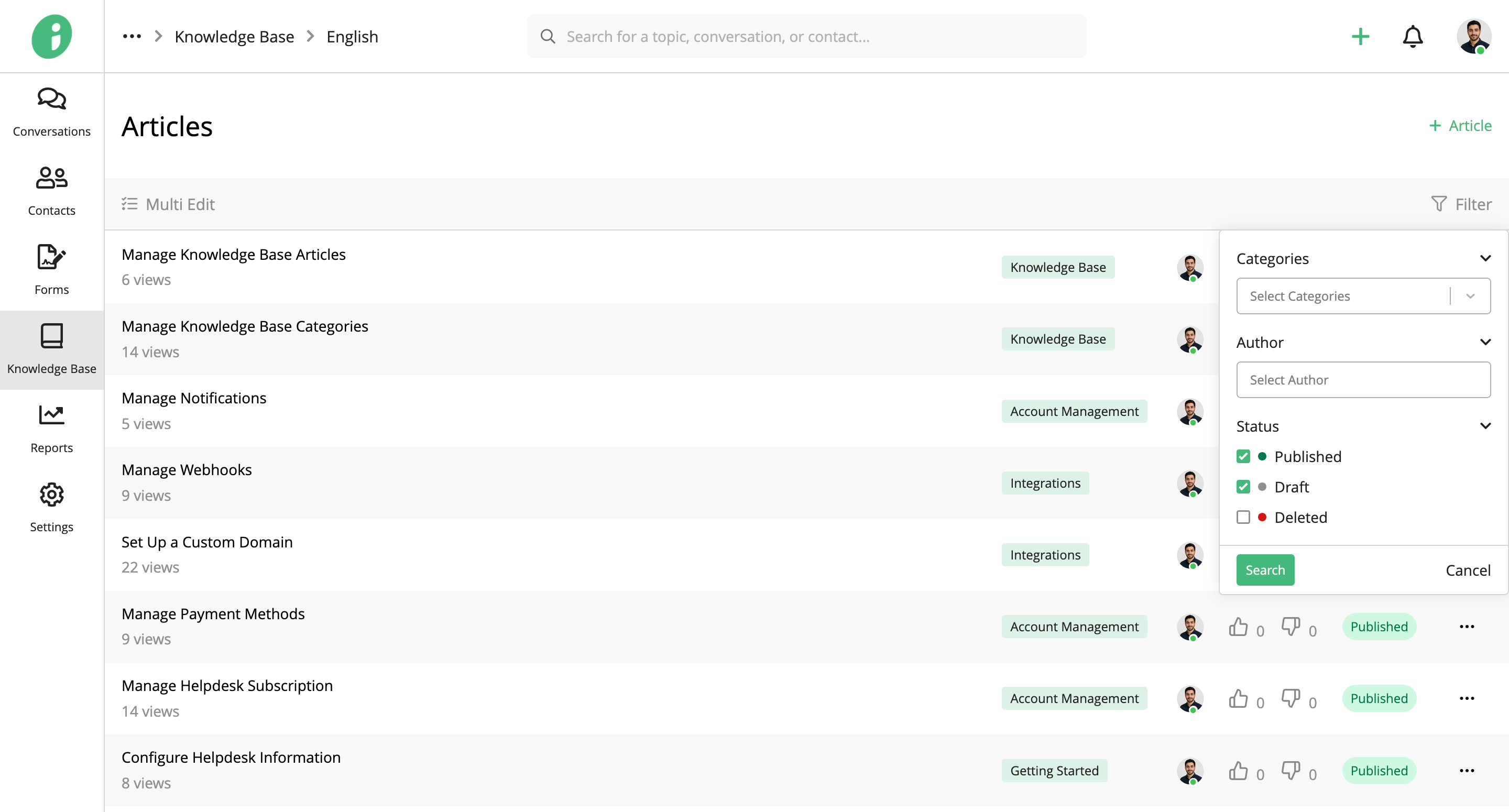
Select your filter criteria and click Search to display matching articles.
Manage Multiple Articles
On the Articles page, click Multi Edit, then select the articles you want to manage using their checkboxes.
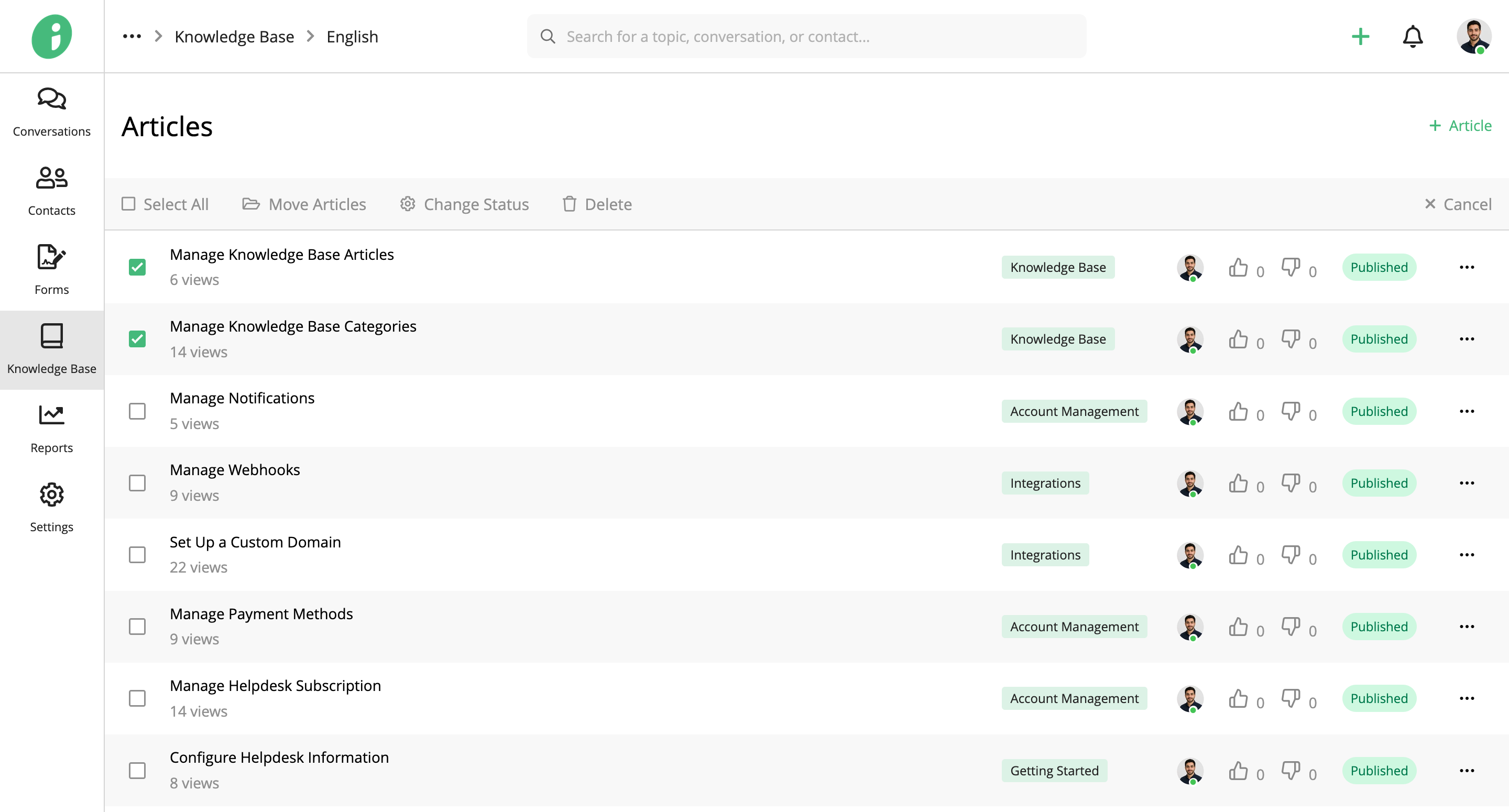
Choose an action:
- Move Articles: Move the selected articles to other categories.
- Change Status: Set the selected articles to Published or Draft.
- Delete: Delete the selected articles.
Click Cancel to exit multi-edit mode.