The conversations list provides a central place to find, organize, and manage conversations across your Helpdesk.
From your Helpdesk, go to Conversations → All Conversations to open the conversation list.
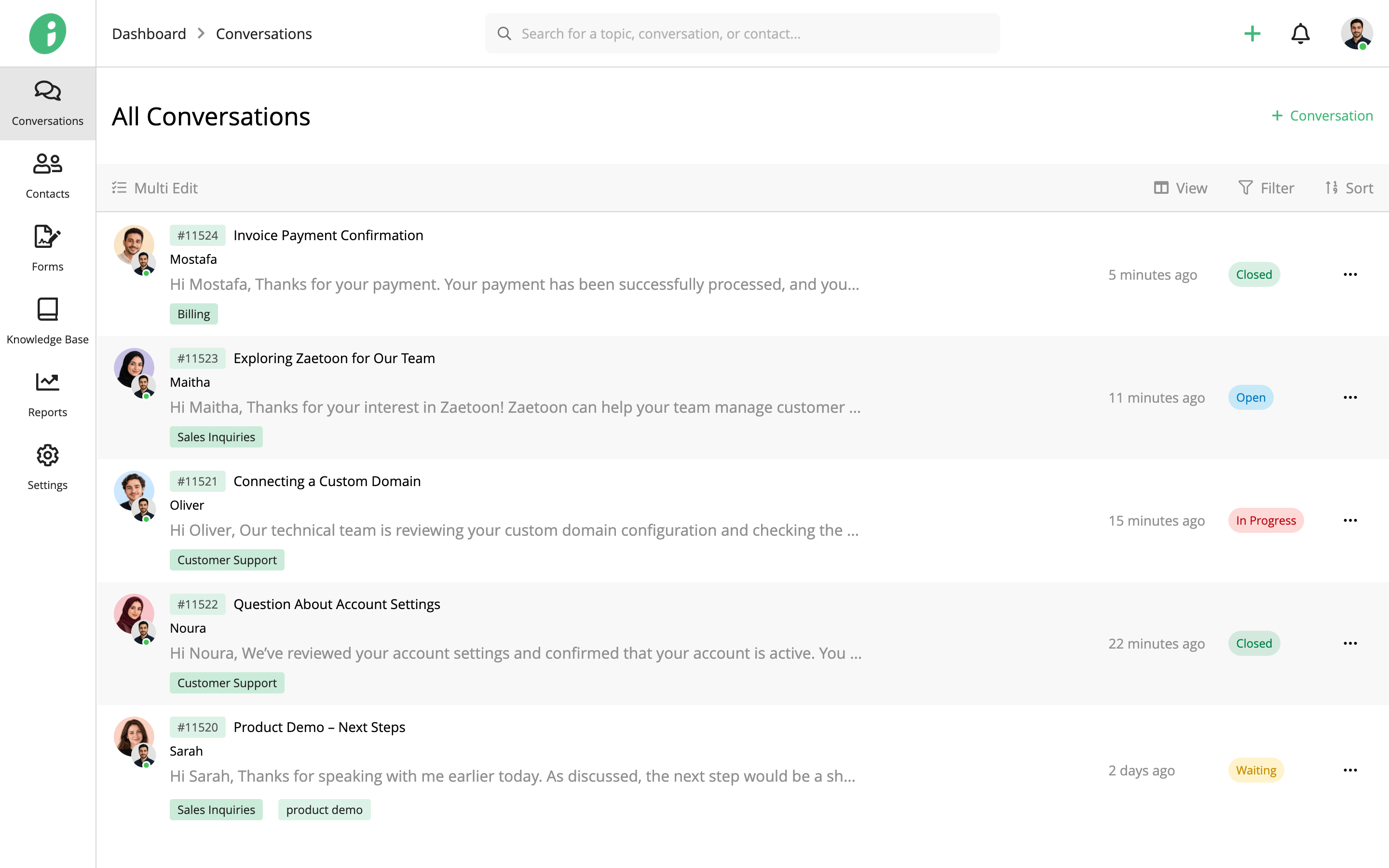
Navigate Conversations
Use the sidebar to browse conversations by status, assignment, or inbox.
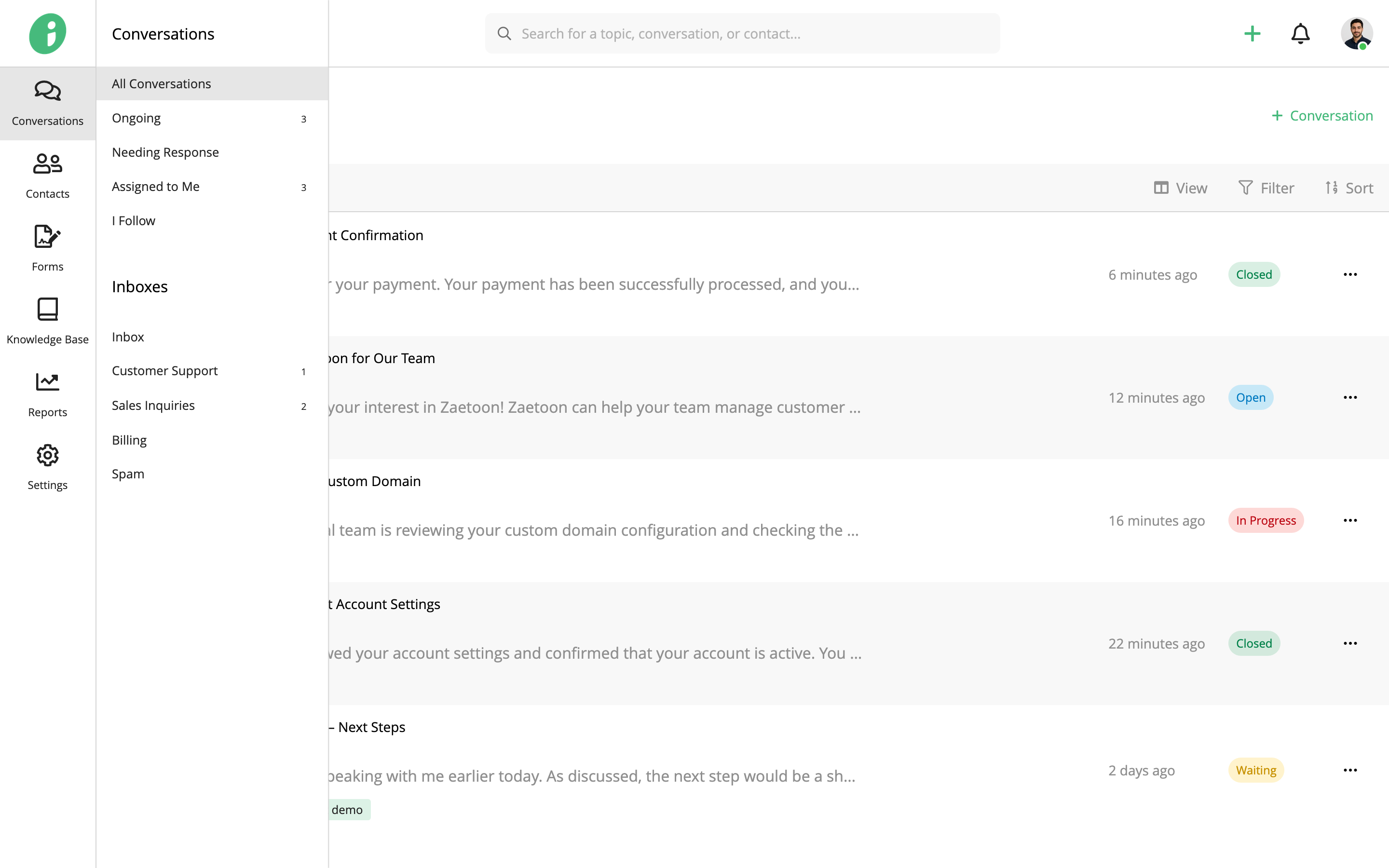
- All Conversations: View all conversations.
- Ongoing: View ongoing conversations.
- Needing Response: View conversations awaiting a response.
- Assigned to Me: View conversations assigned to you.
- I Follow: View conversations you follow.
Under Inboxes, select an inbox to view its conversations.
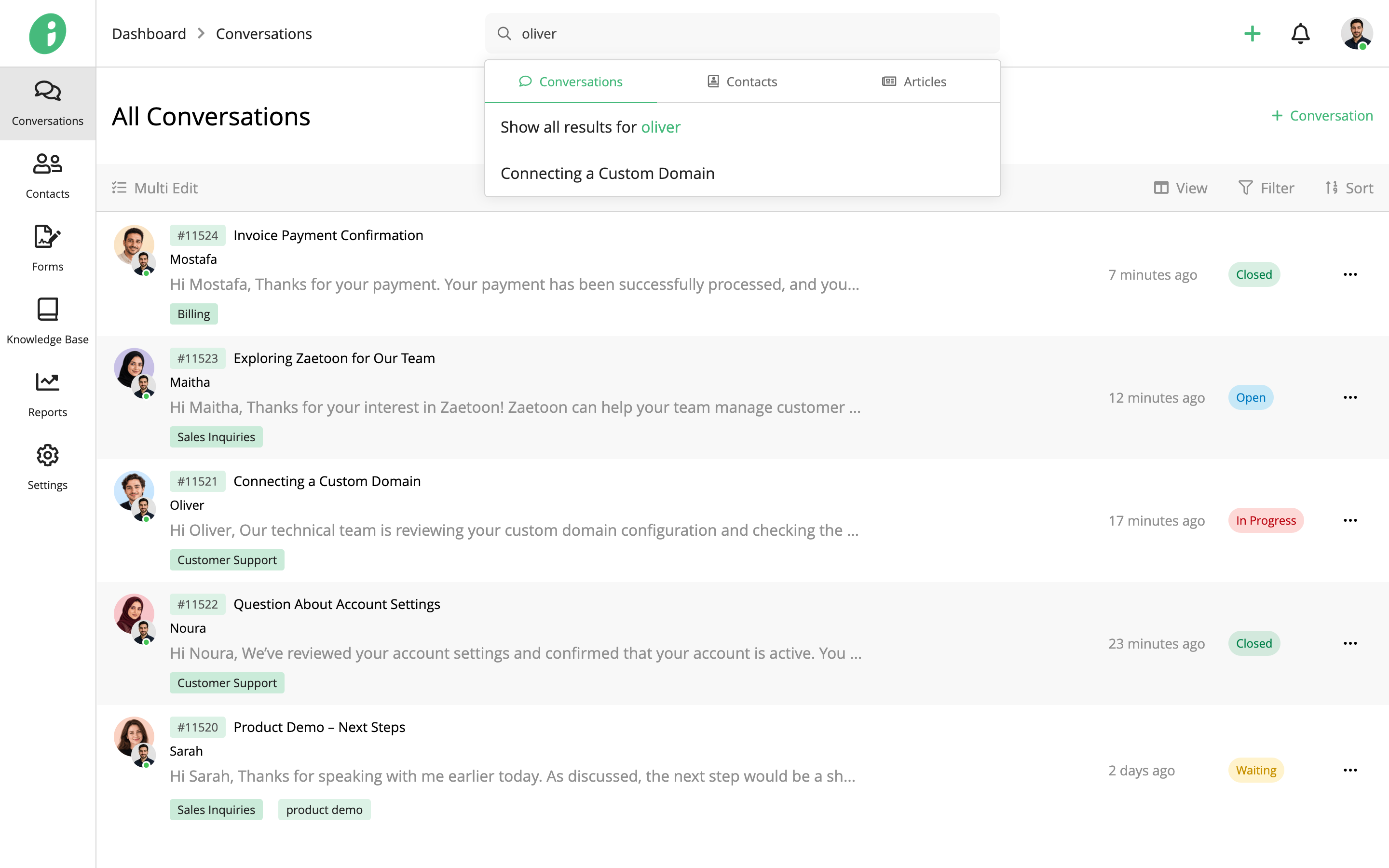
Search the Helpdesk
Use the search bar at the top of your Helpdesk to find conversations, contacts, and articles by keyword or email address. Select a category to view its results, or click Show all results for more matches.
Switch Between Live and Ticket Views
Click View to choose how conversations are displayed.
Ticket View displays conversations in a full-width list for browsing and managing multiple conversations.
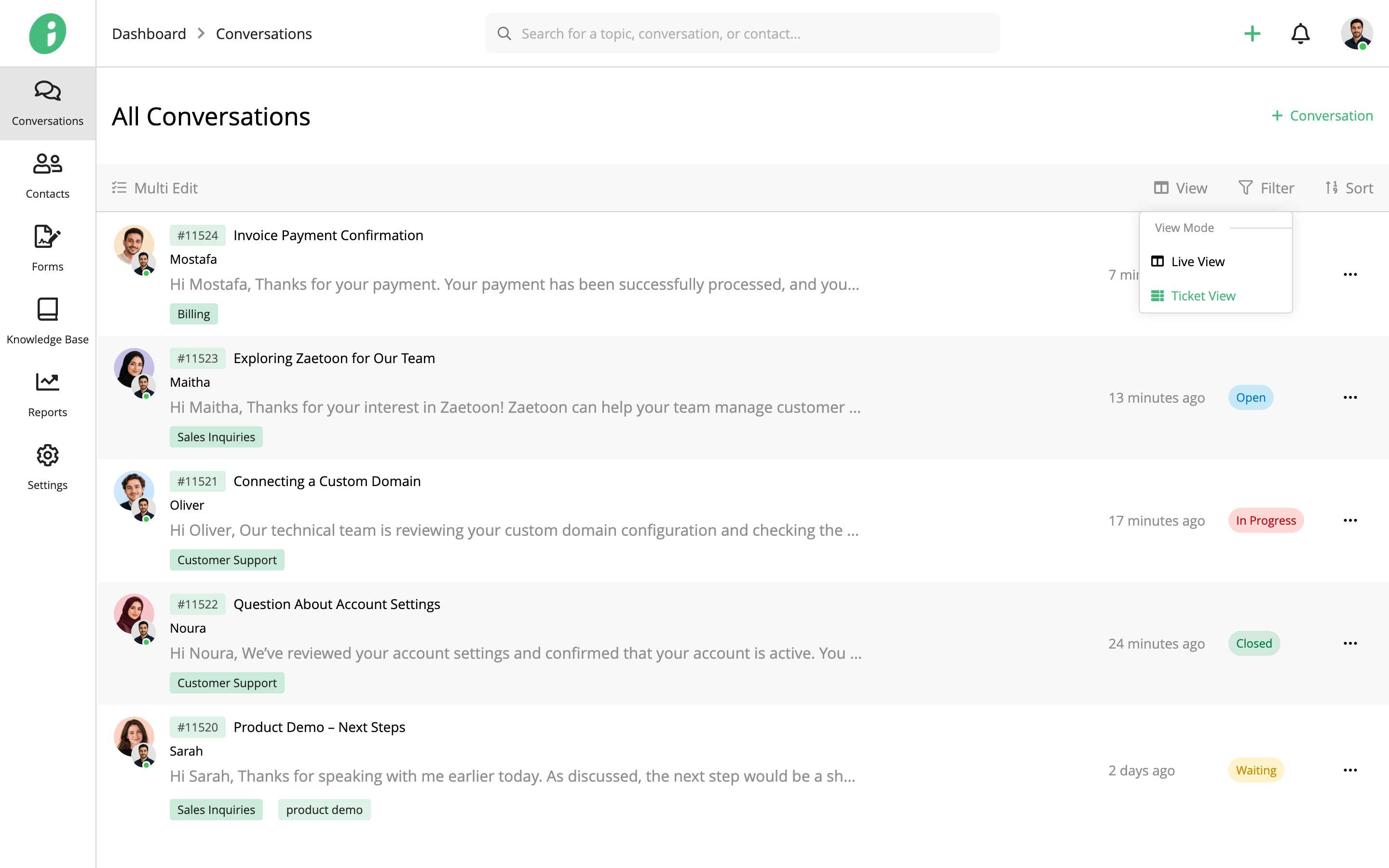
Live View displays the conversation list alongside the selected conversation, allowing you to read and respond to messages without switching pages.
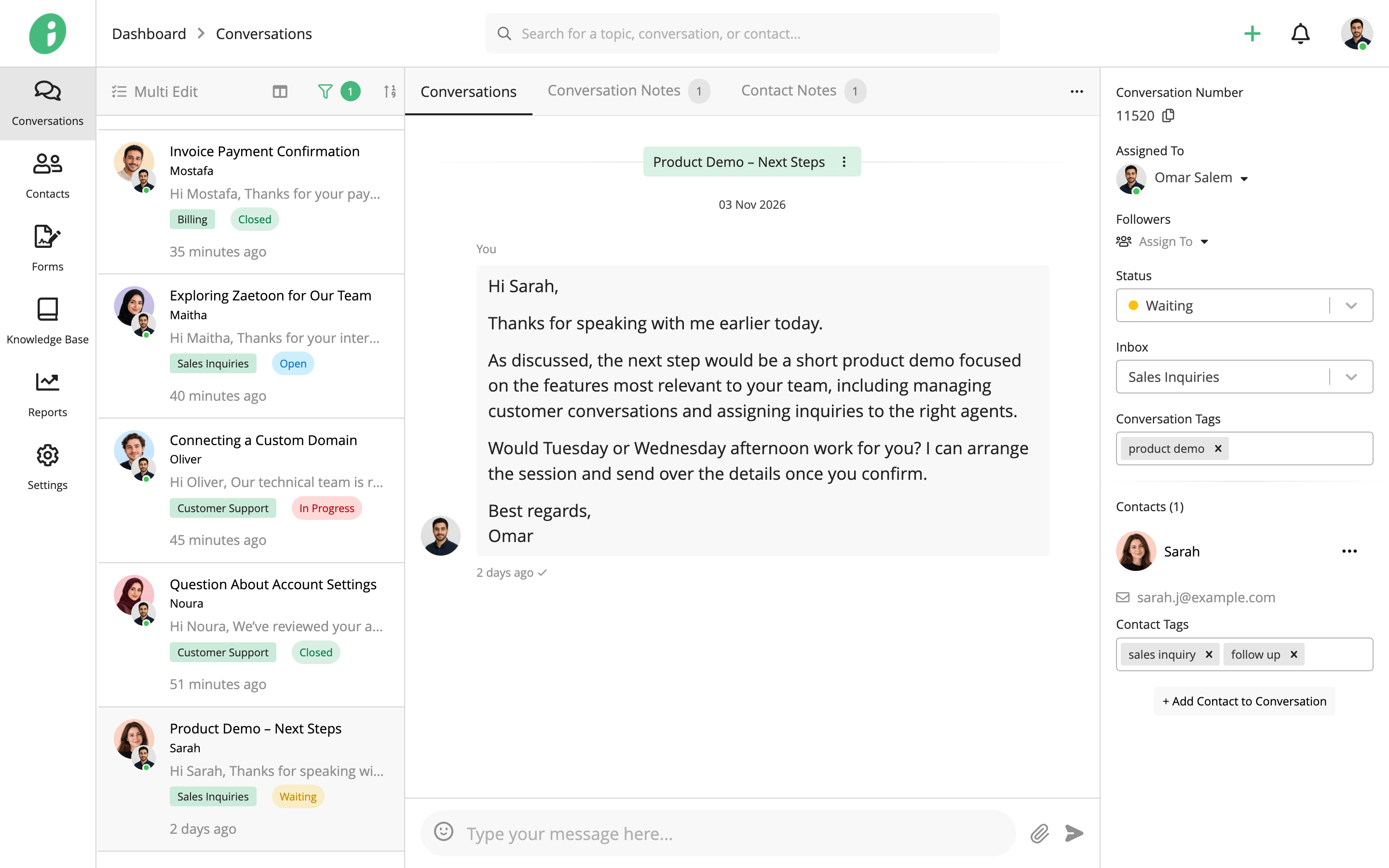
Filter Conversations
Click Filter to narrow the conversation list by Status, Last Reply By, Inboxes, Contacts, Tags, Assigned To, Followers, From Date, or To Date.
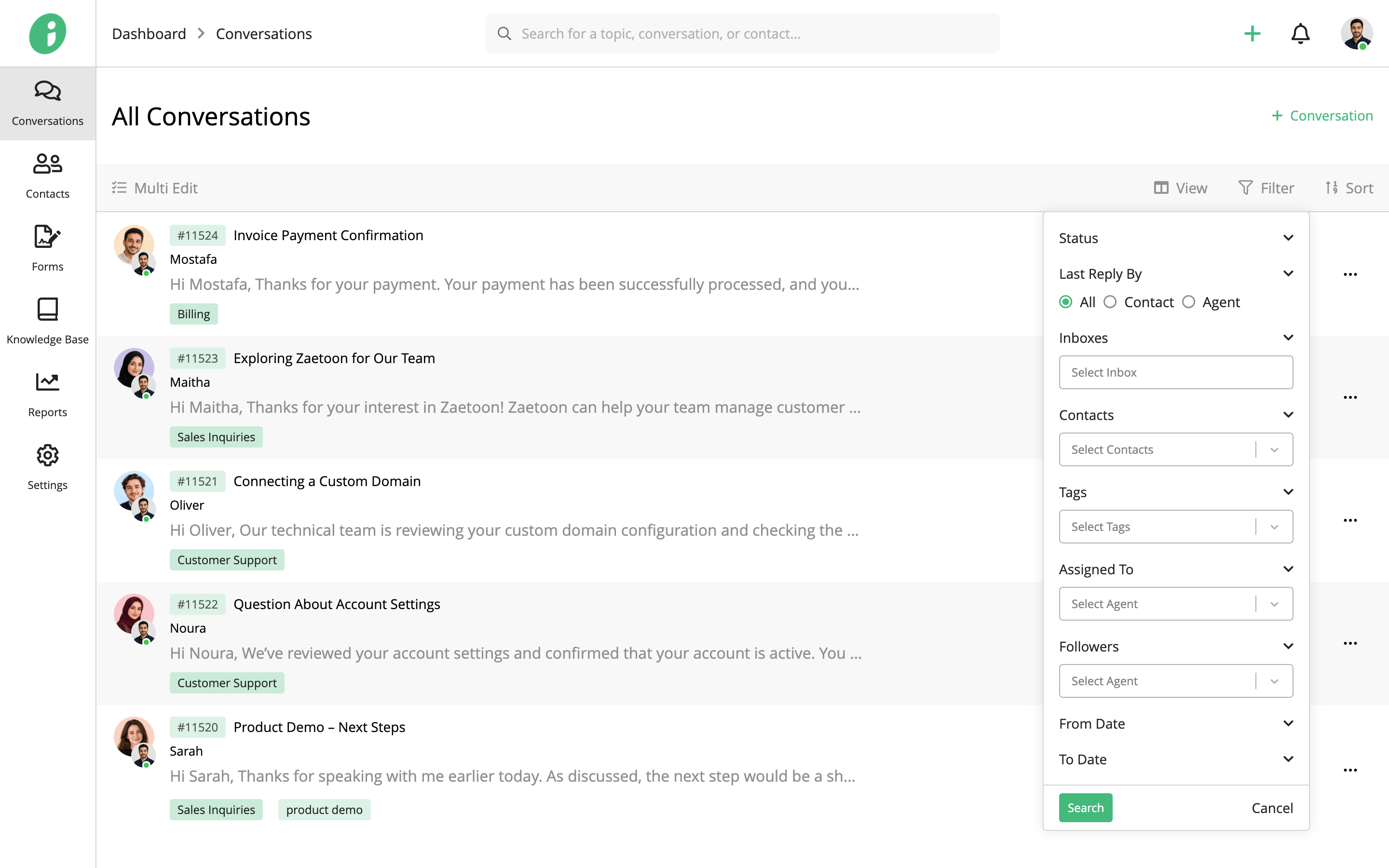
Select the relevant criteria and click Search to apply the filters.
Sort Conversations
Click Sort to arrange conversations by creation date or message activity, with the newest or oldest first.
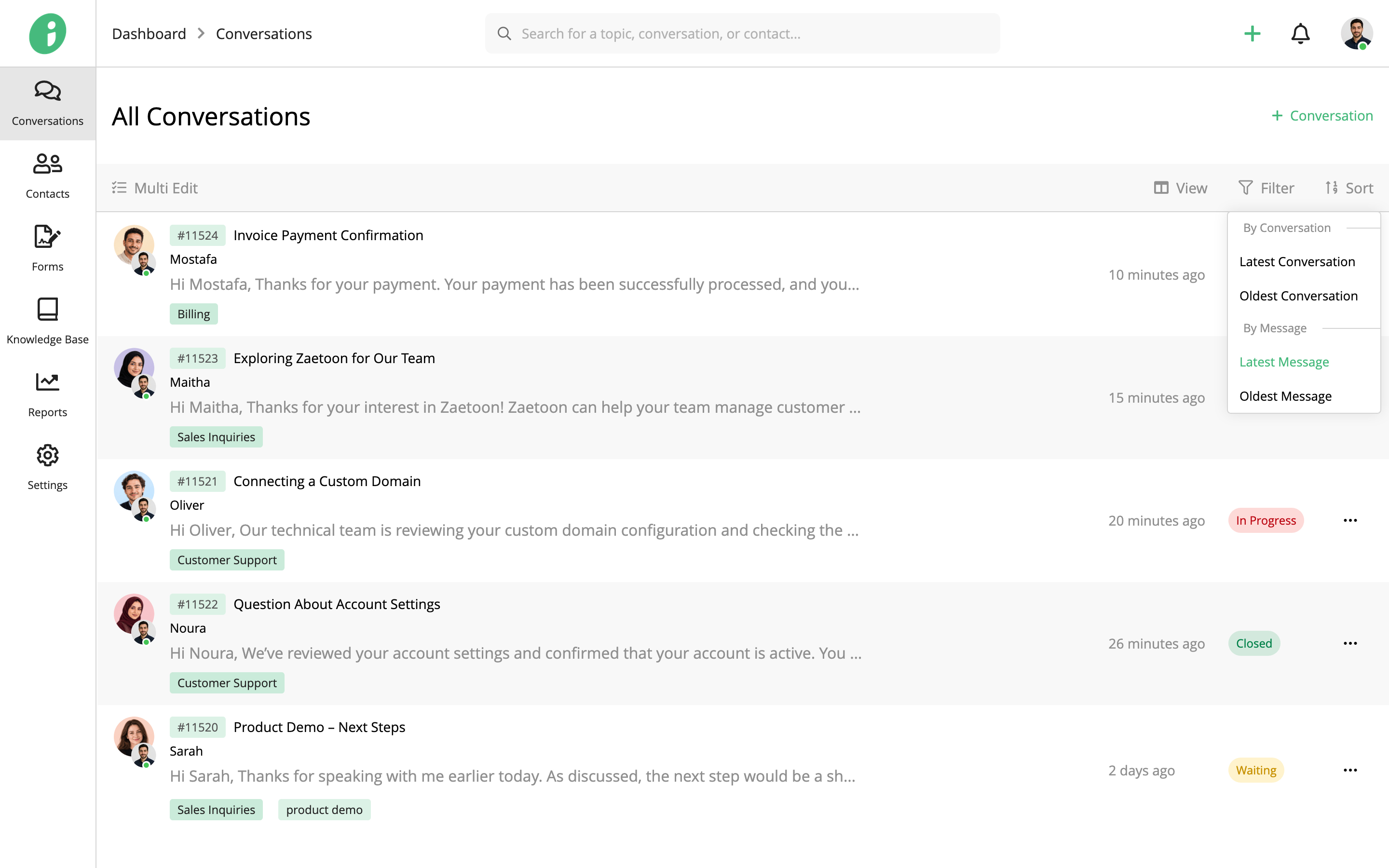
Manage Individual Conversations
Click the options menu (⋯) beside a conversation to access the following options:
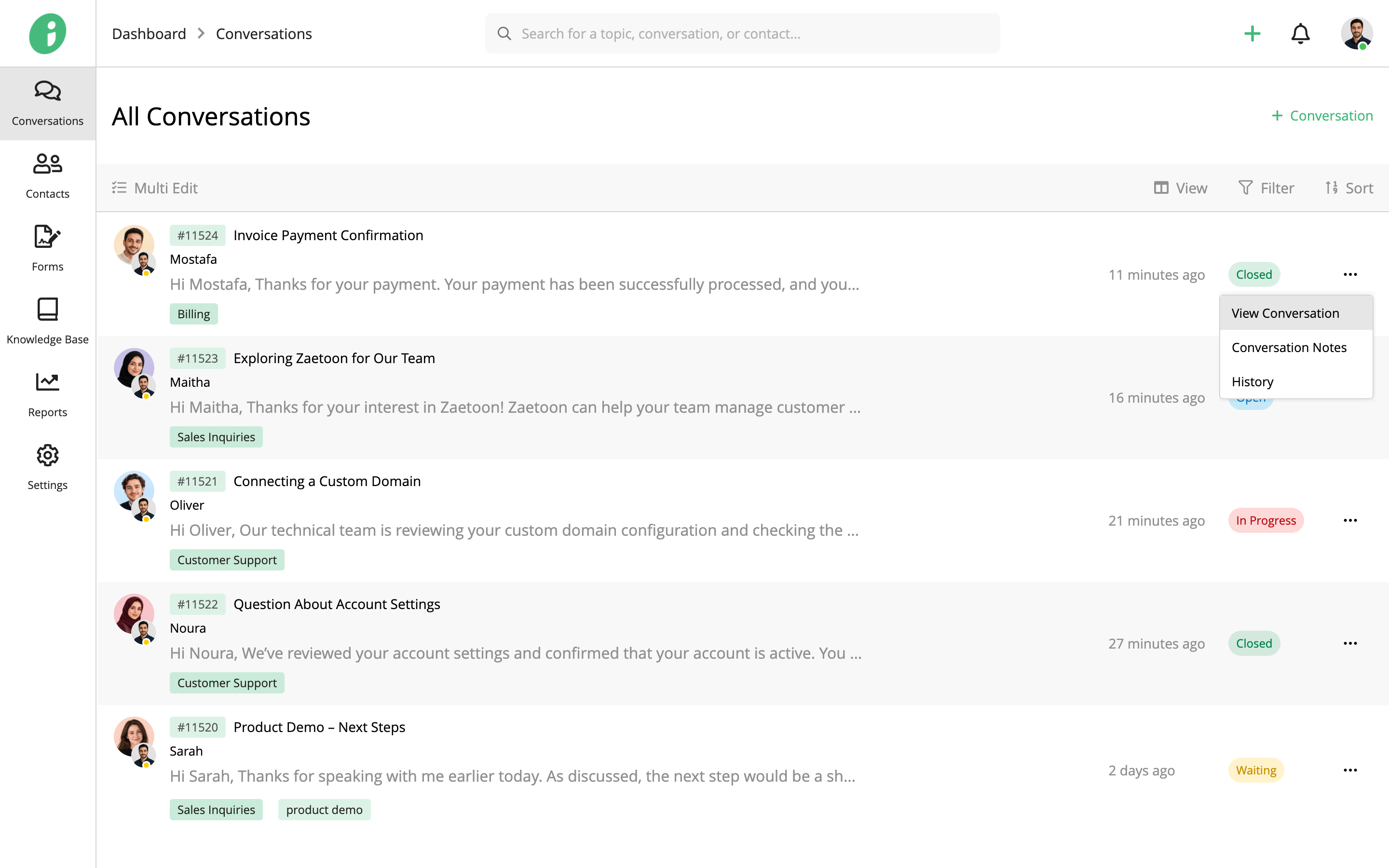
- View Conversation: Open the conversation.
- Conversation Notes: Open the conversation’s notes.
- History: View the conversation’s activity history.
For more information about replying to messages and managing conversation details, see Manage Conversations.
Manage Multiple Conversations
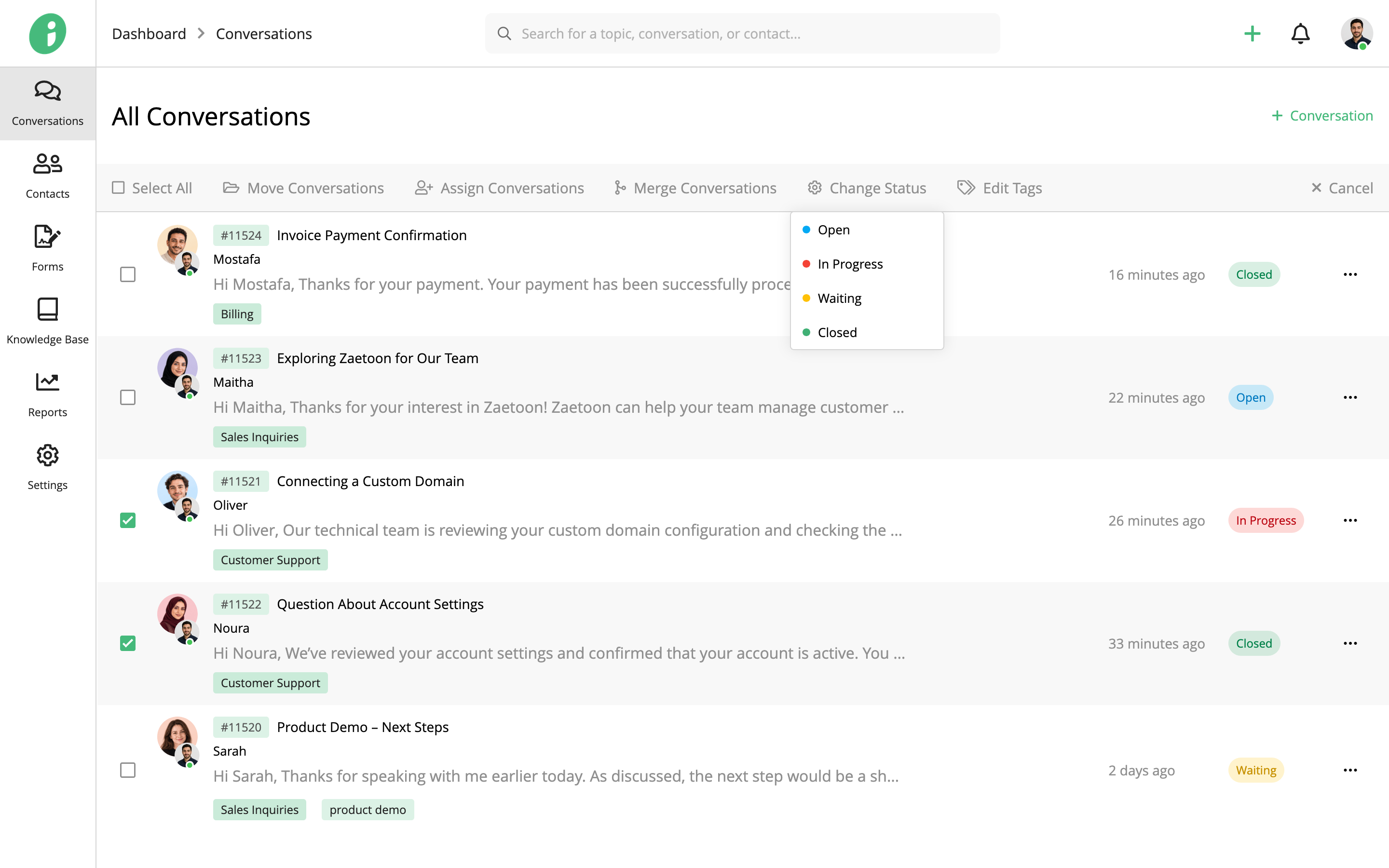
Click Multi Edit and use the checkboxes to select conversations individually, or click Select All.
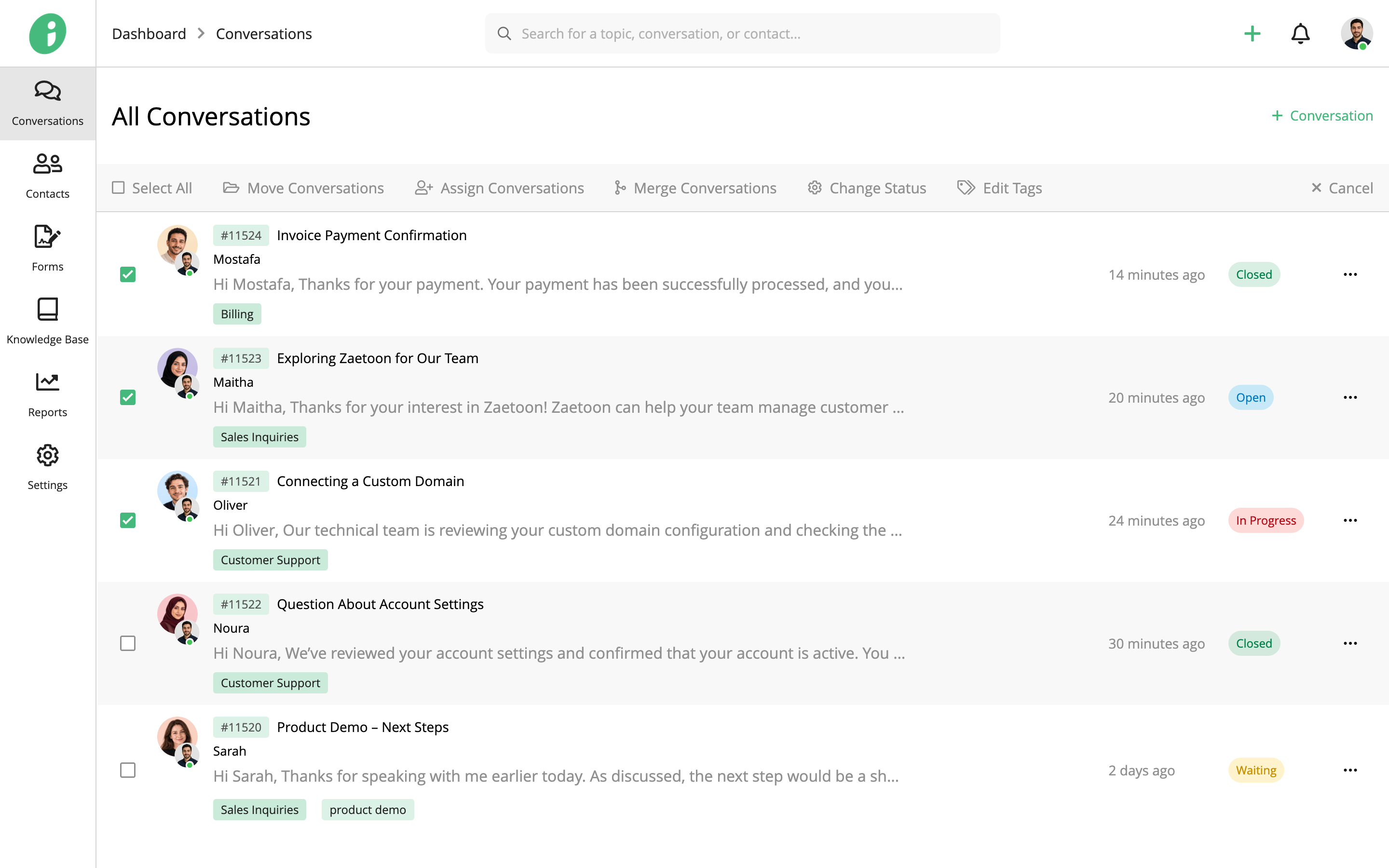
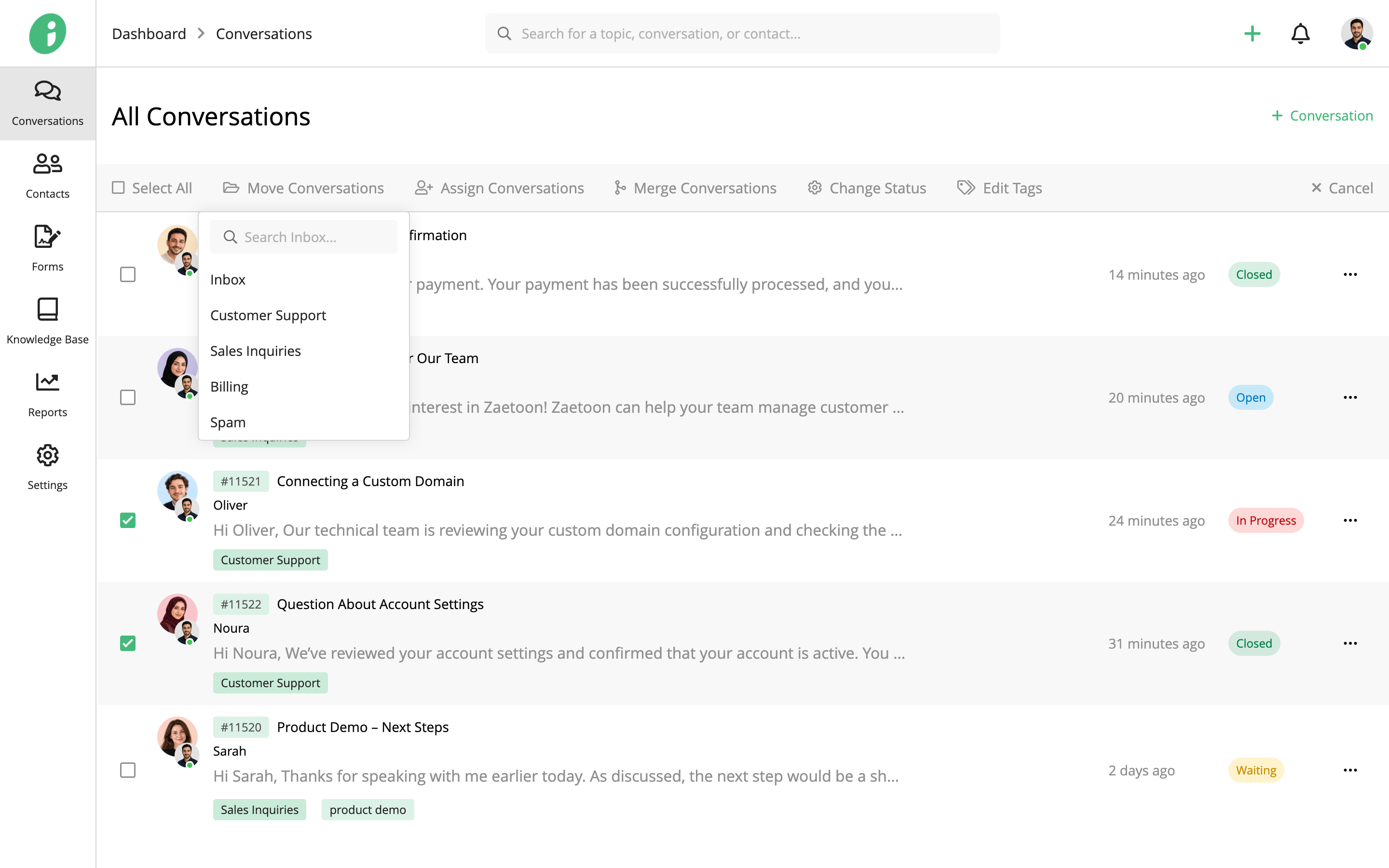
Move Conversations
Click Move Conversations and select the destination inbox.
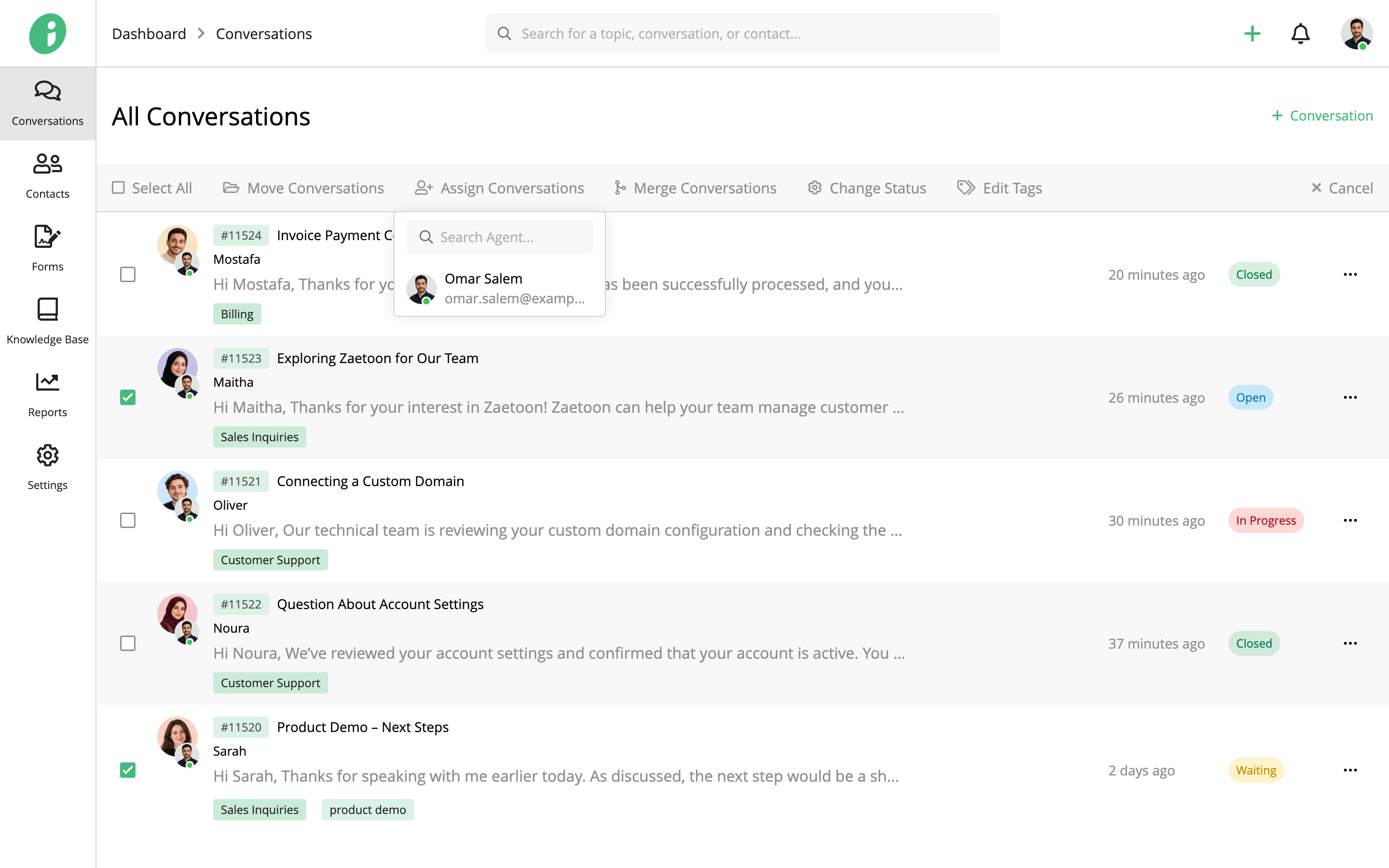
Assign Conversations
Click Assign Conversations and select the agents to assign.
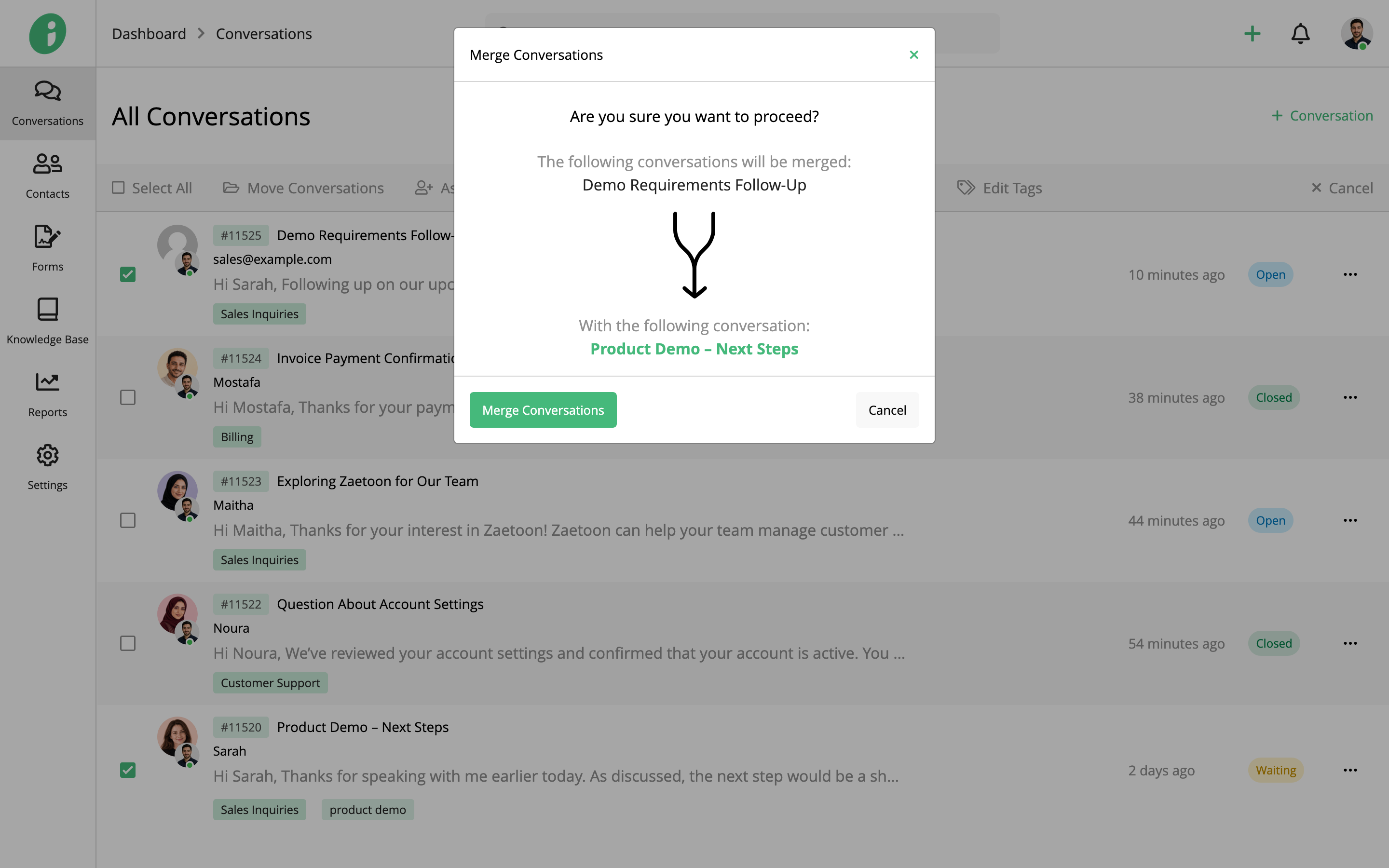
Merge Conversations
Select the conversations you want to combine, then click Merge Conversations. Review the merge details and click Merge Conversations to confirm.
Change Status
Click Change Status and select the new status.
Edit Tags
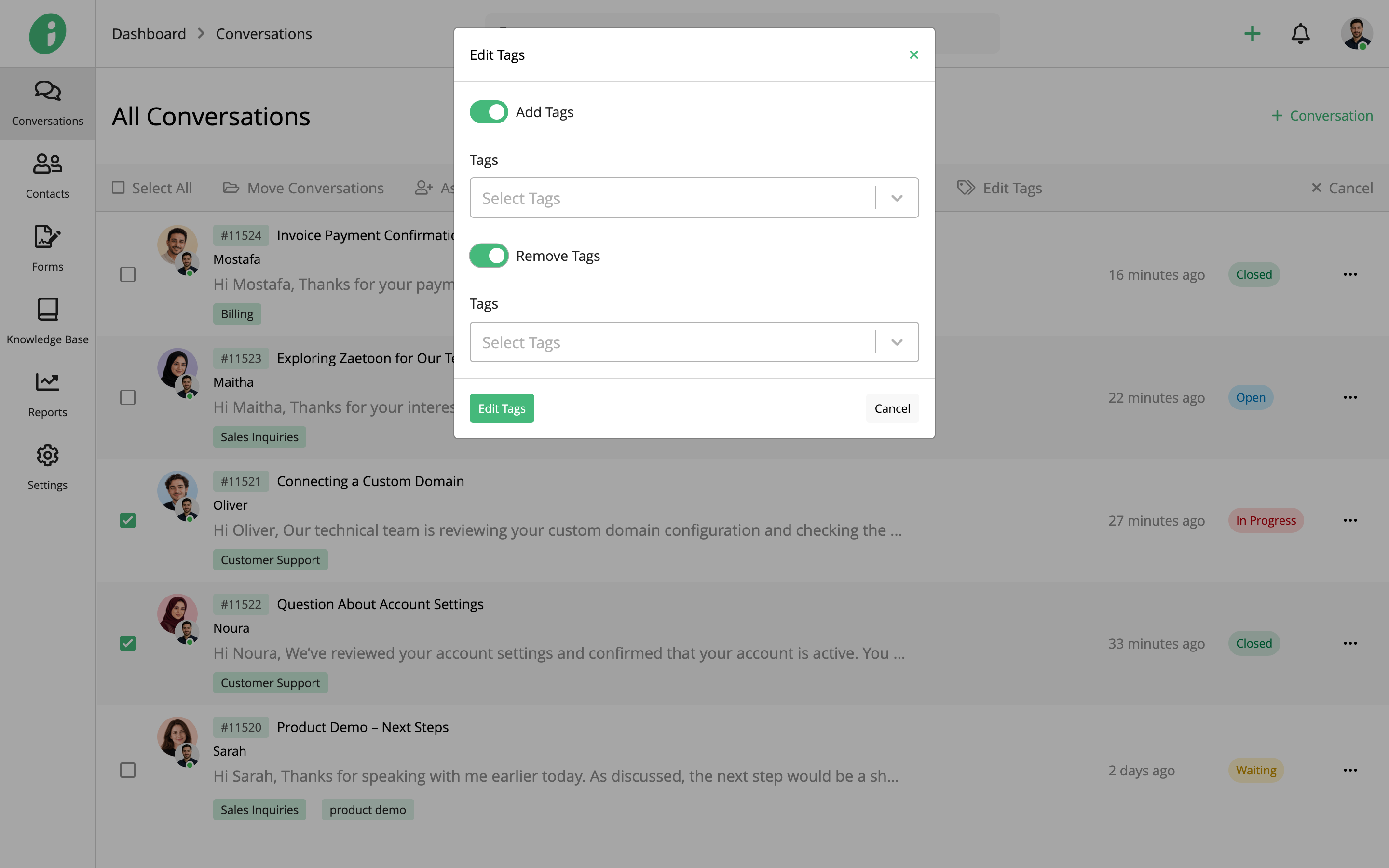
Click Edit Tags, then enable Add Tags or Remove Tags and select the relevant tags.
To exit Multi Edit mode, click Cancel.