
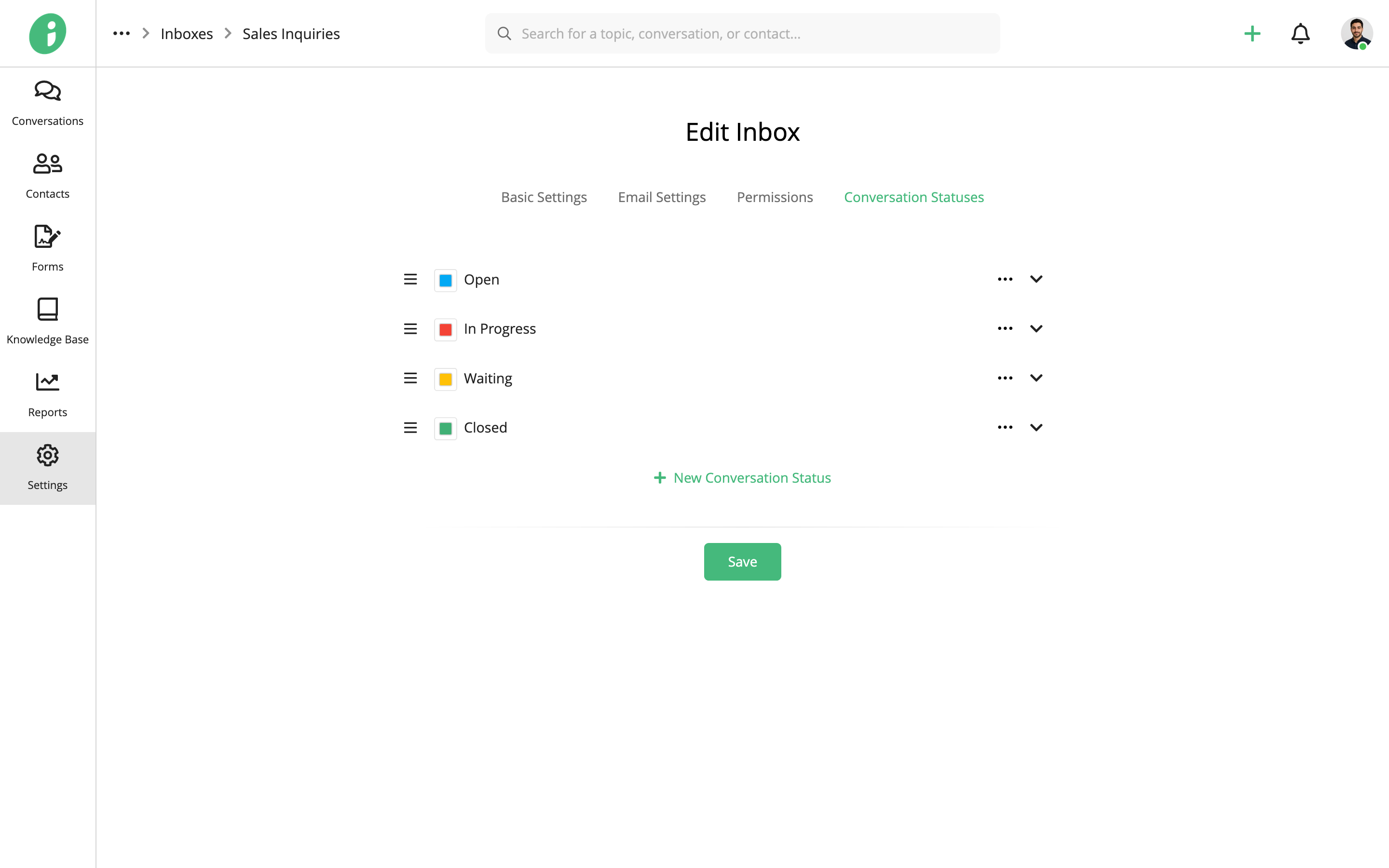
Conversation statuses help your team organize conversations, track their progress, and identify what needs attention. Zaetoon Helpdesk includes four default statuses: Open, In Progress, Waiting, and Closed.
You can also create custom statuses for each inbox and configure their names, colors, order, and automatic closing settings to match your team’s workflow.
Access Conversation Status Settings
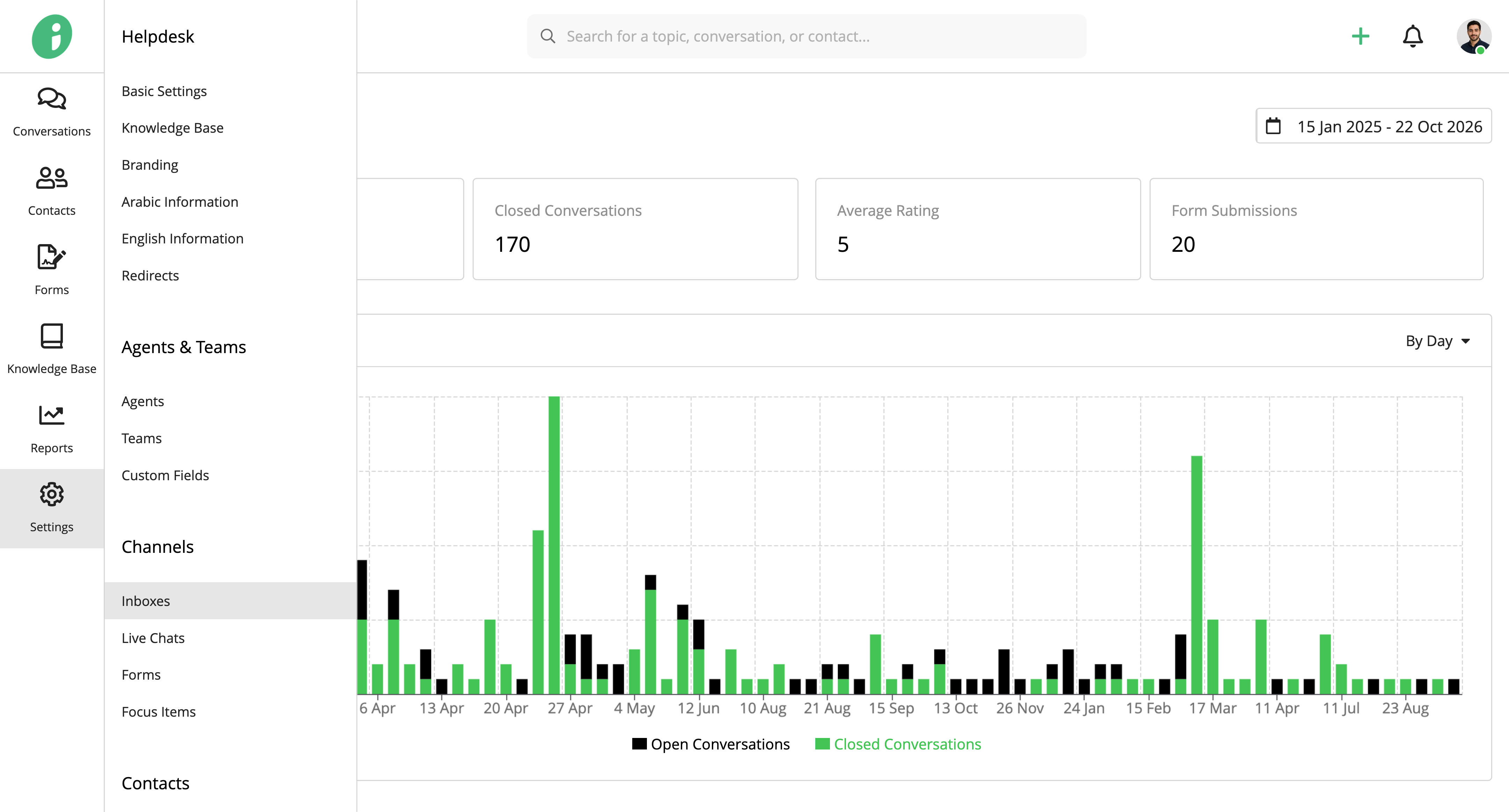
From your Helpdesk, go to Settings → Communication Channels → Inboxes.
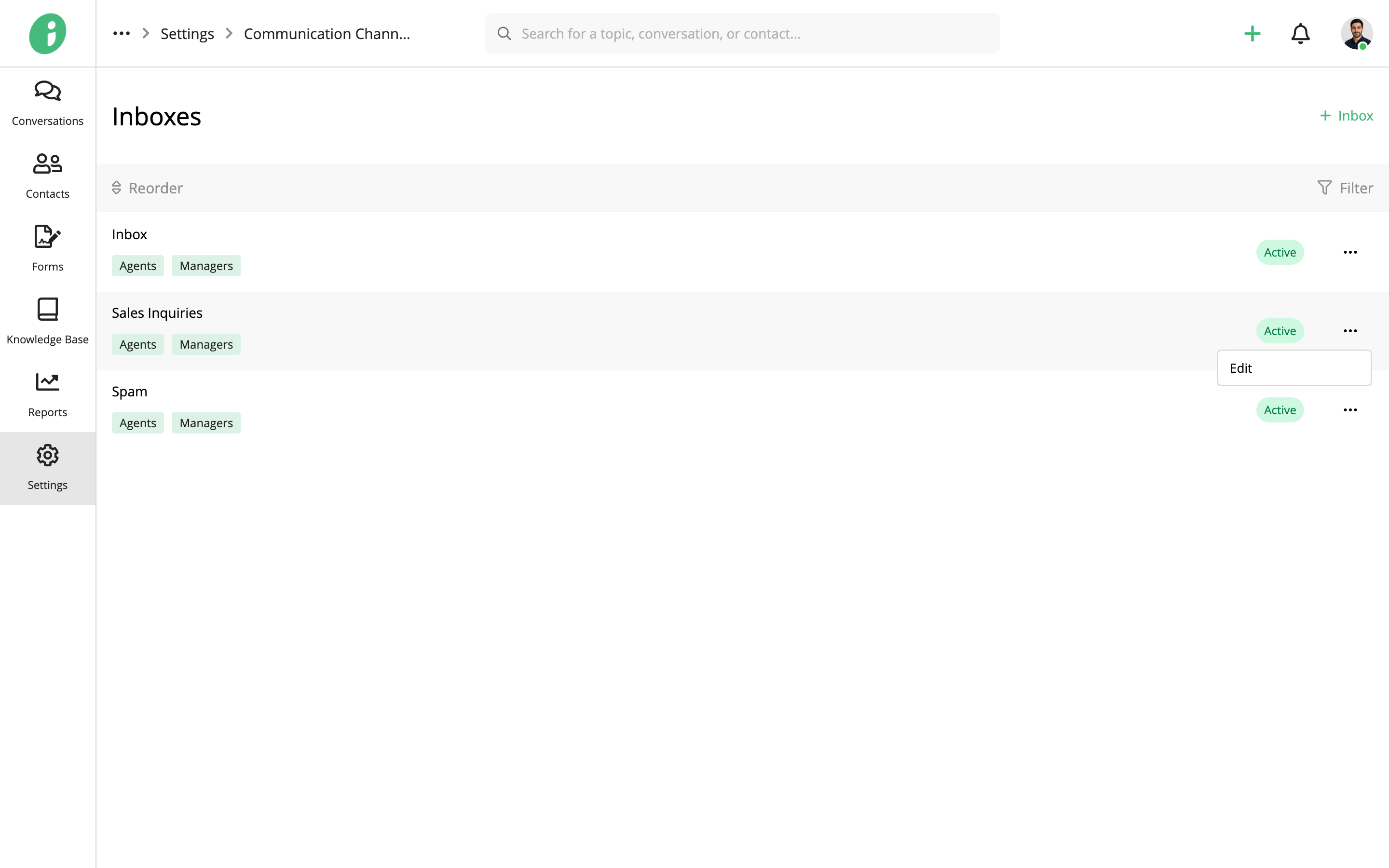
Find the inbox you want to configure, open its options menu, and select Edit.
Select Conversation Statuses.
Add a Conversation Status
Click + Add New Conversation Status to add a custom status.
For example, you can create a status called Follow-Up Required for conversations that need further action from your team.
Configure the following:
- Name: Enter Follow-Up Required.
- Color: Choose a color that makes the status easy to distinguish from the existing statuses.
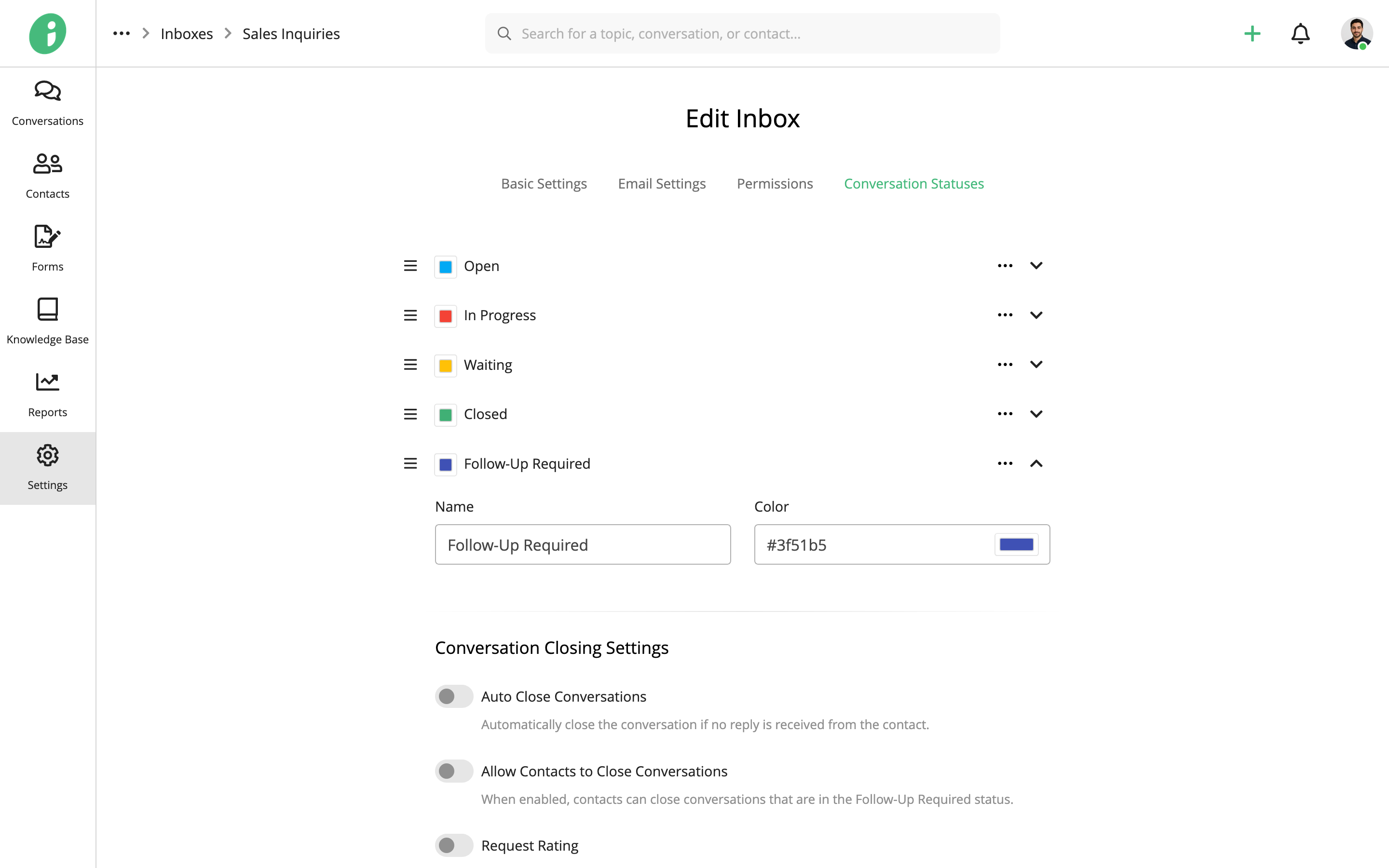
Click Save to create the status.
Edit a Conversation Status
Under Conversation Statuses, click the arrow next to the status you want to edit to expand its settings.
You can update the status’s Name and Color, as well as its Conversation Closing Settings.
Click Save to apply your changes.
Reorder Conversation Statuses
You can arrange conversation statuses in an order that reflects your team’s workflow.
For example, you can position Follow-Up Required between In Progress and Waiting.
Drag the status using its handle and move it to the desired position.
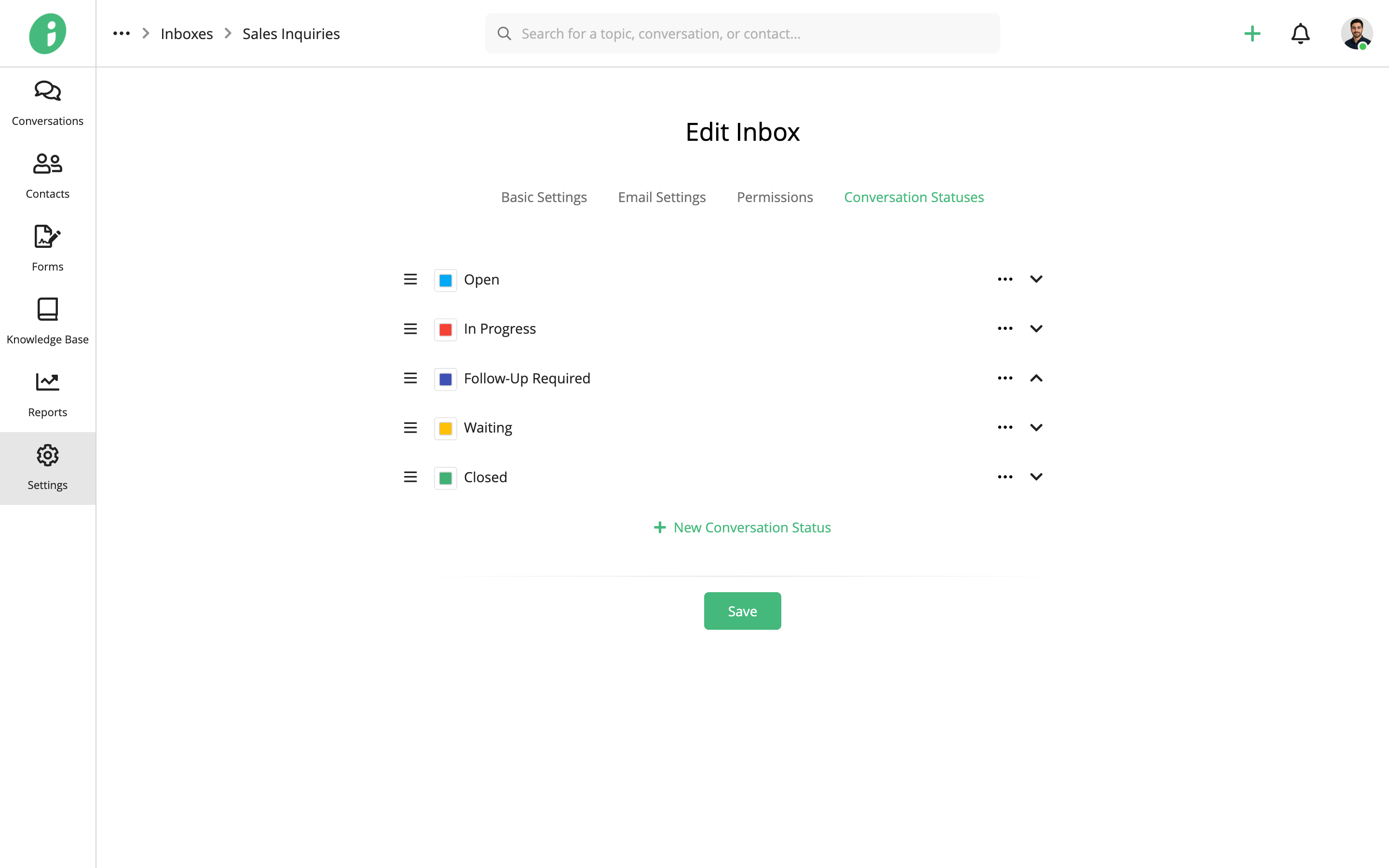
Click Save to apply the new order.
Delete a Conversation Status
To remove a status you no longer need, find it under Conversation Statuses, open its options menu, and select Delete.
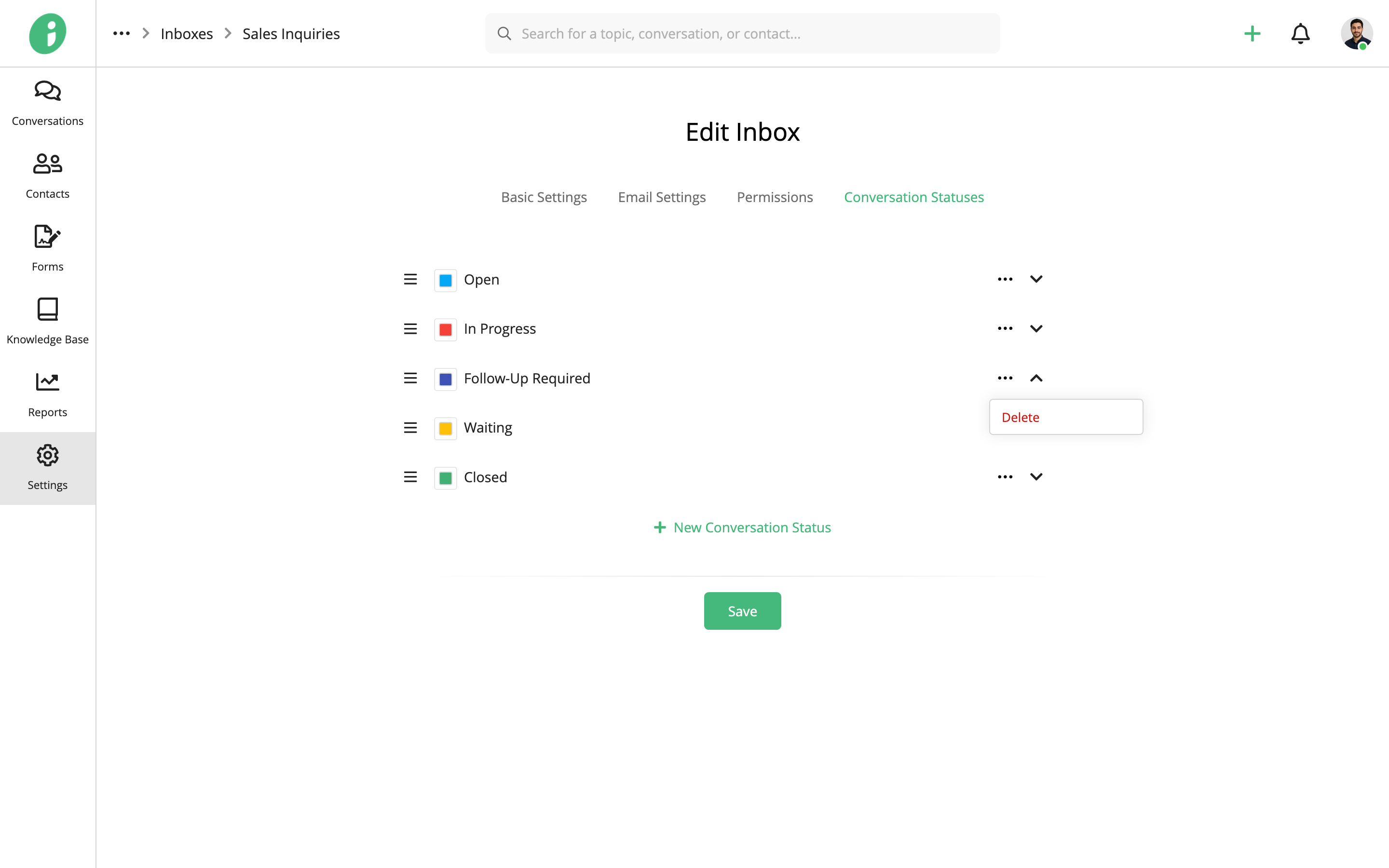
Confirm the deletion to remove the status.