
You can create and manage company segments in your Zaetoon Helpdesk to organize companies into groups and make it easier for your team to manage business relationships.
Add a Company Segment
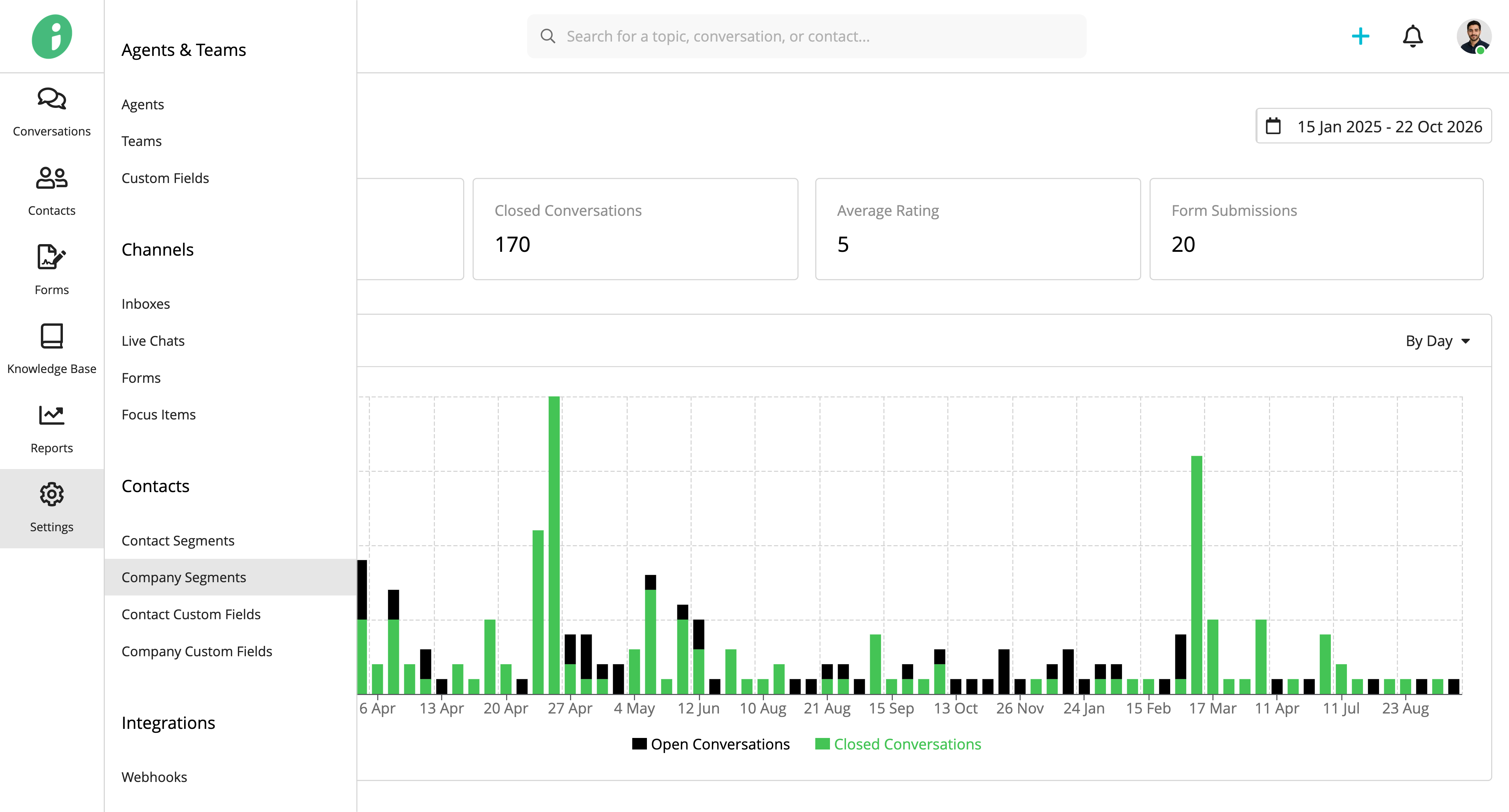
From your Helpdesk, go to Settings → Contacts → Company Segments.
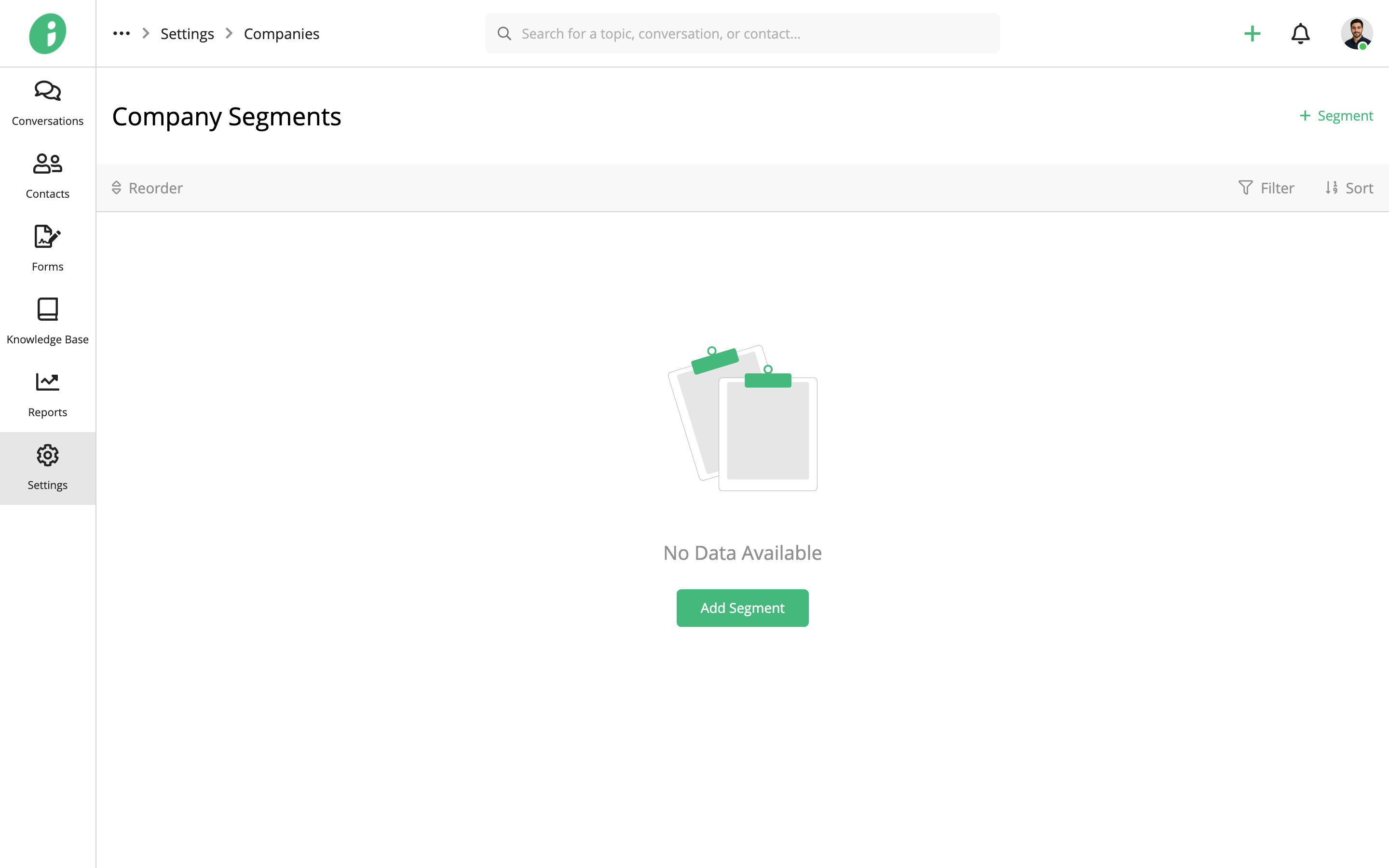
Click + Segment in the top-right corner.
Basic Settings
Under Basic Settings, configure the following:
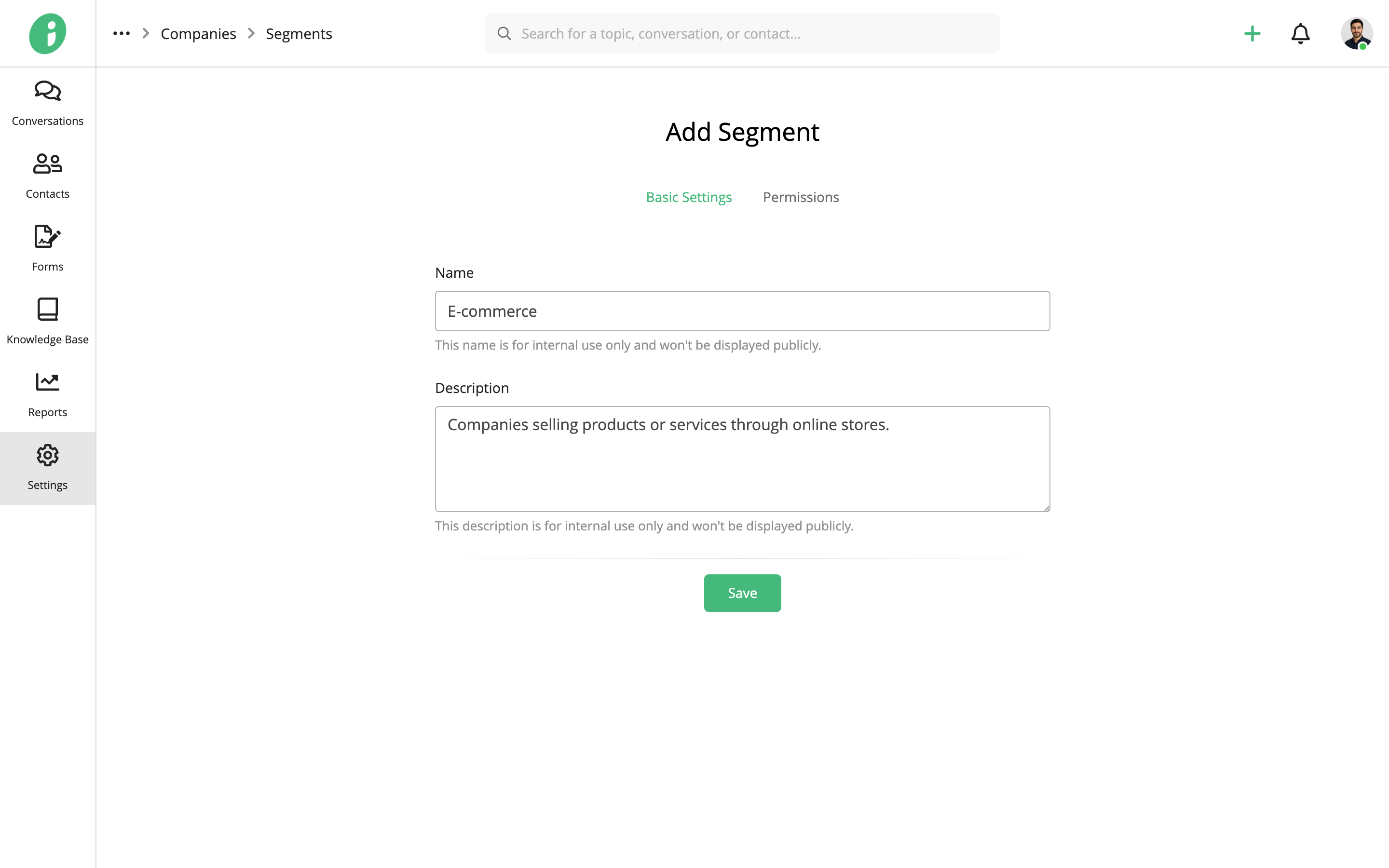
- Name: Enter a name for the segment, such as E-commerce. This name is for internal use only.
- Description: Enter a brief description of the segment. This description is also for internal use only.
Permissions
Select Permissions to configure who can access the segment.
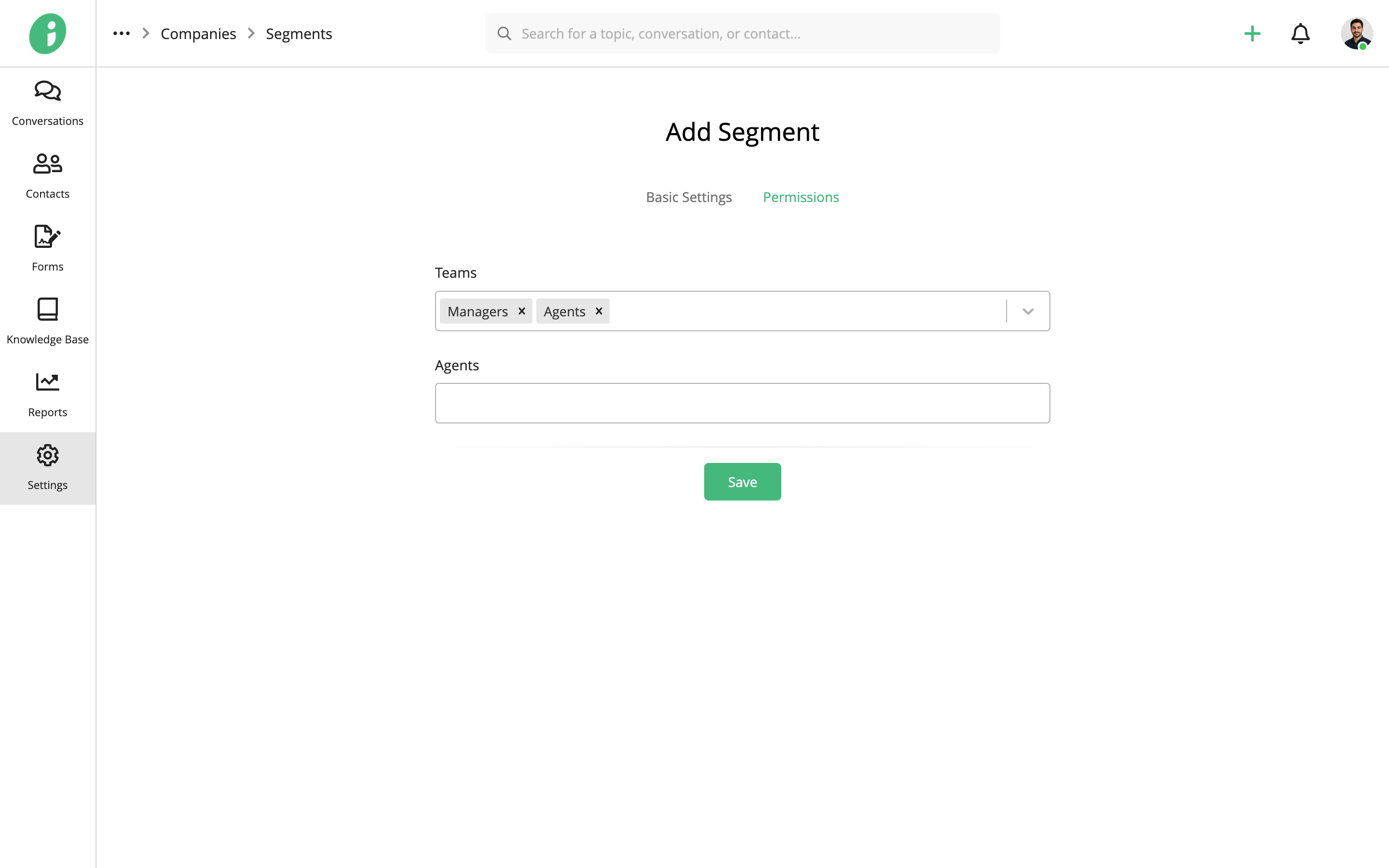
- Teams: Select the teams that can access the segment.
- Agents: Select the agents who can access the segment.
The company segments will be visible to agents based on the permissions you configure.
Click Save to create the segment.
Edit a Company Segment
From your Helpdesk, go to Settings → Contacts → Company Segments.
Find the segment you want to update, open its options menu, and select Edit.
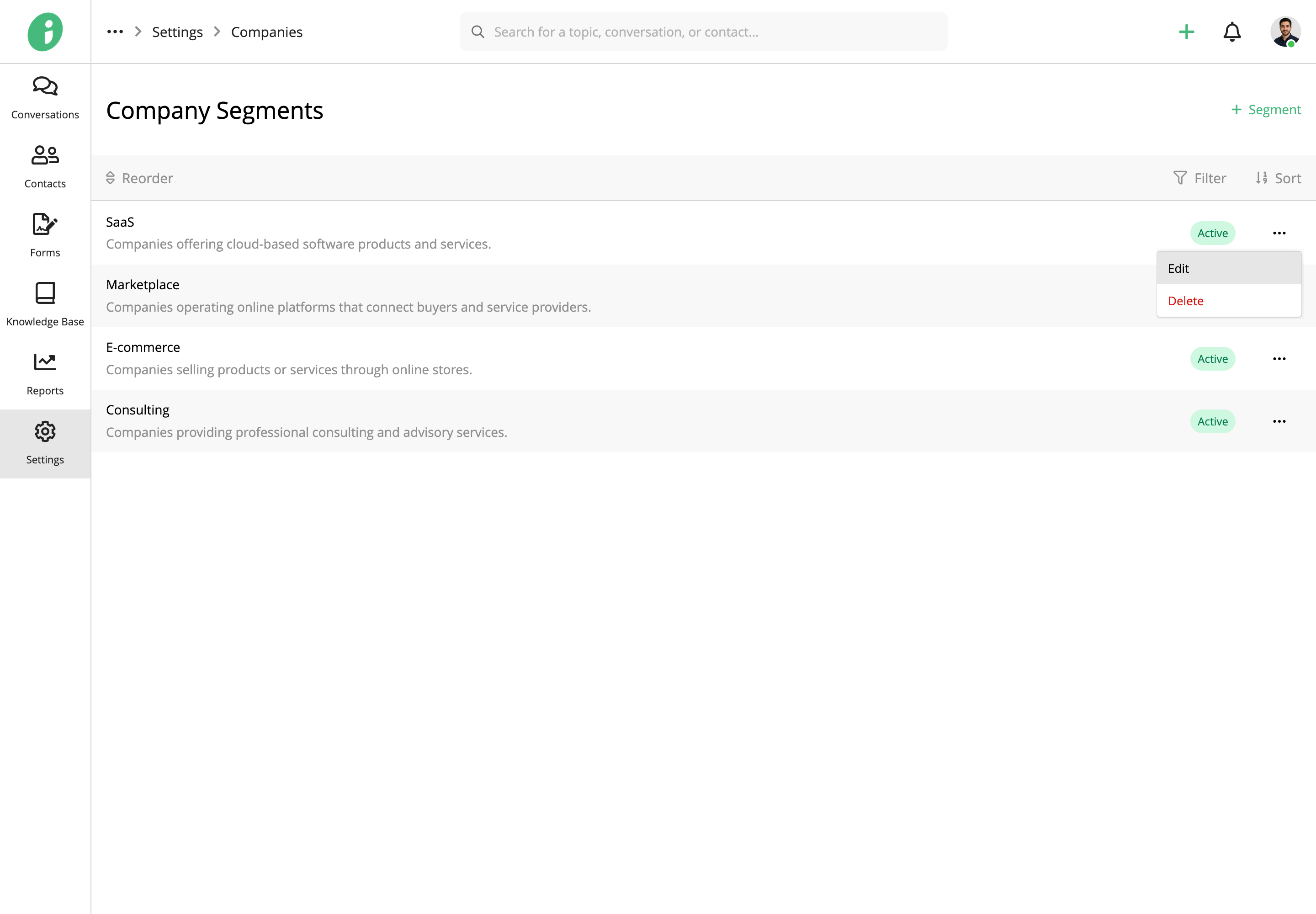
You can update the following settings:
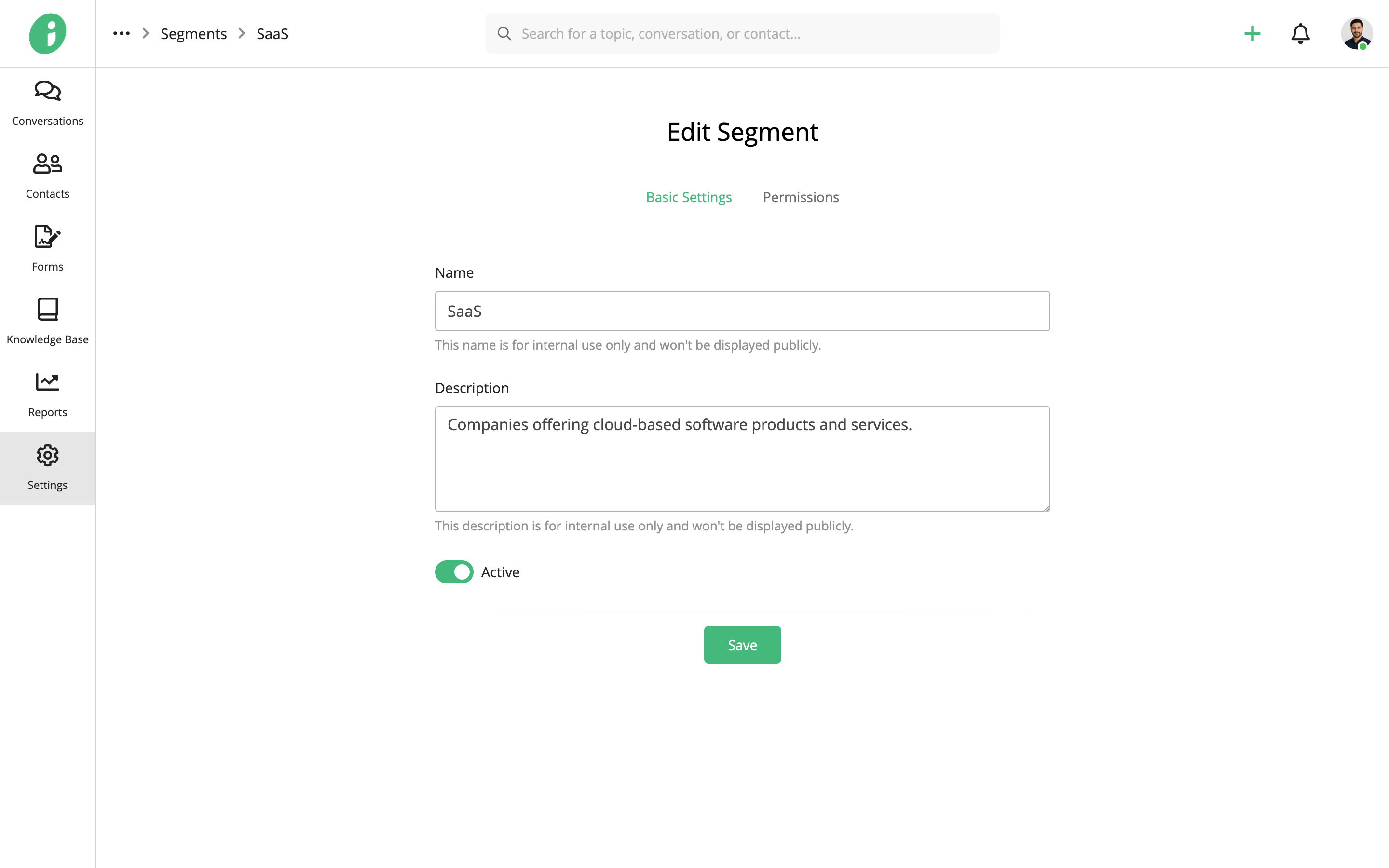
- Basic Settings: Update the segment’s name or description, or enable or disable it using the Active option.
- Permissions: Change which teams and agents can access the segment.
Click Save to apply your changes.
Add a Company to a Segment
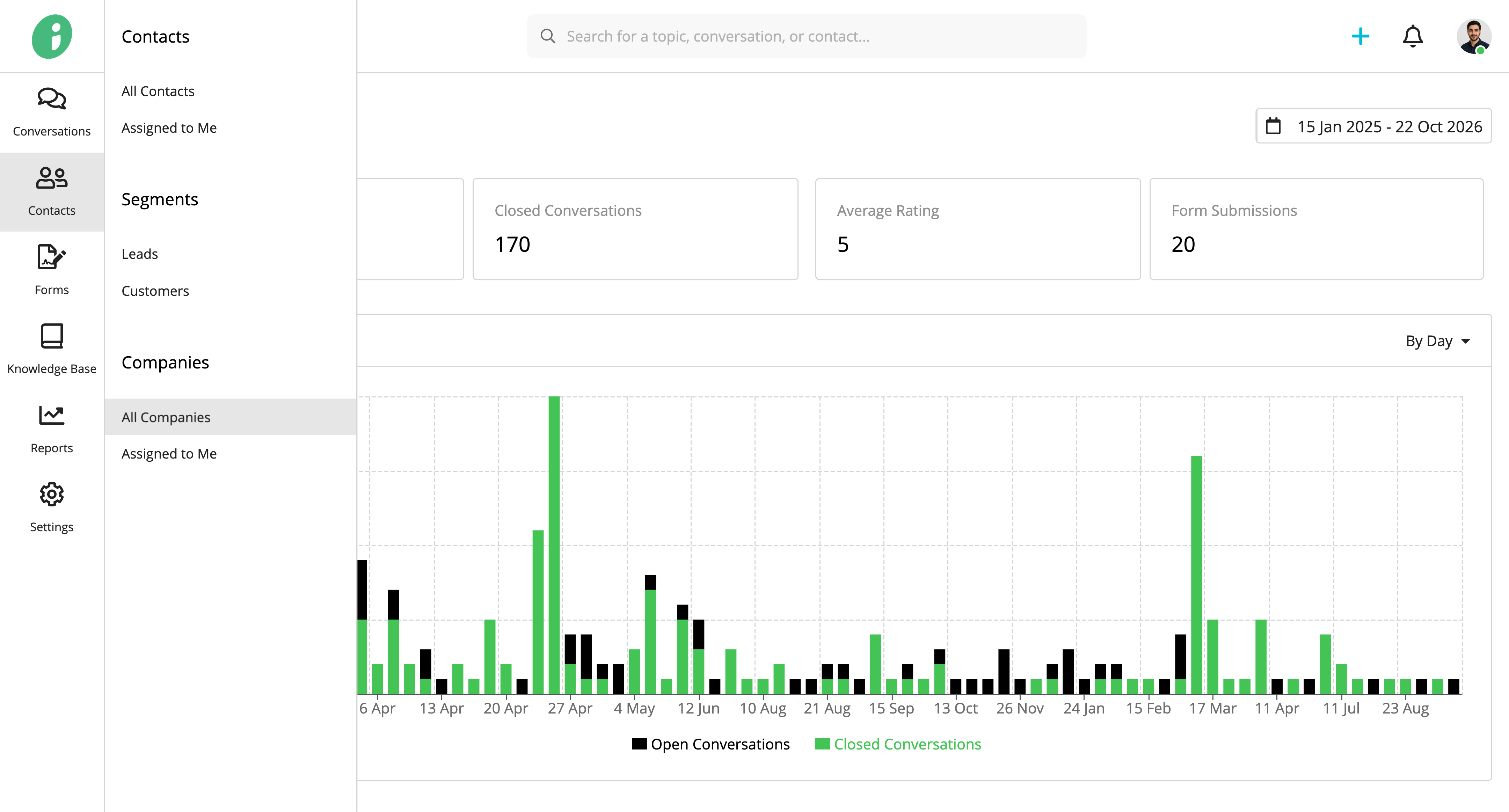
From your Helpdesk, go to Contacts → All Companies.
Find the company you want to update, open its options menu, and select Edit.
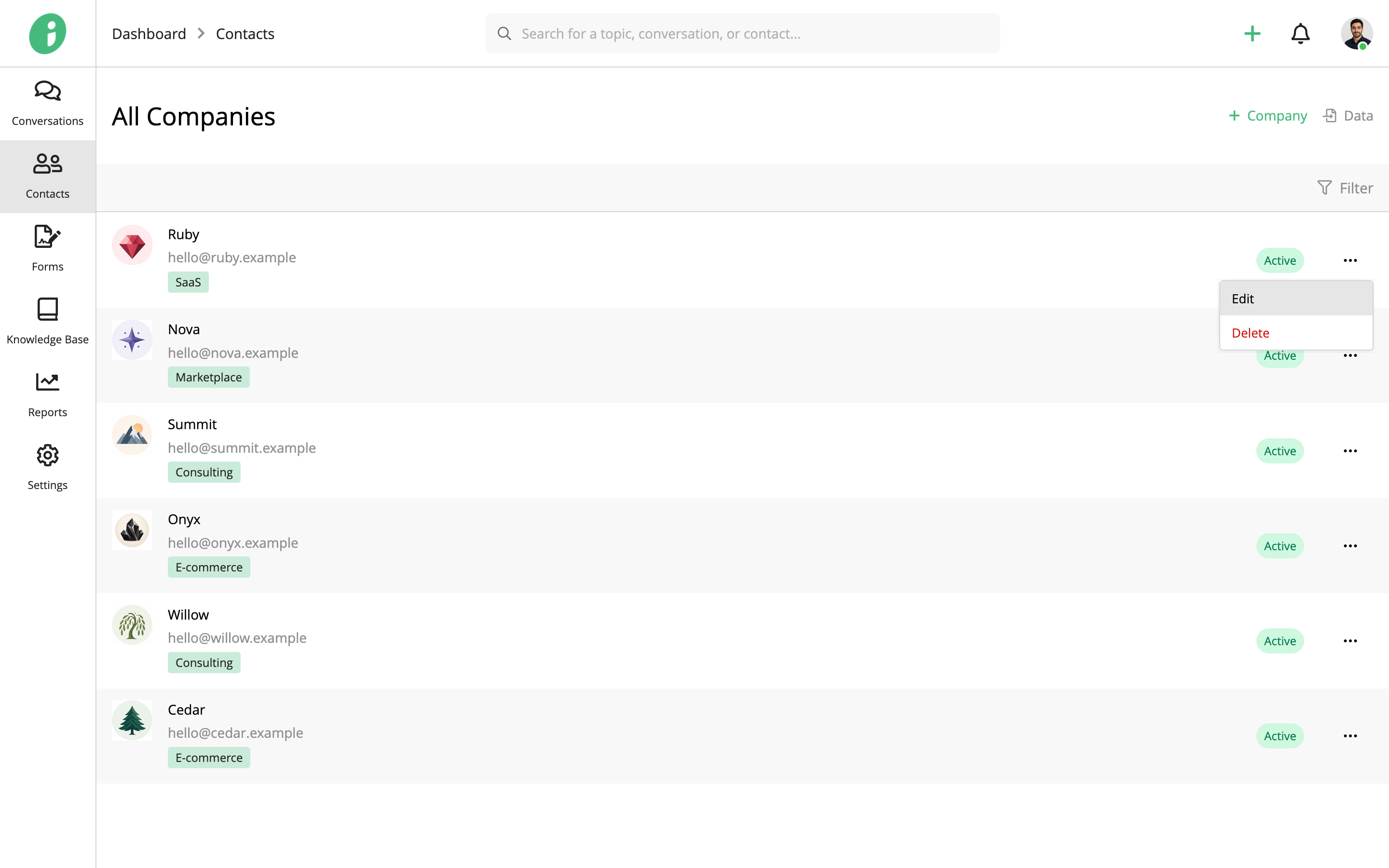
Under Segments, select the company segments you want to add the company to.
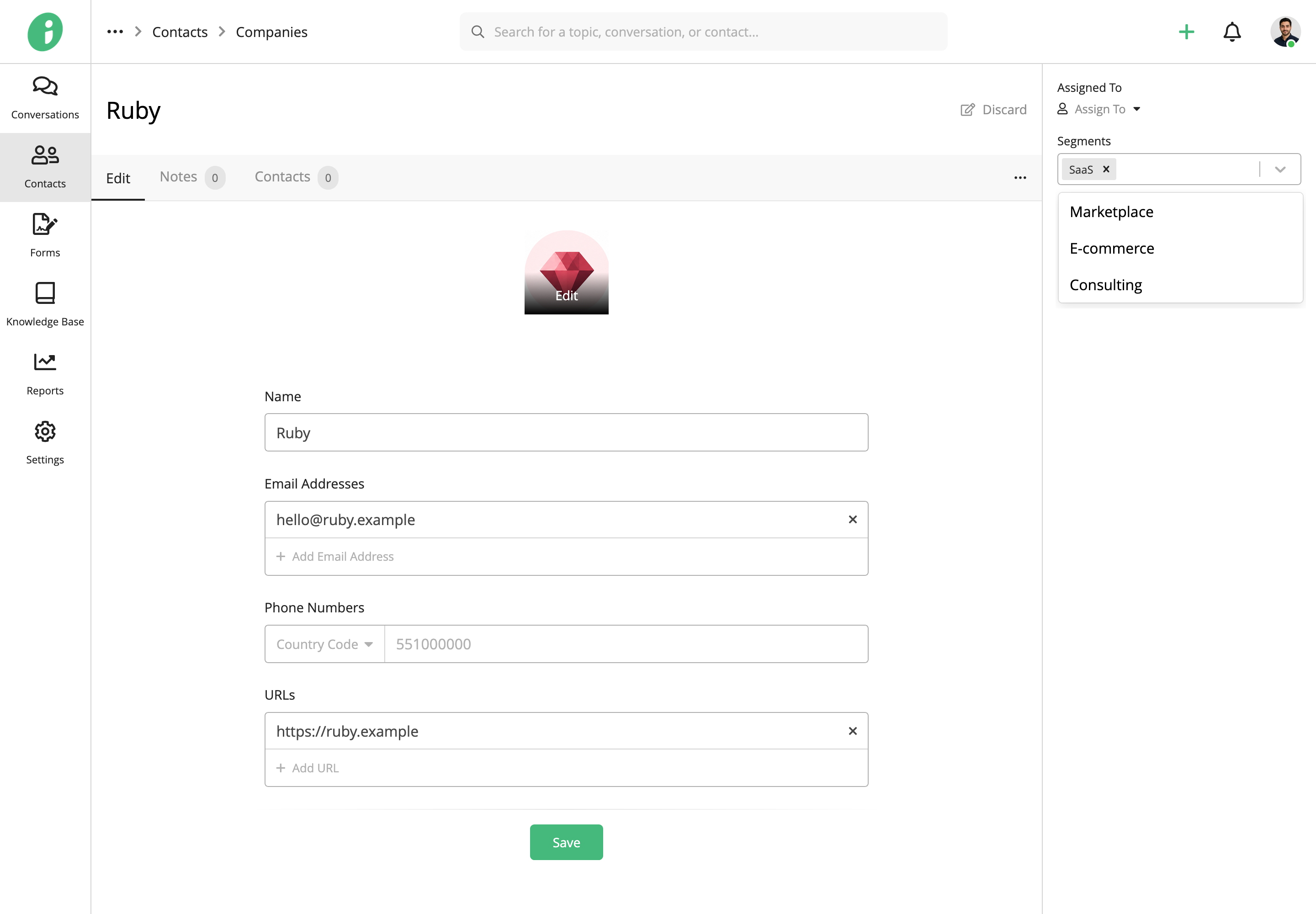
Click Save to apply your changes.