
Zaetoon Helpdesk lets you create and manage company profiles to keep business information organized and help your team manage customer relationships.
Add a Company
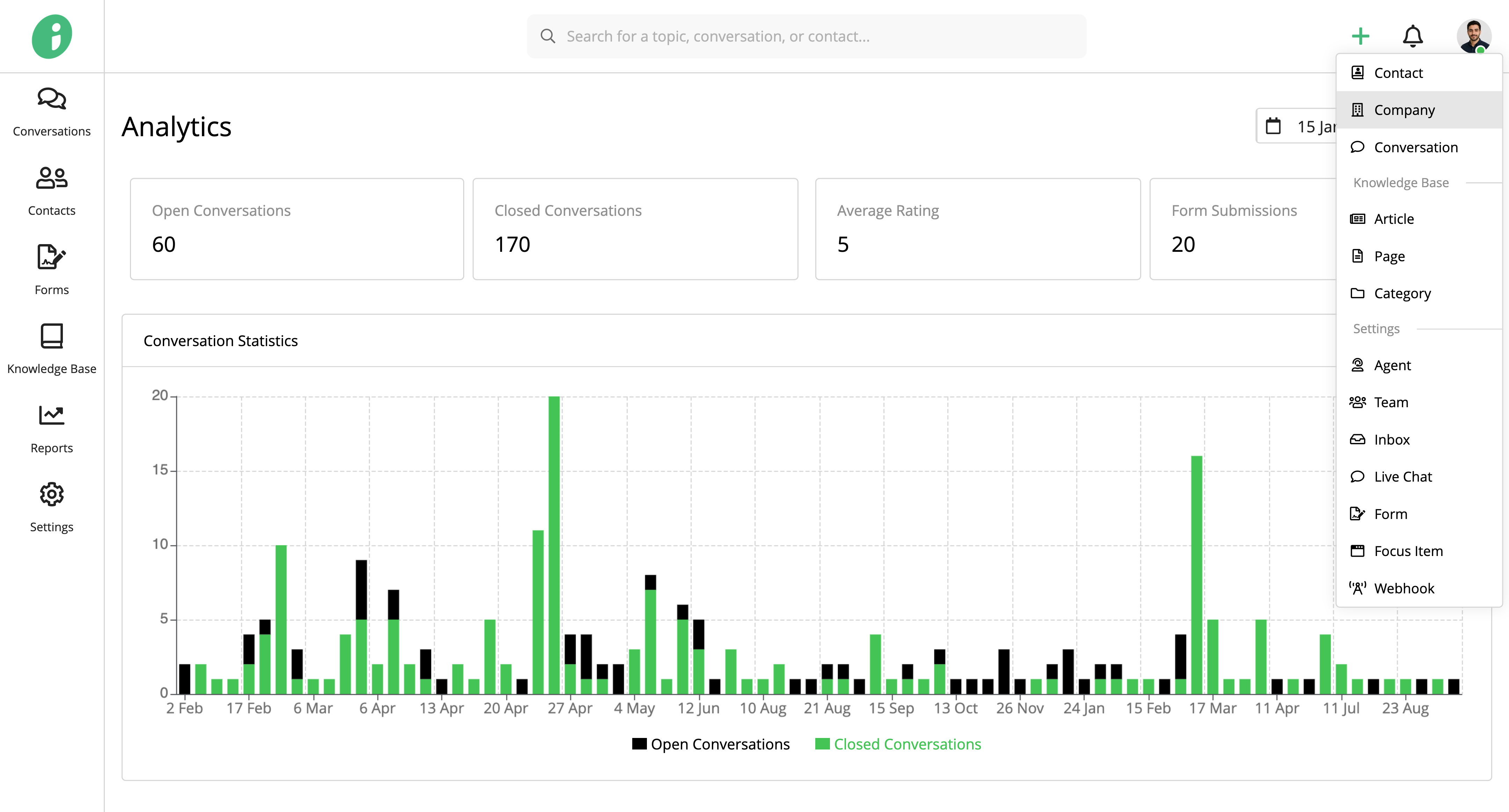
From your Helpdesk, click + Add in the top-right corner and select Company.
Enter the company’s information:
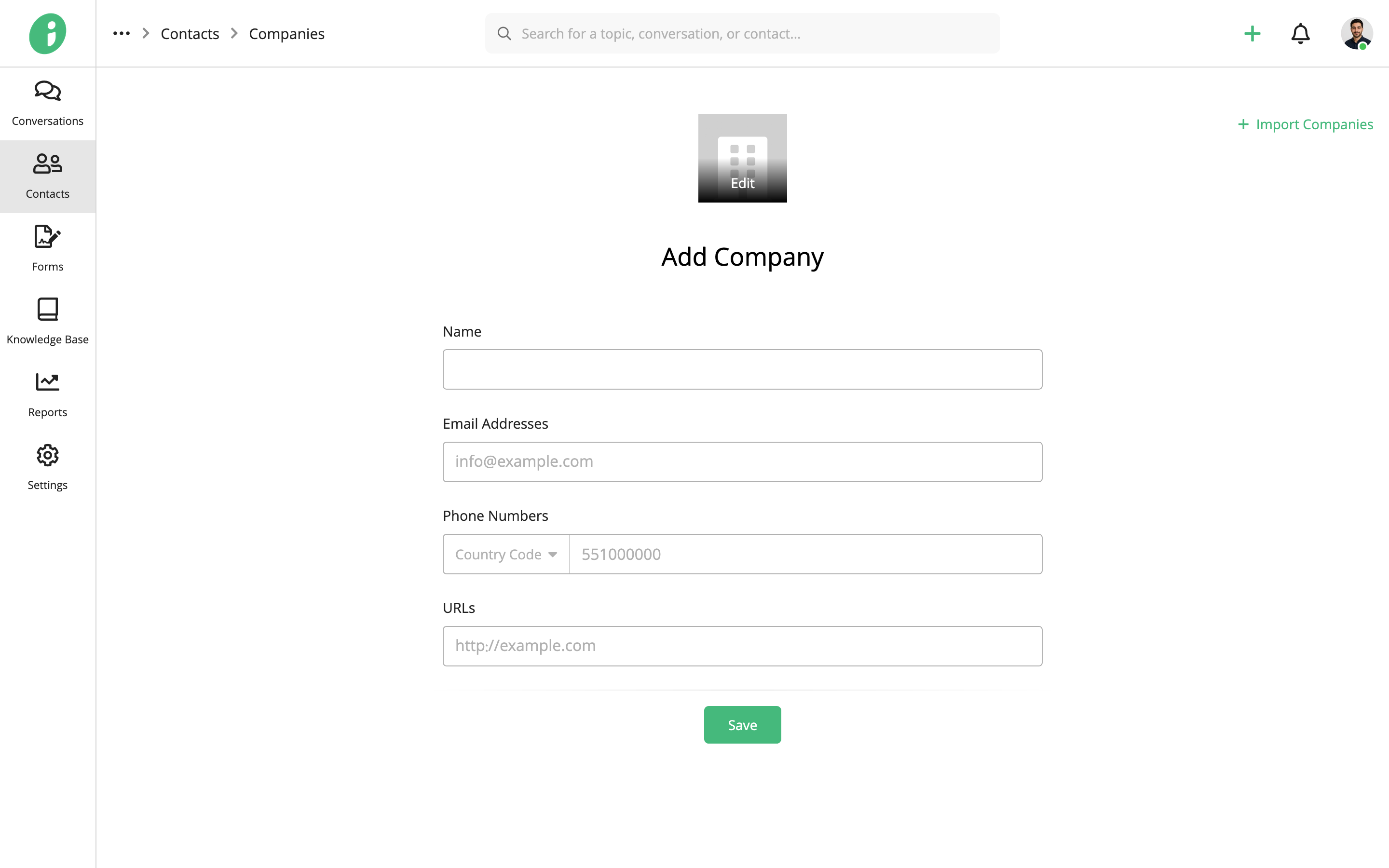
- Name: Enter the company’s name.
- Email Addresses: Add one or more email addresses associated with the company.
- Phone Numbers: Add the company’s phone numbers, including the appropriate country codes.
- URLs: Add relevant links, such as the company’s website or account page.
Click Save to create the company.
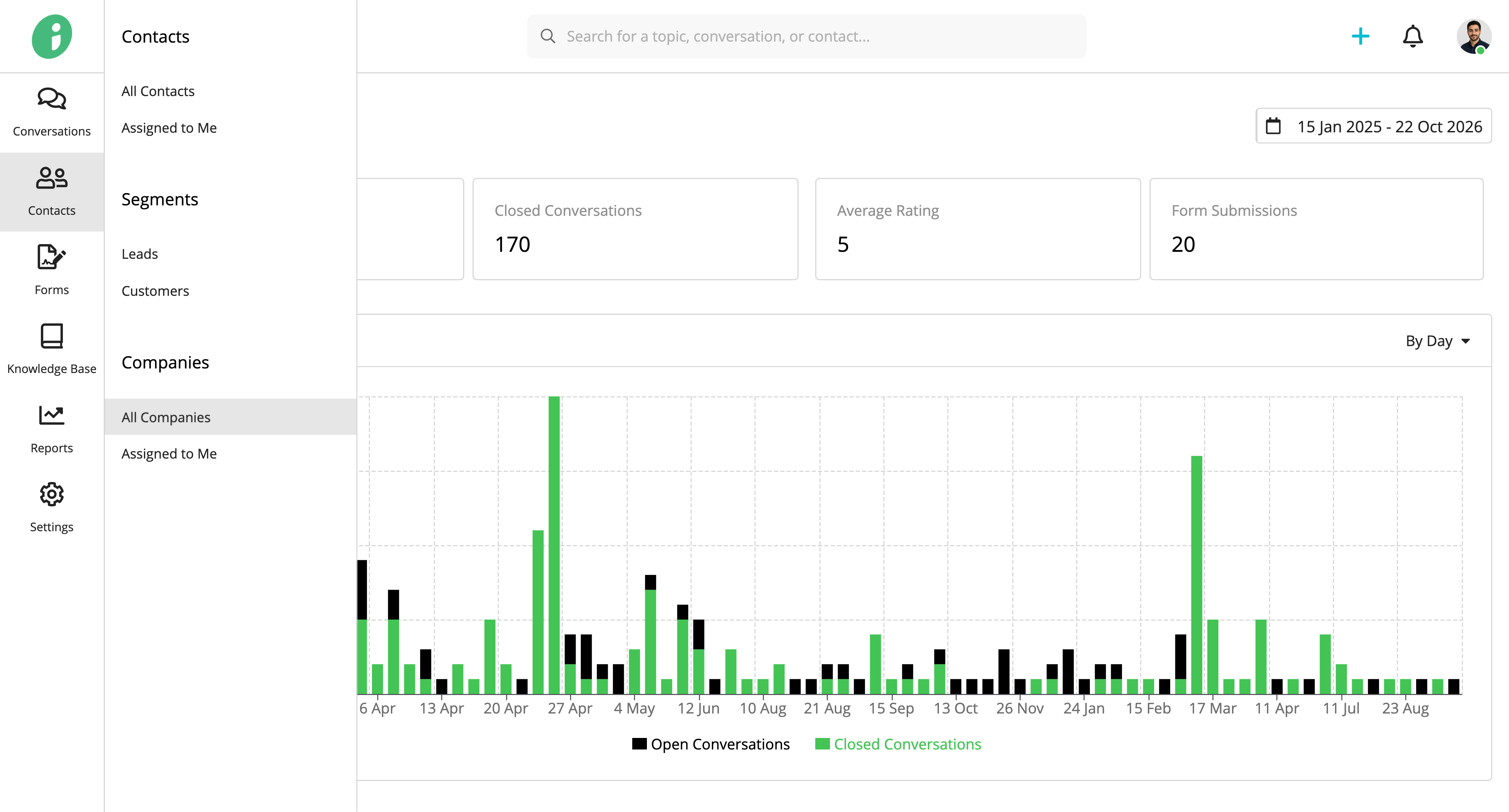
You can also add a company by going to Contacts → All Companies and clicking + Company.
Edit a Company
You can update a company’s information, assign it to an agent, and organize it using segments and tags.
From your Helpdesk, go to Contacts → All Companies.
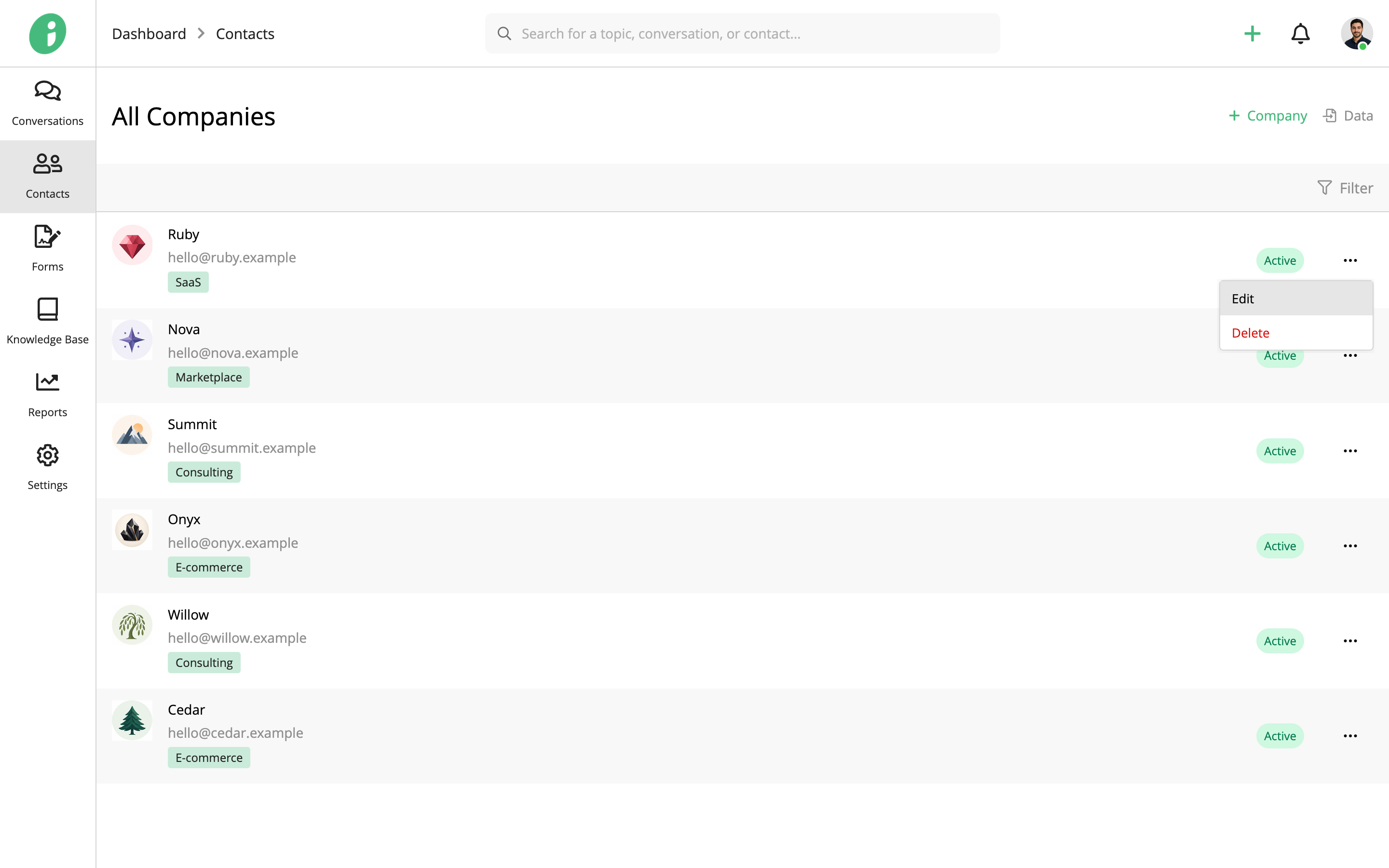
Find the company you want to update, open its options menu, and select Edit.
Update the company’s information as needed.
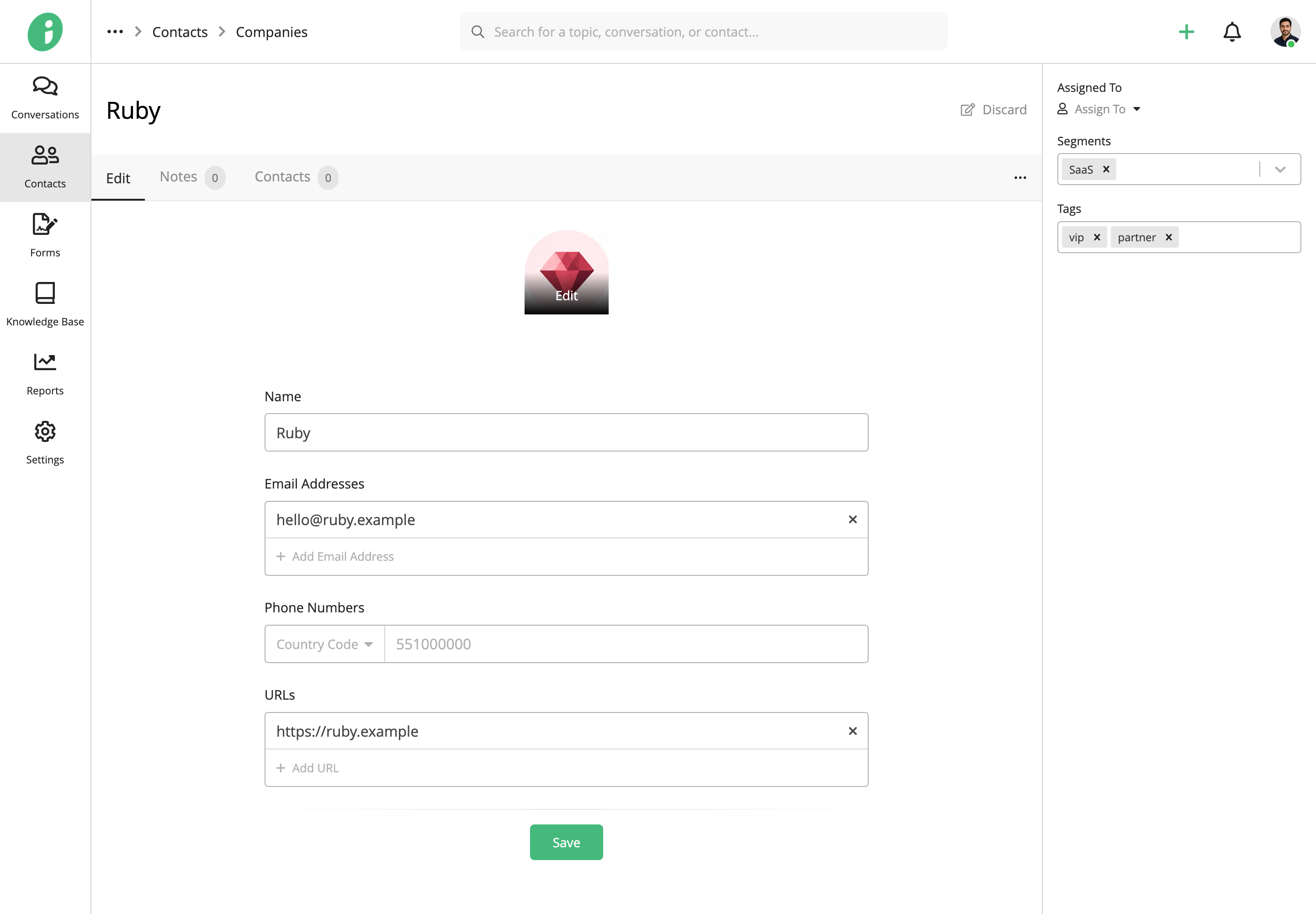
You can also configure the following:
- Assigned To: Assign the company to an agent.
- Segments: Add or remove the company from company segments.
- Tags: Add or remove tags associated with the company.
Click Save to apply your changes.
Add a Company Note
You can add notes to a company to record important information that may help your support team in future conversations.
From your Helpdesk, go to Contacts → All Companies and open the company you want to add a note to.
Select the Notes tab.
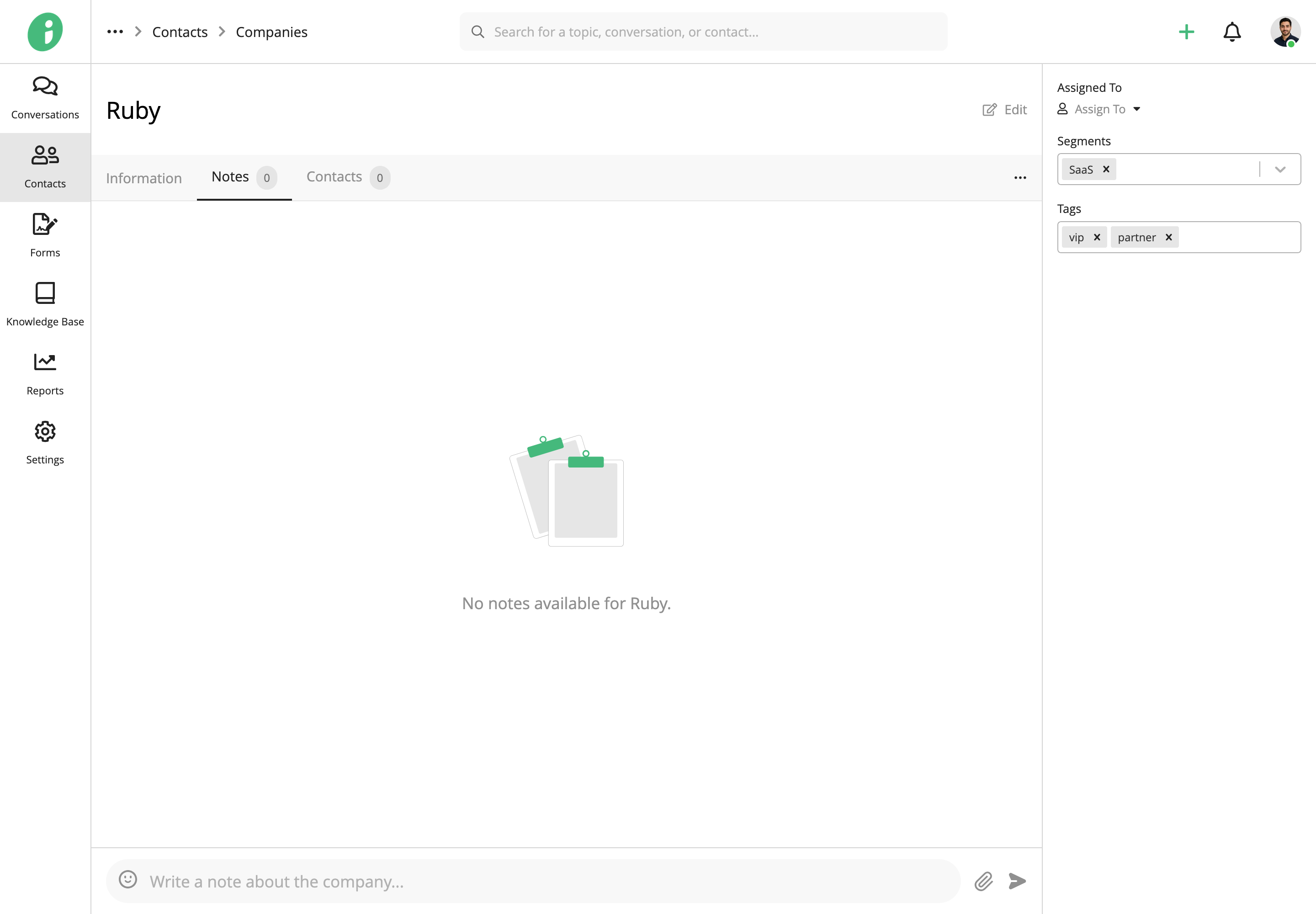
Enter your note in the text field. You can also attach a file if needed.
Click Send to save the note.
Delete a Company
From your Helpdesk, go to Contacts → All Companies.
Find the company you want to delete, open its options menu, and select Delete.