
You can add a Zaetoon Helpdesk form to your Shopify store so customers can contact your team, submit requests, or share feedback. Form submissions are collected in Zaetoon Helpdesk, where your team can review and respond to them.
Copy the Form Code from Zaetoon Helpdesk
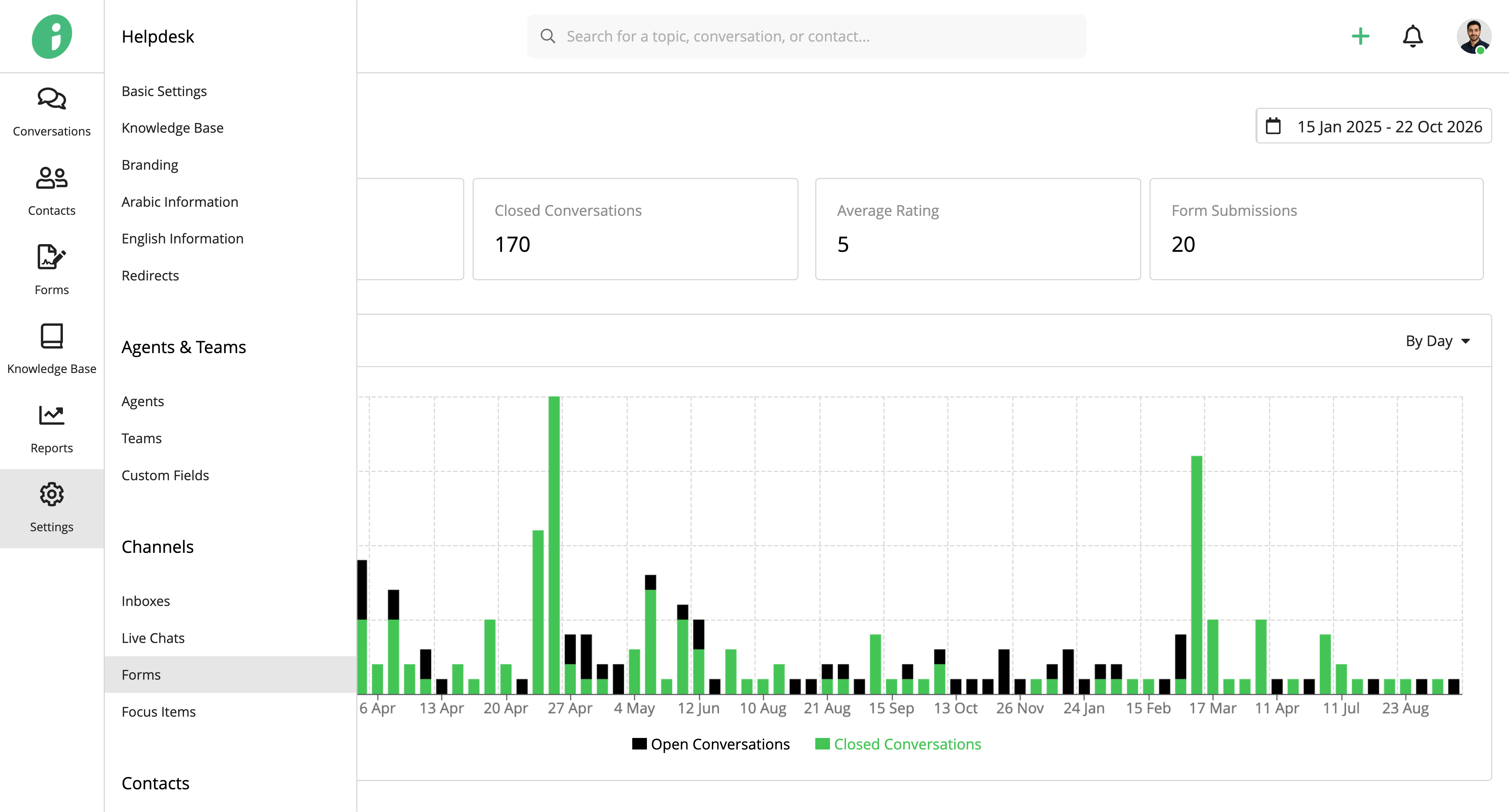
From your Helpdesk, go to Settings → Communication Channels → Forms.
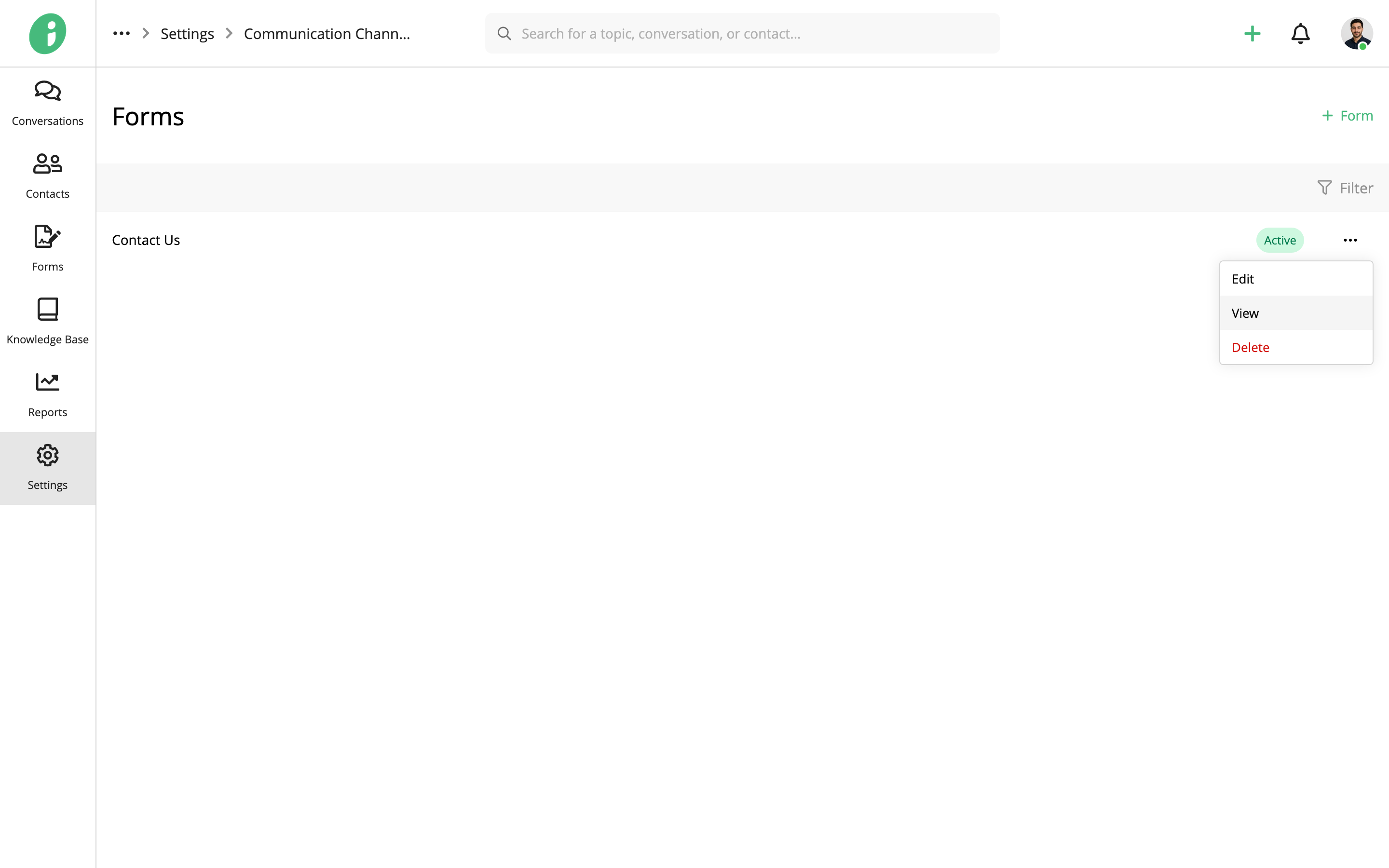
Find the form you want to add, open its options menu, and select View.
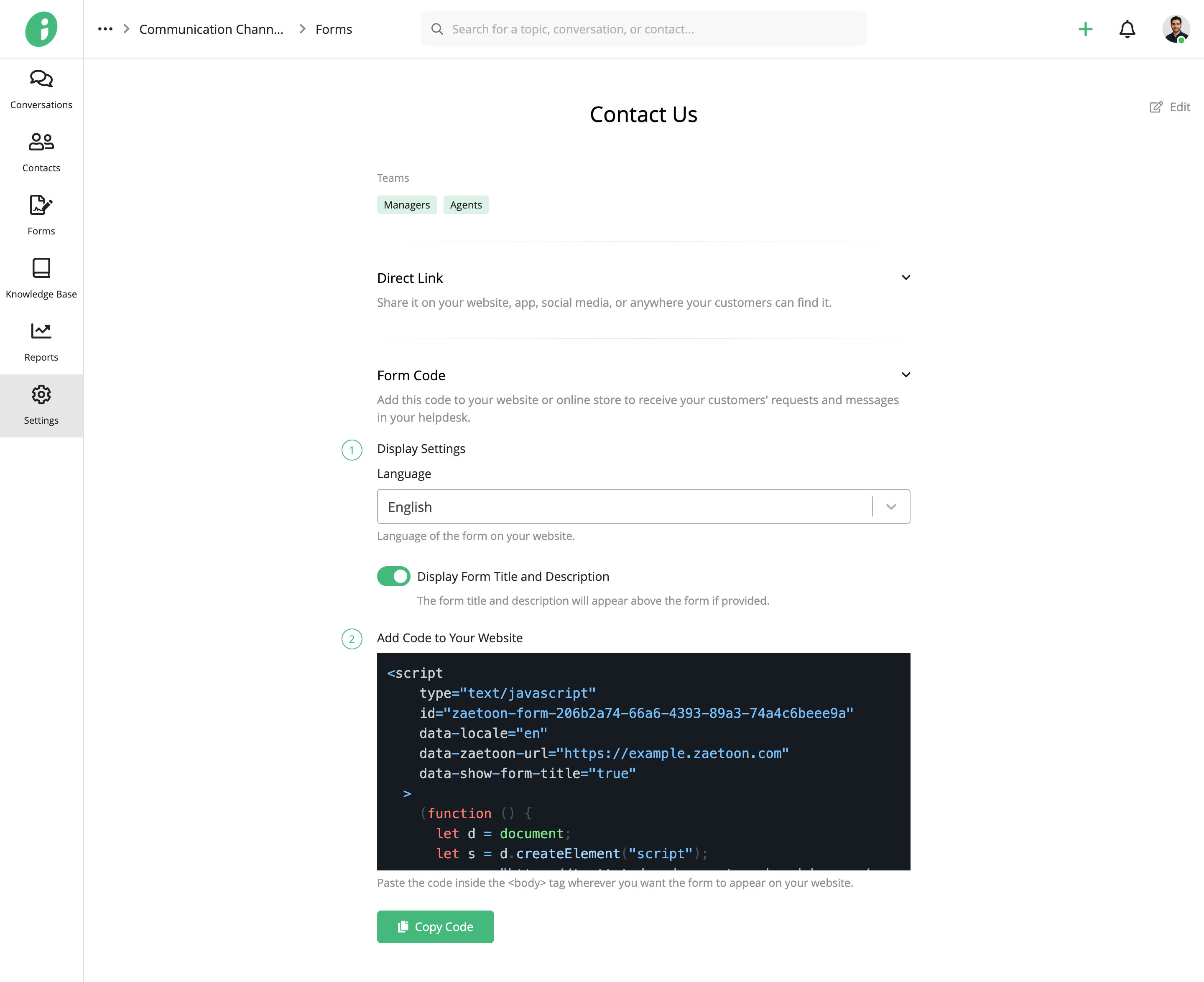
Under Form Code, configure the display settings if needed, then click Copy Code.
Add the Form to a Shopify Page
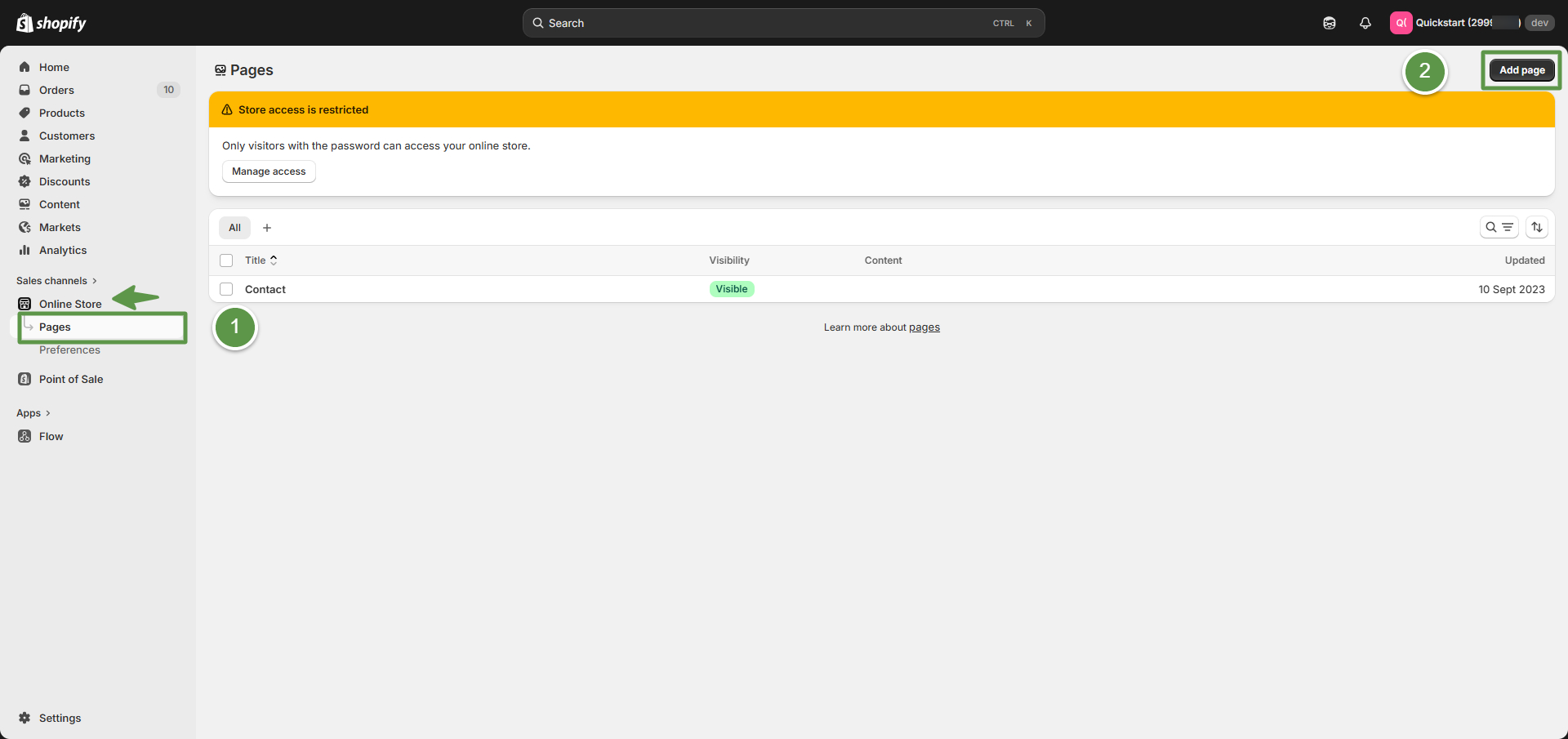
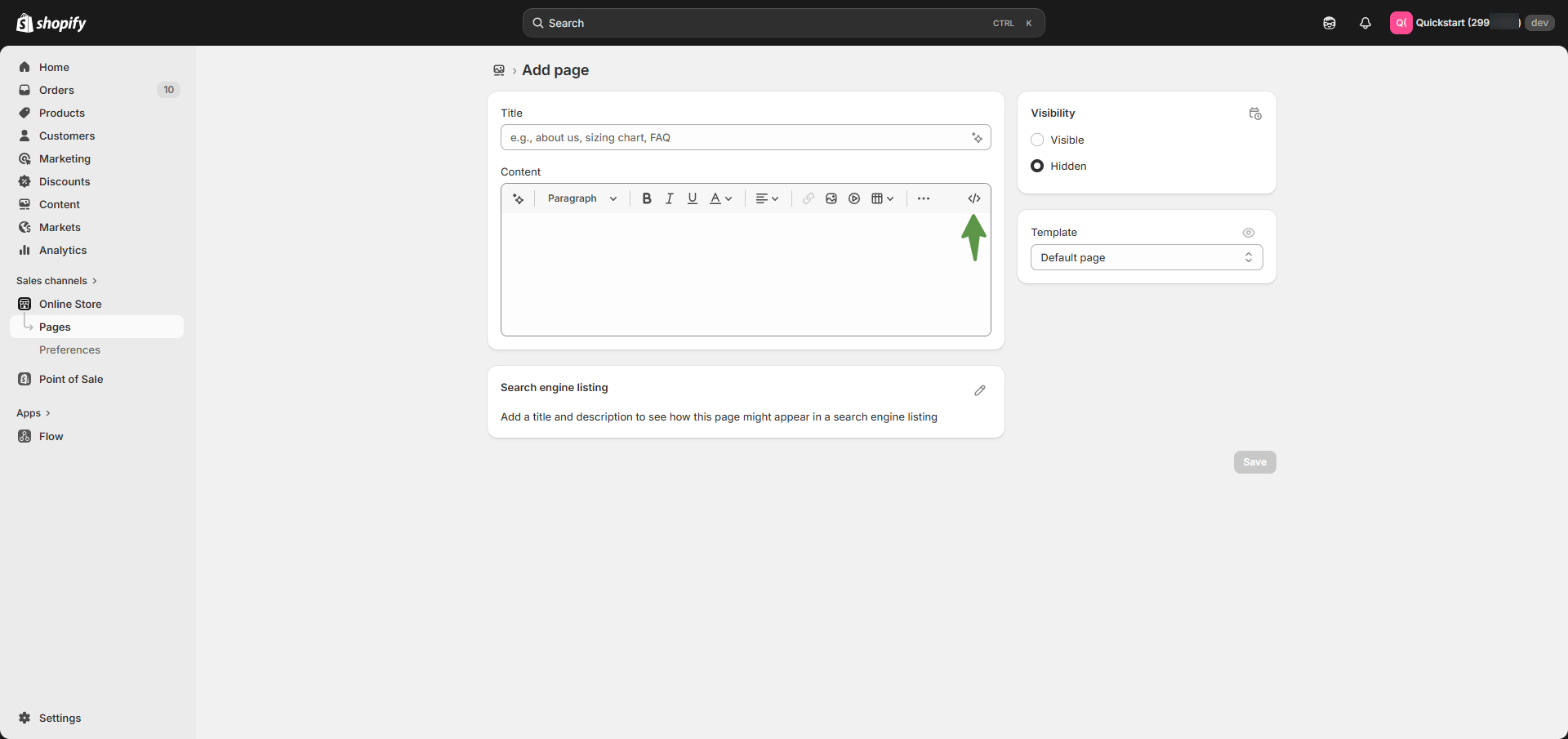
From your Shopify admin, go to Online Store → Pages and click Add page.
Enter a Title for the page, such as Contact Us.
In the Content editor, click the Show HTML(</>) icon to switch to HTML view.
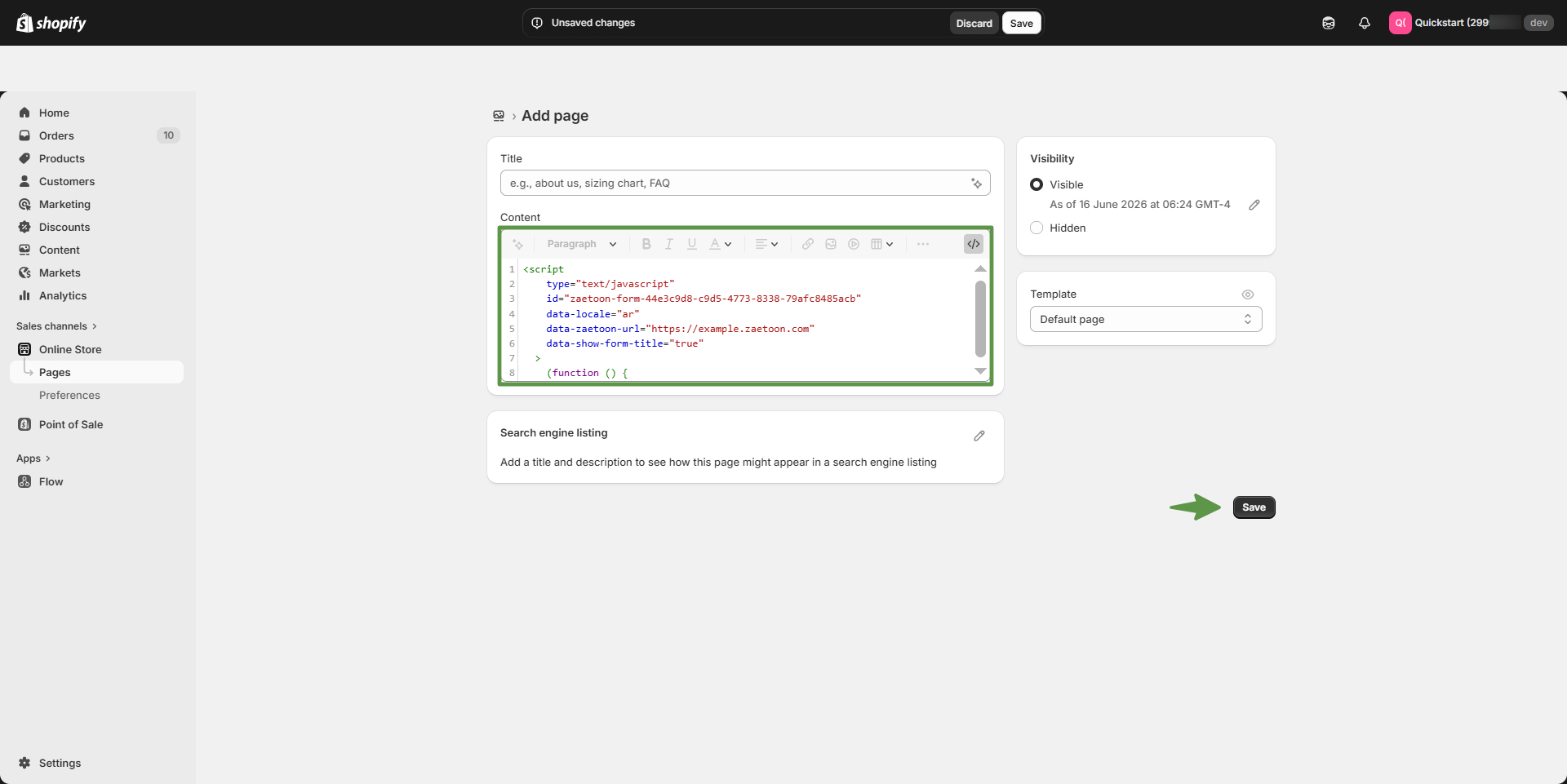
Paste the form code you copied from Zaetoon Helpdesk, then click Save.
Open the saved page using View page, then copy its URL.
Add the Page to Your Store Menu
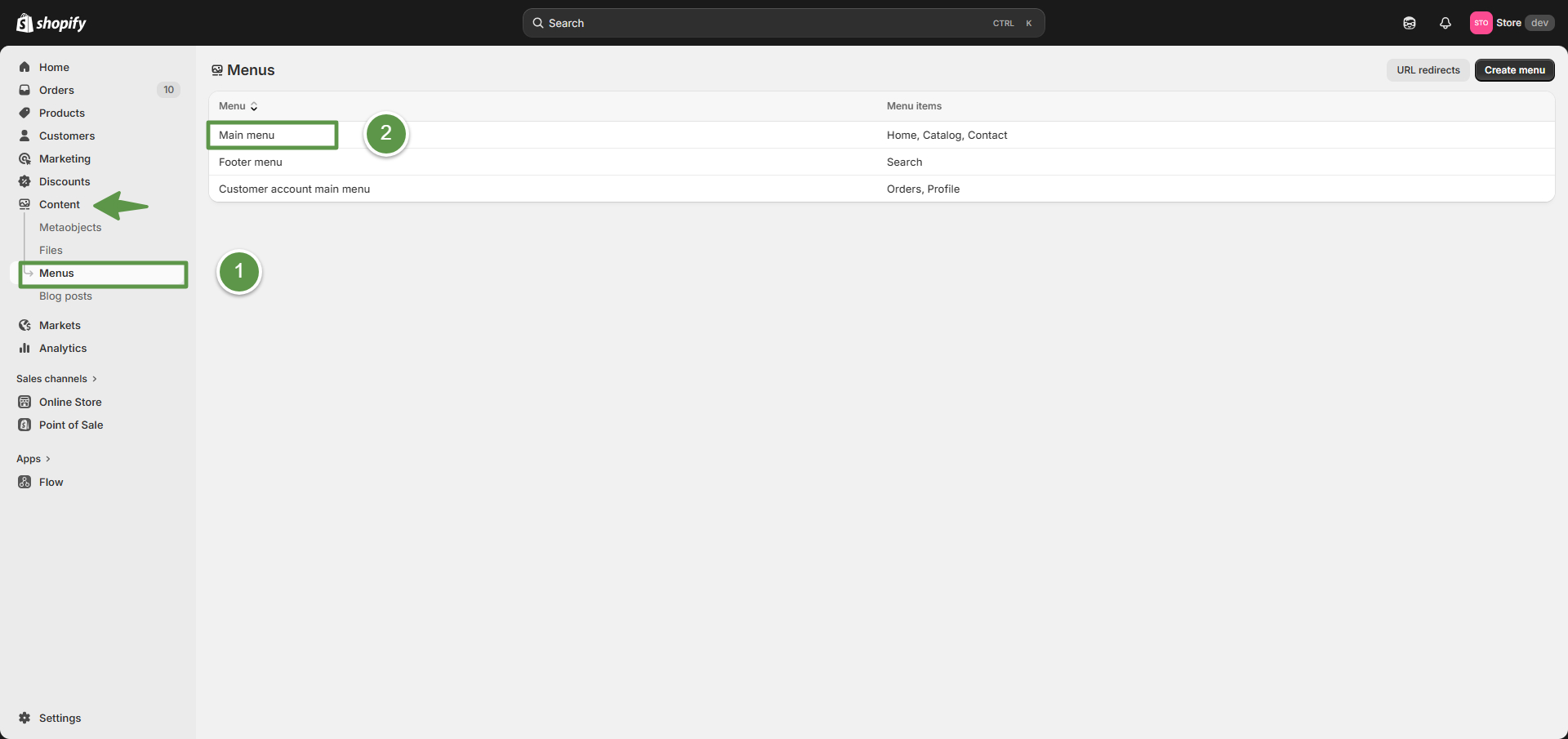
To make the new page accessible from your store’s navigation, go to Content → Menus, and select Main menu.
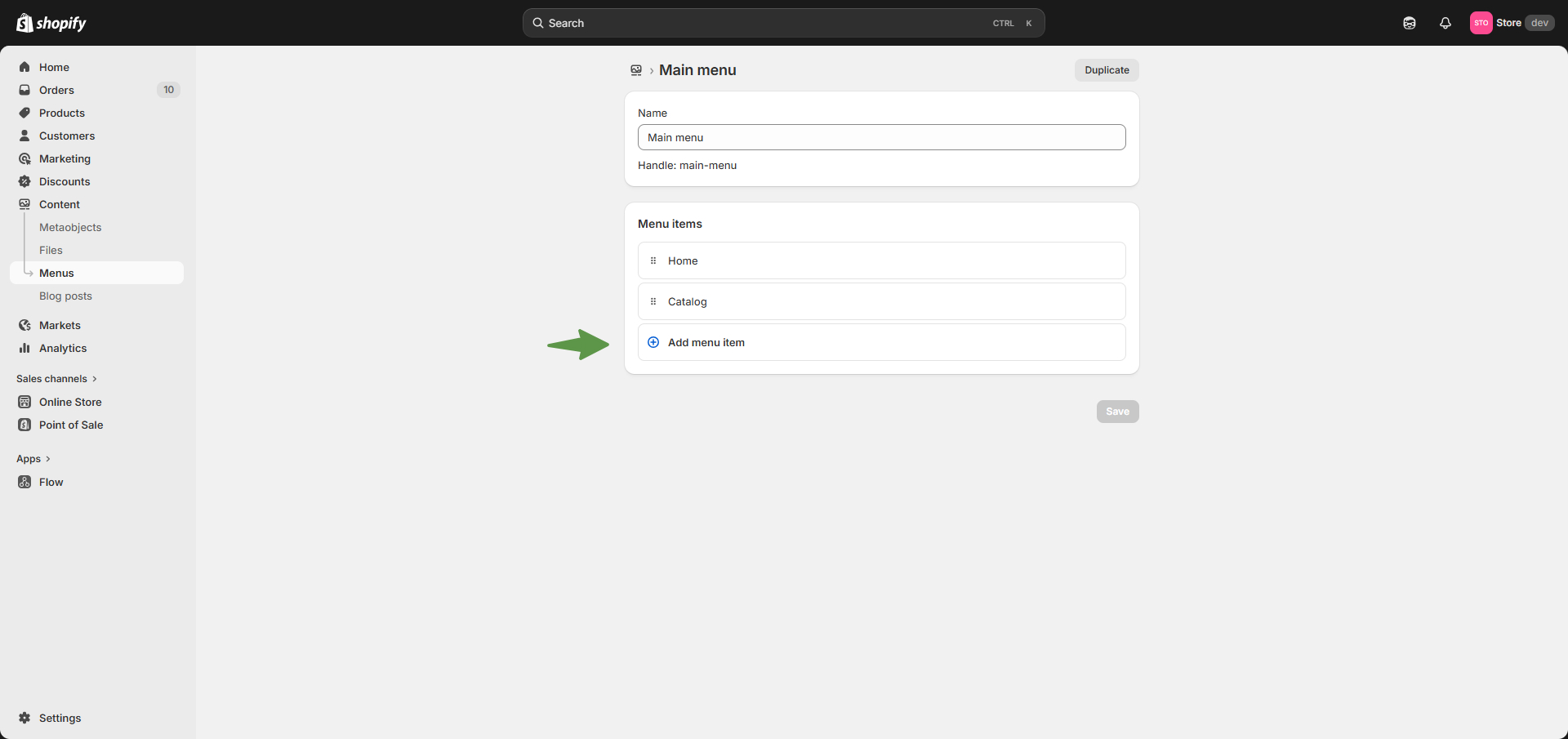
Click Add menu item.
Enter a Label, such as Contact, and paste the page URL into the Link field.
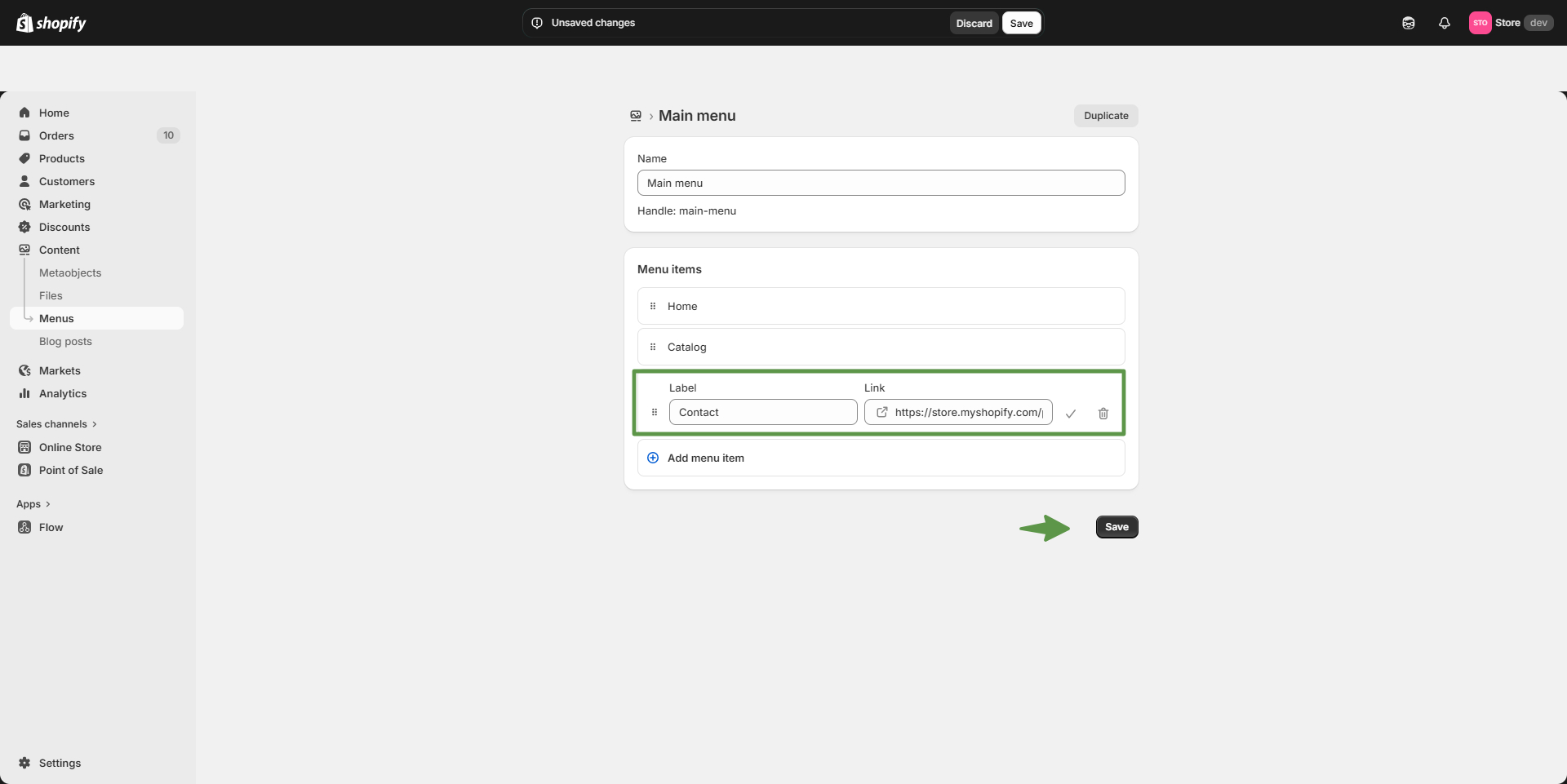
Click Save to apply your changes.
View the Form on Your Store
Open the new page on your Shopify store to confirm that the form appears correctly.
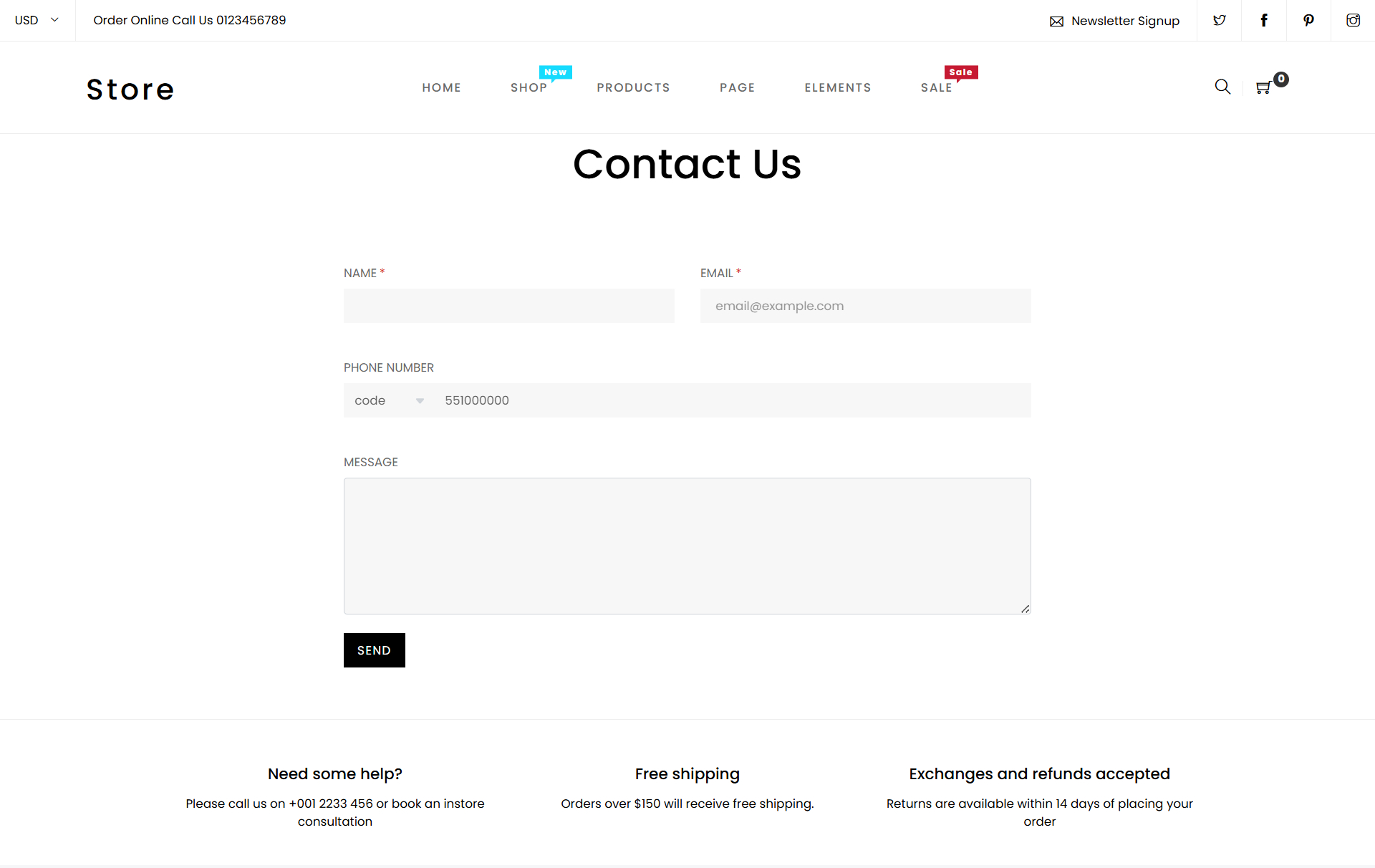
Customers can now submit the form through your store, and your team can manage their submissions in Zaetoon Helpdesk.