
You can forward emails from your existing email account, such as Gmail, Zoho Mail, or Outlook, to your Zaetoon Helpdesk to receive and manage customer messages in one place.
Set Up Email Forwarding in Zaetoon Helpdesk
From your Helpdesk, go to Settings → Communication Channels → Inboxes.
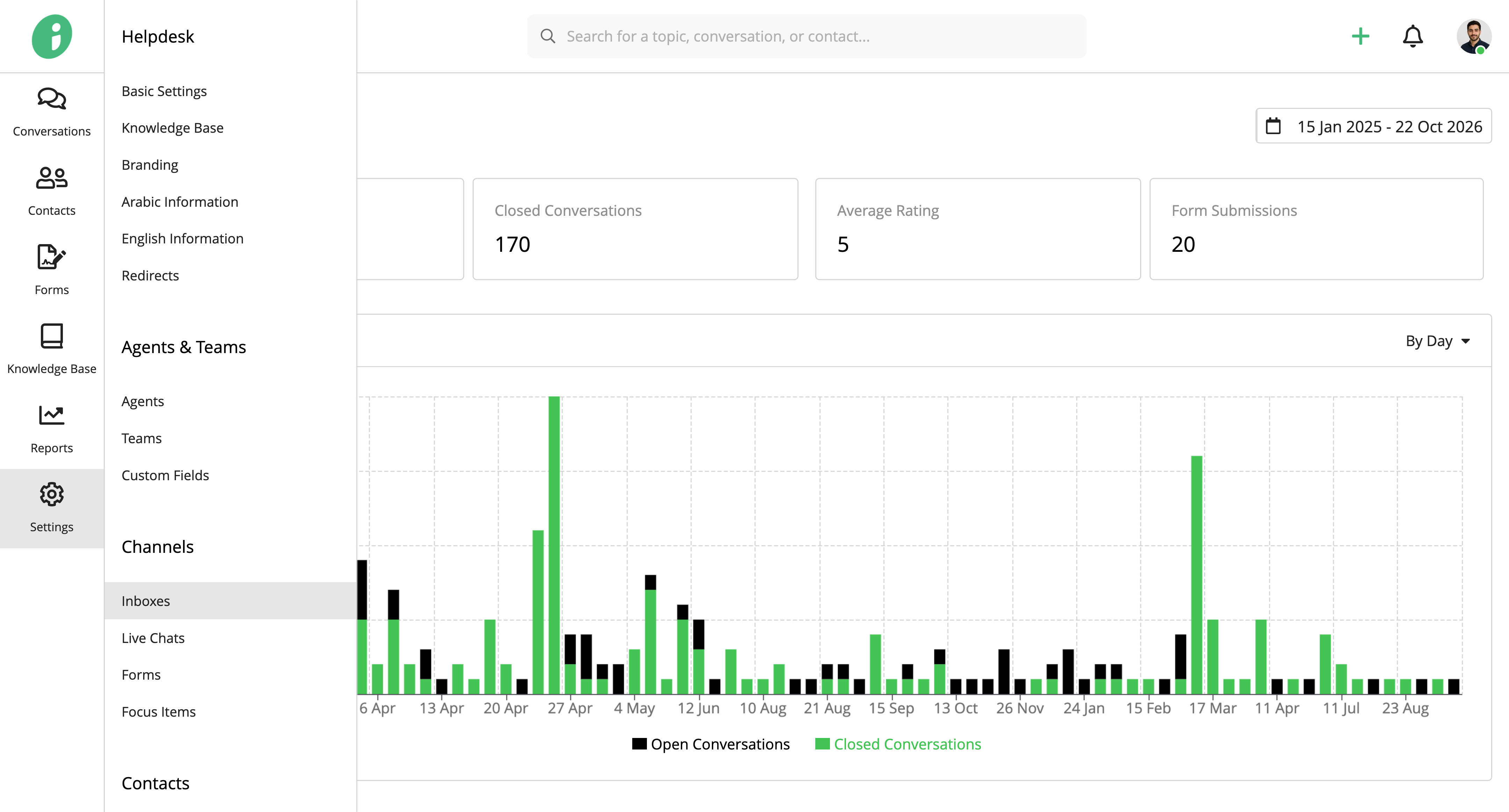
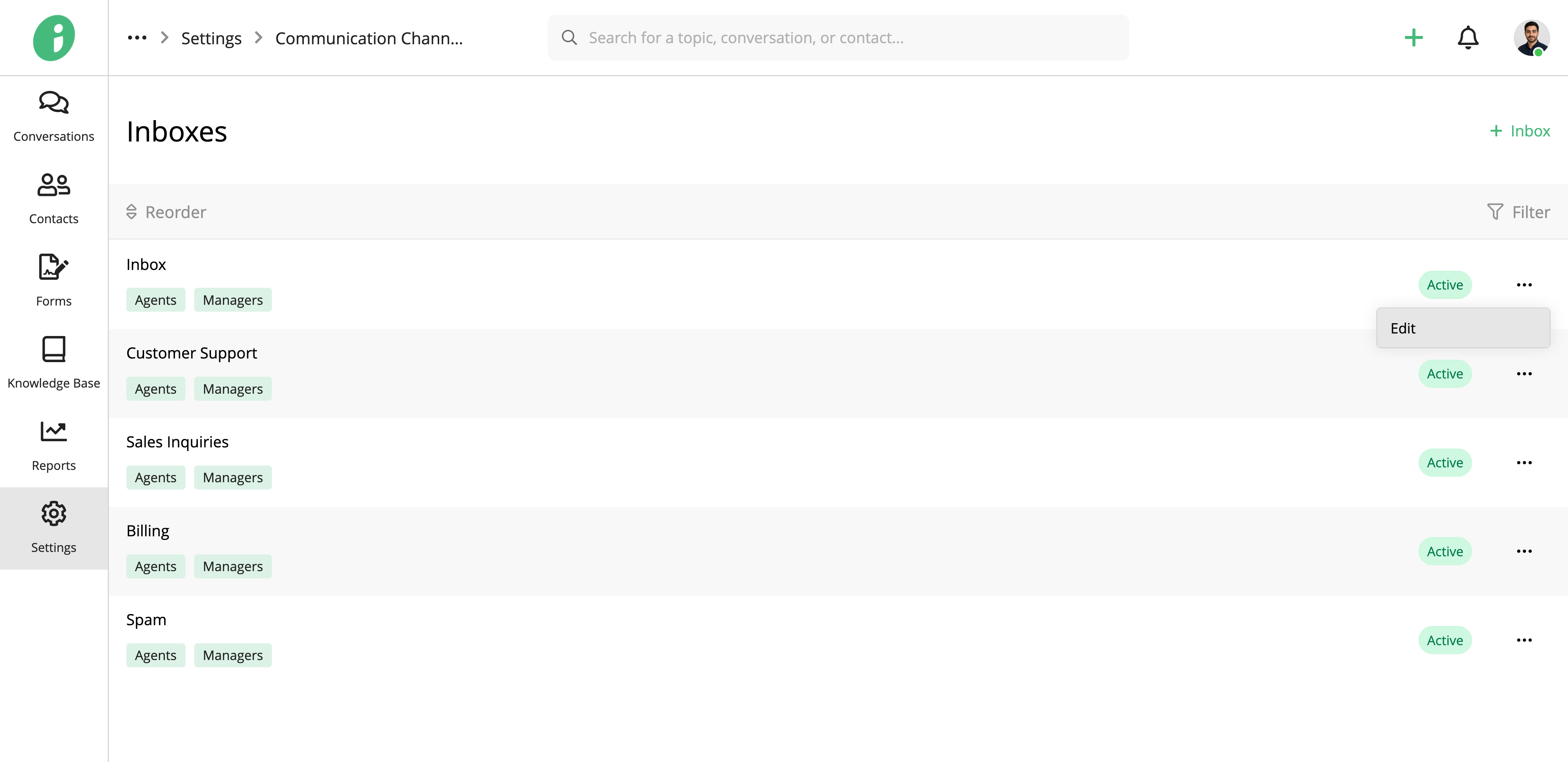
Find the inbox you want to use for receiving customer emails, open its options menu, and select Edit.
Select Email Settings.
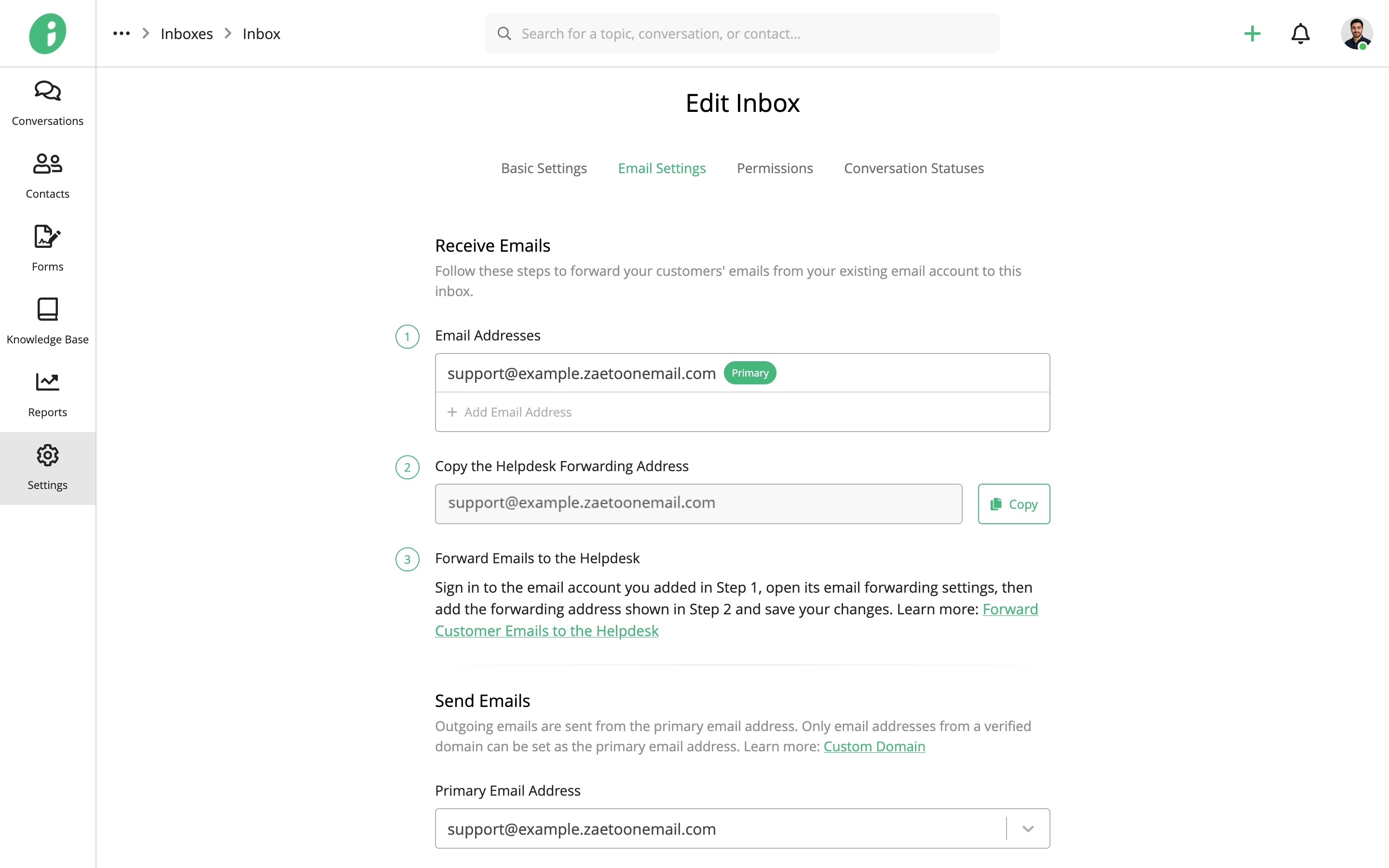
Under Receive Emails, follow these steps:
- Enter the email address you want to forward messages from.
- Click Copy to copy the forwarding address provided by Zaetoon.
- Configure email forwarding in your email provider using the copied address.
Forward Emails from Gmail
Sign in to the Gmail account you want to forward emails from.
Note: Gmail allows you to forward incoming messages automatically to one forwarding address at a time.
Click the Settings icon in the upper-right corner. Click See all settings.
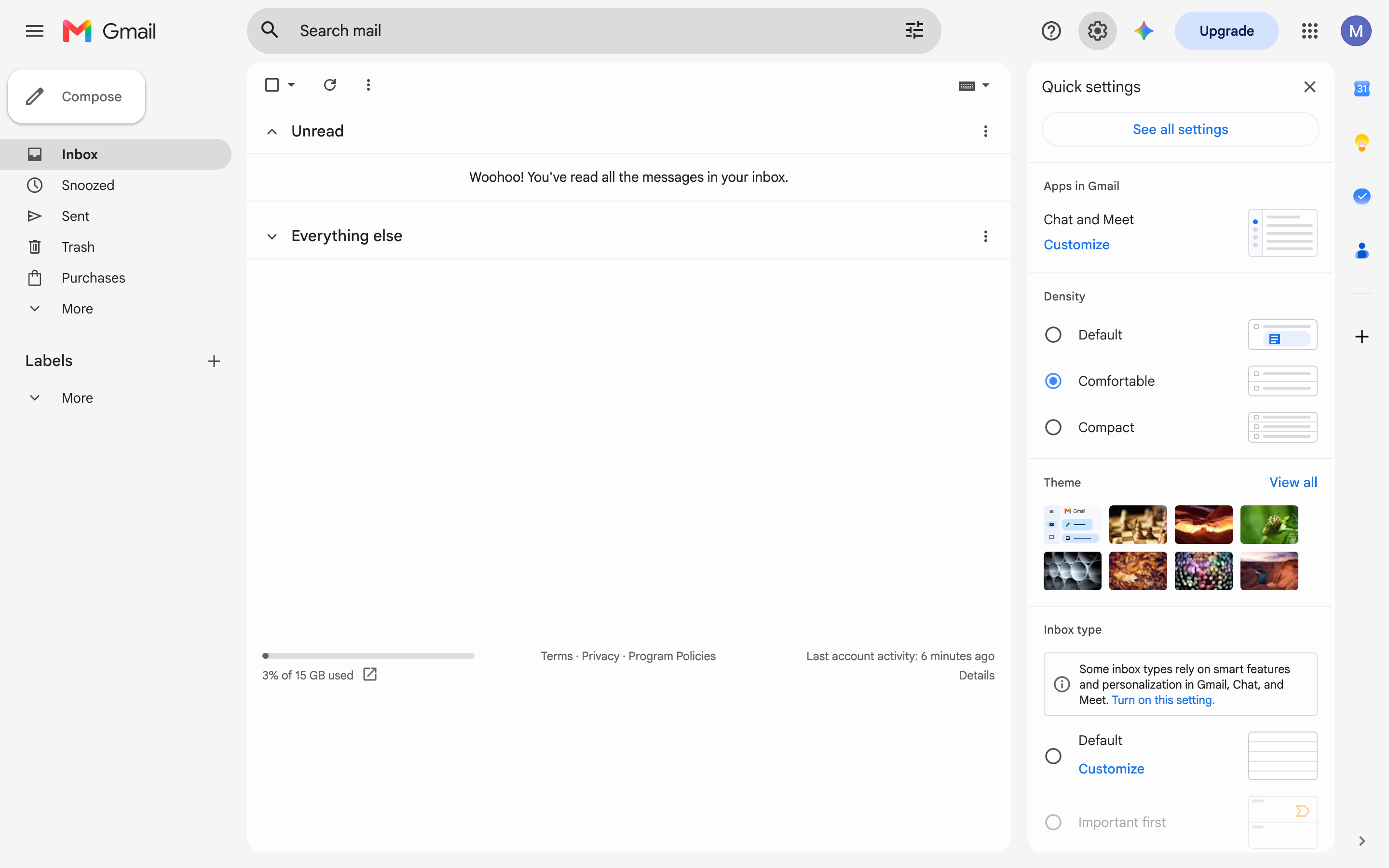
Open the Forwarding and POP/IMAP tab, then click Add a forwarding address.
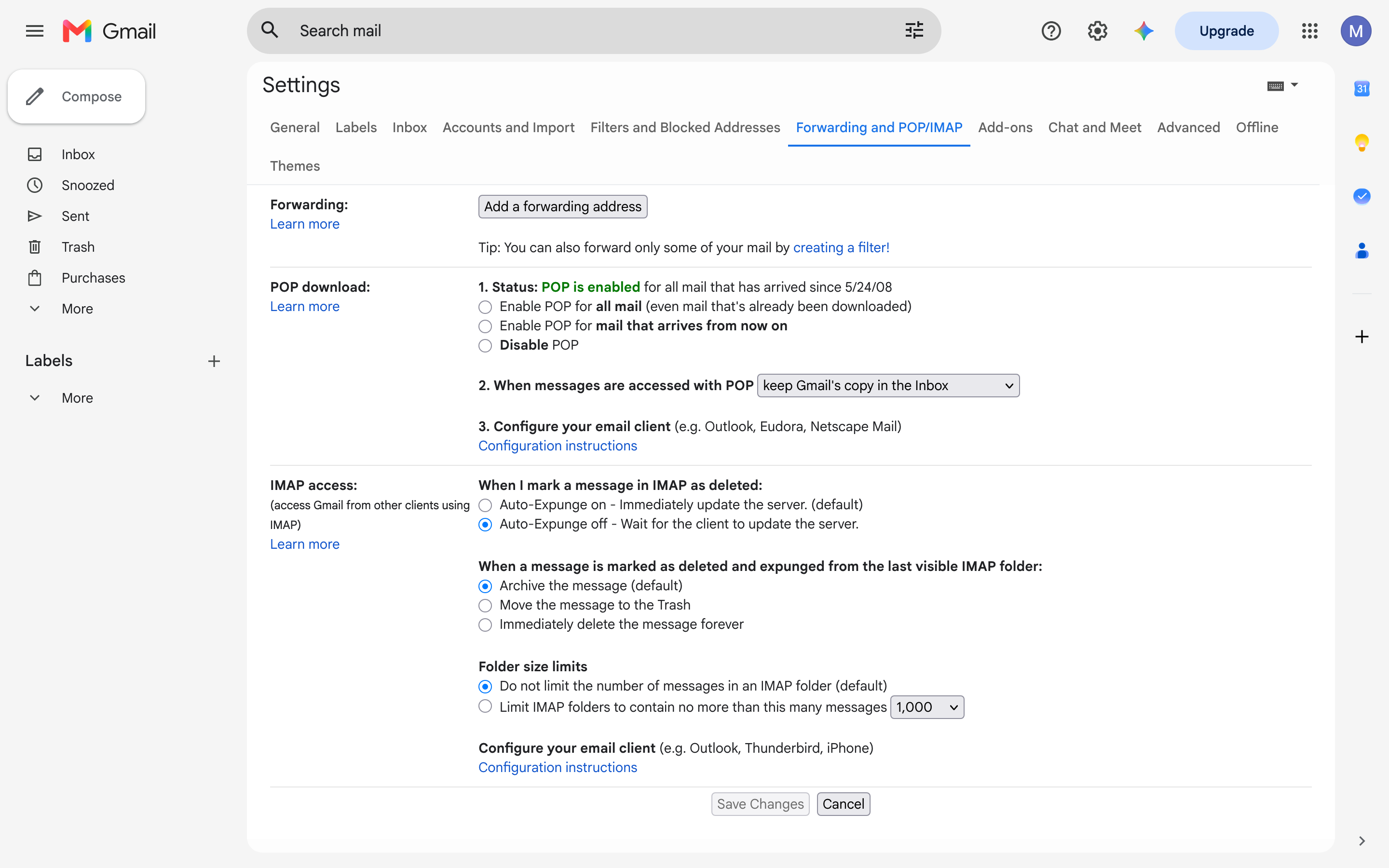
Enter the Helpdesk forwarding address you copied from Zaetoon, then click Next.
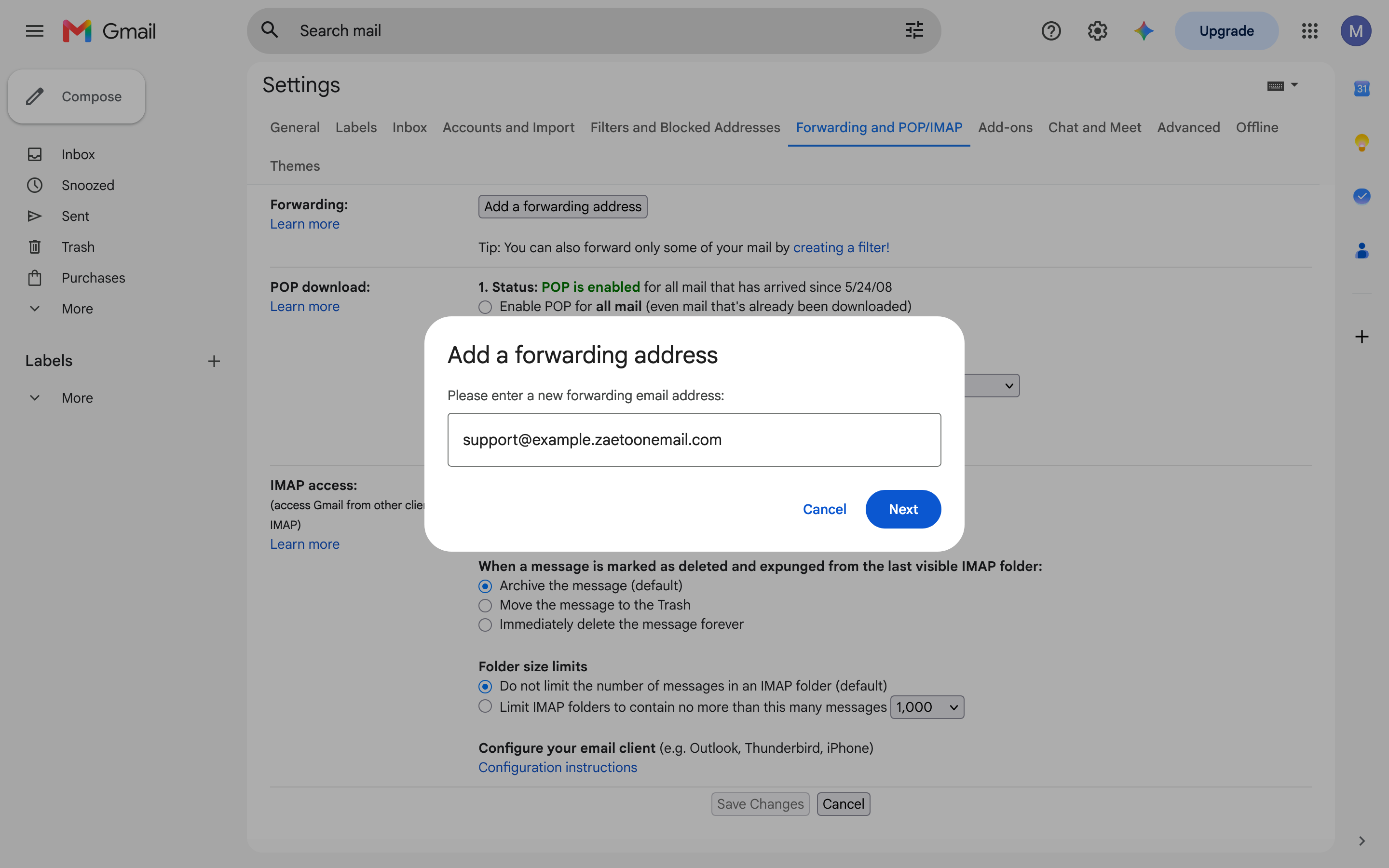
Review the address in the confirmation window and click Proceed.
Gmail will display a message confirming that a verification email has been sent. Click OK.
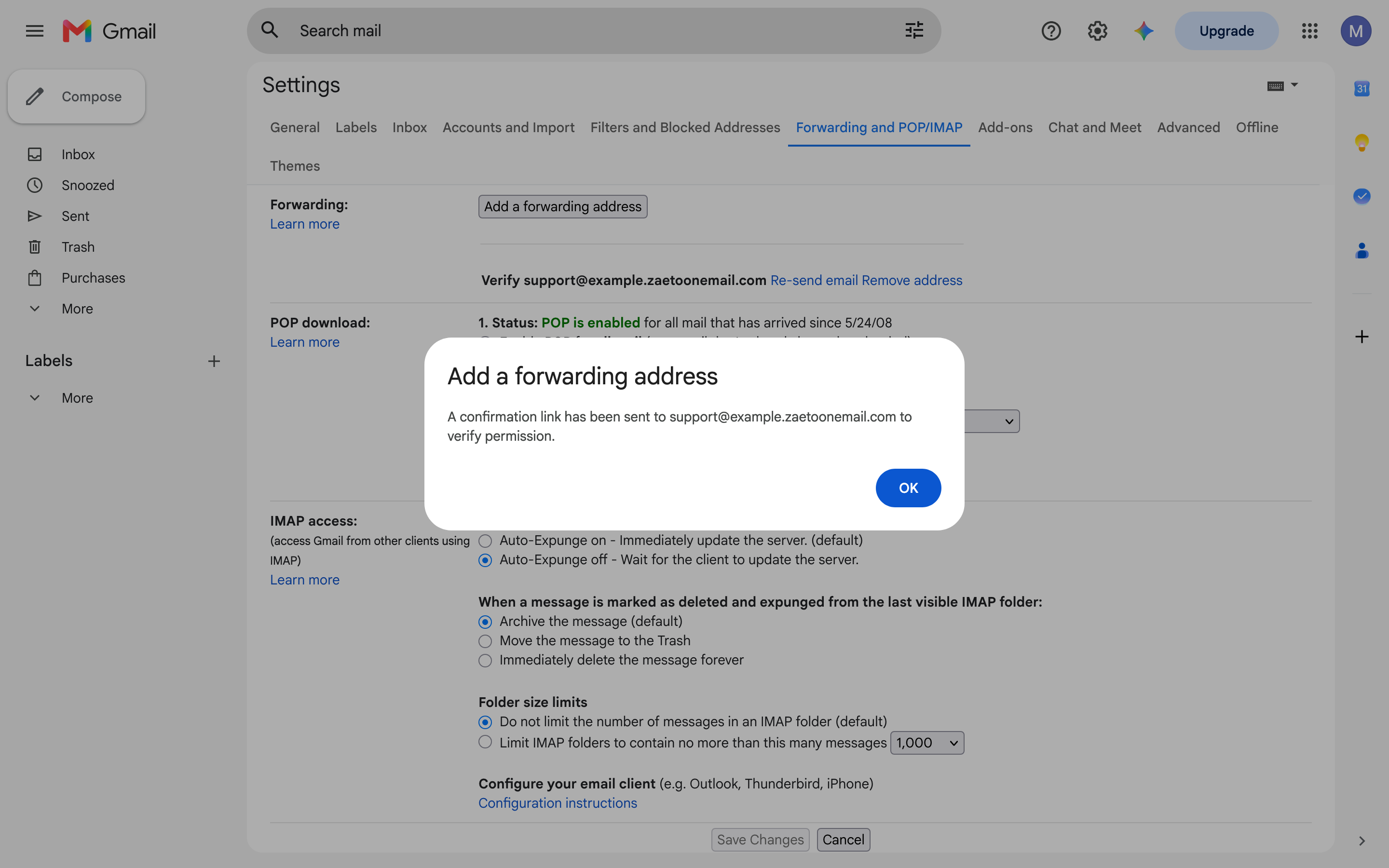
To complete verification, return to your Zaetoon Helpdesk and open Conversations.
Find the verification email from the Gmail Team. If it doesn’t appear in your inbox, check Spam.
Open the message and click the verification link.
Return to Gmail and refresh the settings page.
Under Forwarding and POP/IMAP, enable Forward a copy of incoming mail to and select your Helpdesk forwarding address.
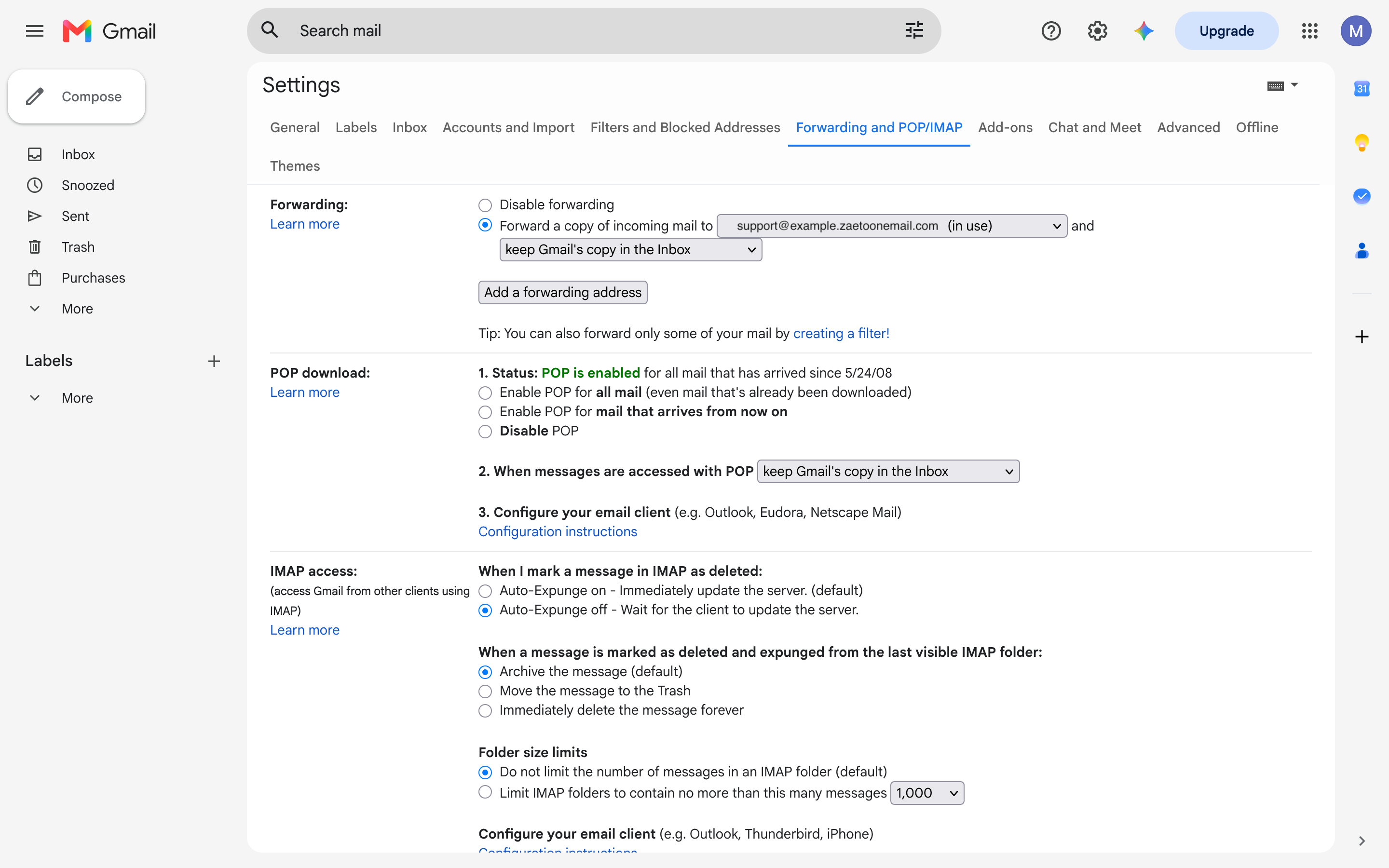
Click Save Changes.
Incoming emails will now be forwarded to your Zaetoon Helpdesk.
Forward Emails from Zoho Mail
Sign in to your Zoho Mail account and click the Settings icon in the upper-right corner.
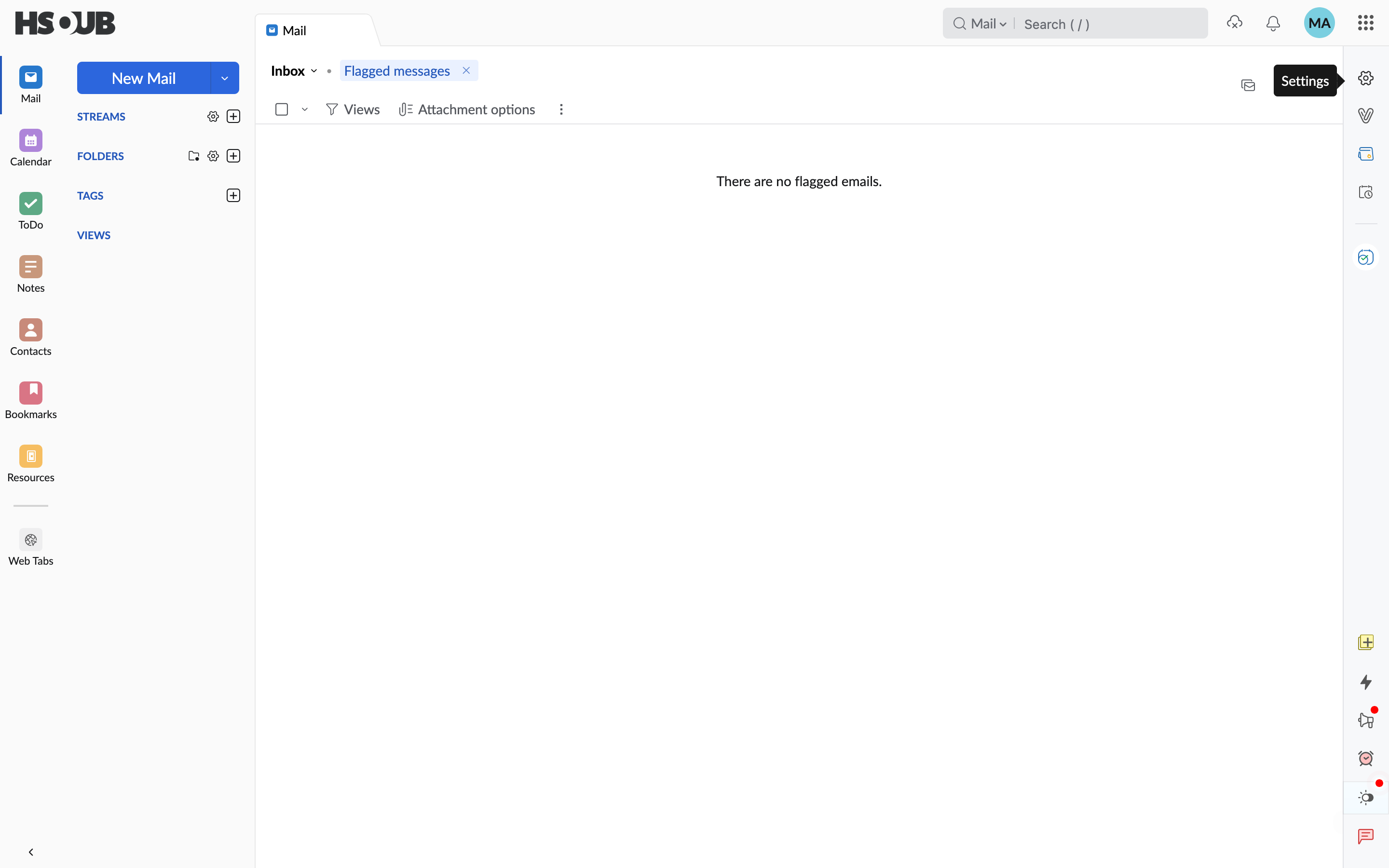
Under Mail Accounts, select the email account you want to configure.
Open the Forwards tab and scroll down to Add New Email Forwarding.
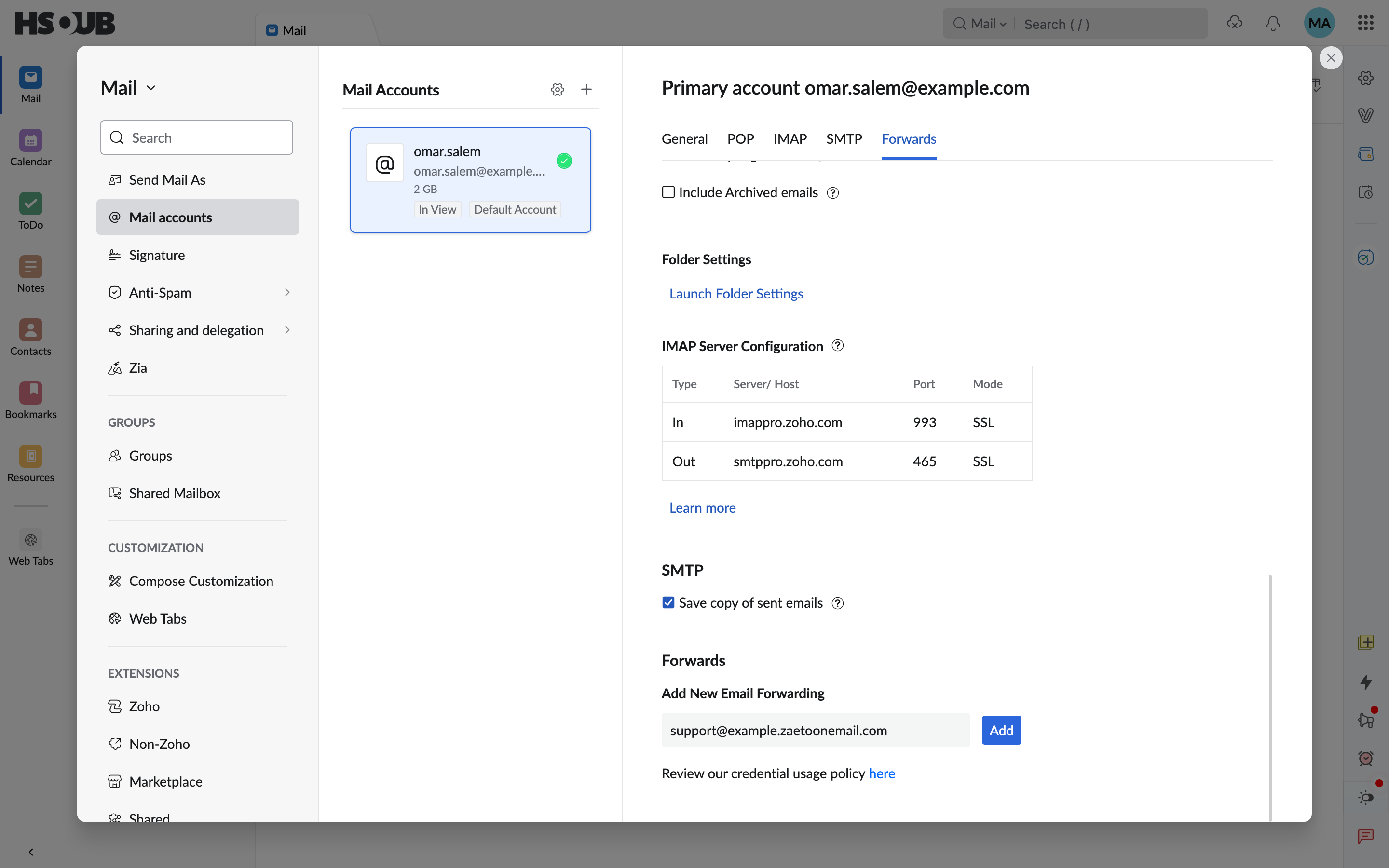
Paste the Helpdesk forwarding address you copied from Zaetoon into the provided field, then click Add.
Zoho Mail will send a verification email to your Helpdesk.
Return to Zaetoon Helpdesk, open the verification email, and follow the instructions to verify the forwarding address. If you don’t see the email in your inbox, check Spam.
Once verification is complete, confirm that forwarding is enabled in Zoho Mail.
Forward Emails from Outlook
Sign in to your Outlook account and click the Settings icon in the upper-right corner.
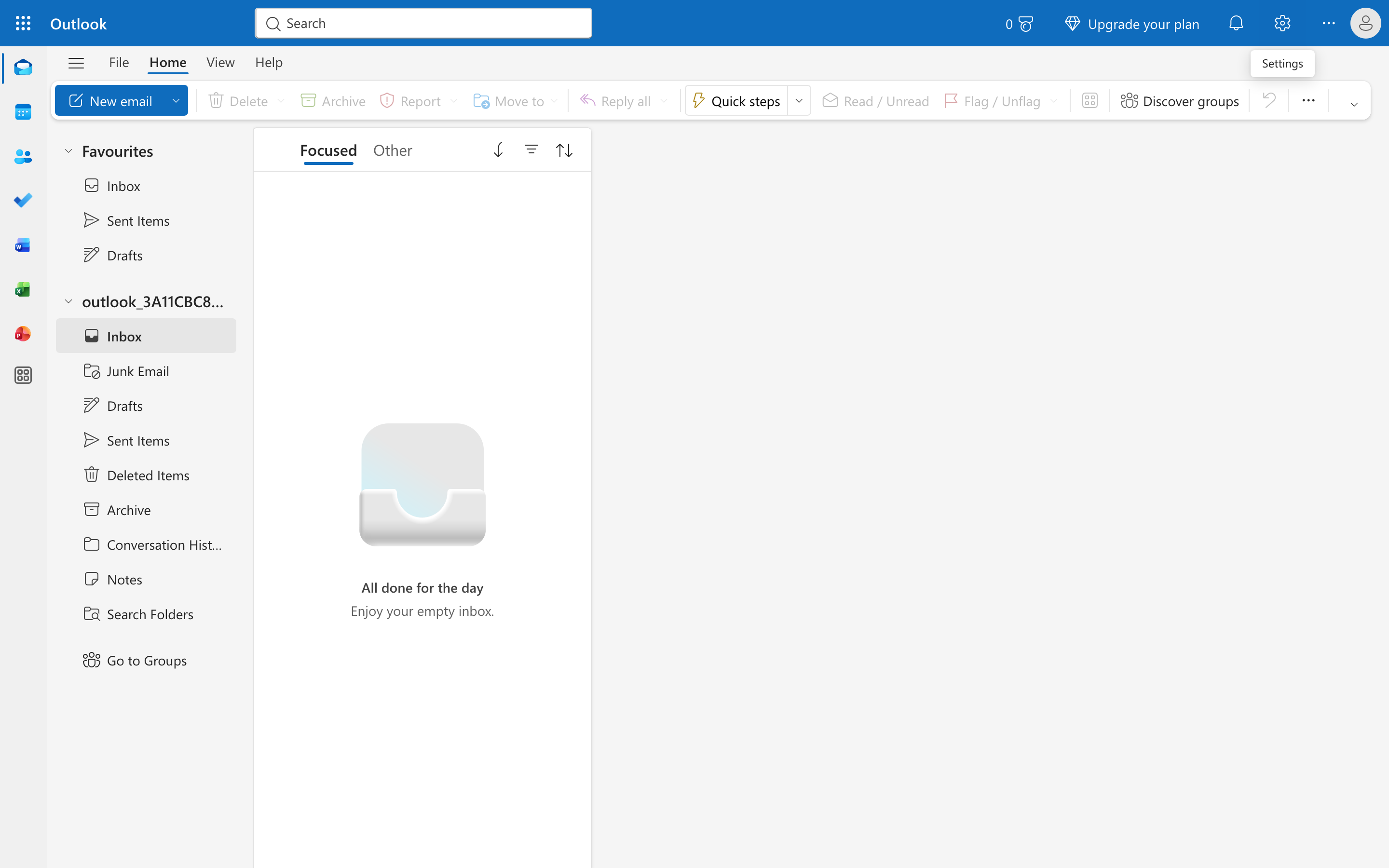
Under Email, select Forwarding and IMAP.
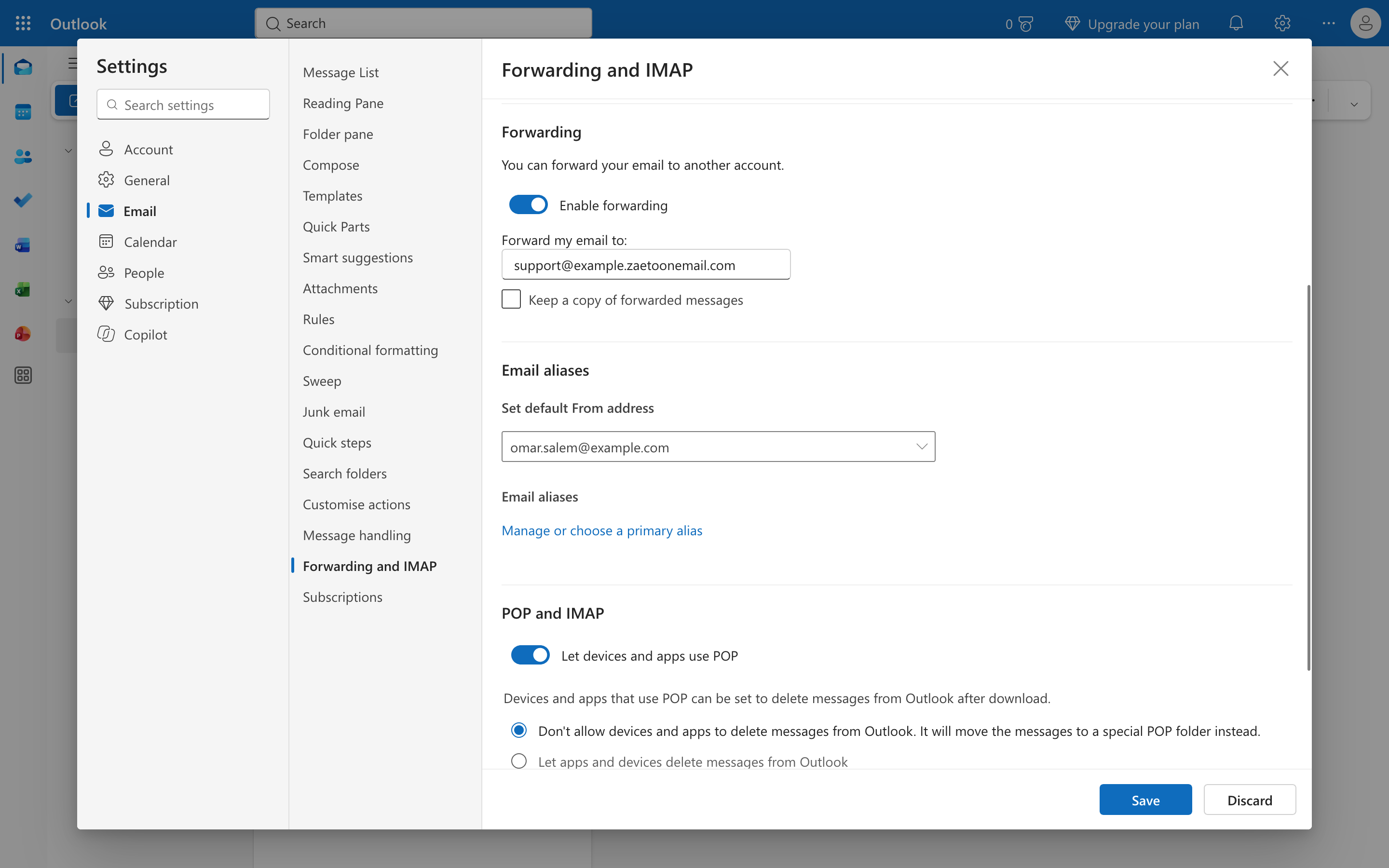
Turn on Enable forwarding, then paste the Helpdesk forwarding address you copied from Zaetoon into the Forward my email to field.
Click Save to apply your changes.