Notifications keep you informed about important activity in your Zaetoon Helpdesk, such as new messages in conversations you follow or are assigned to, contact and form activity, and changes to your team or inbox assignments.
You can view your notifications, mark them as read, and configure your notification preferences.
View Notifications
From your Helpdesk, click the bell icon in the top-right corner to view your recent notifications.
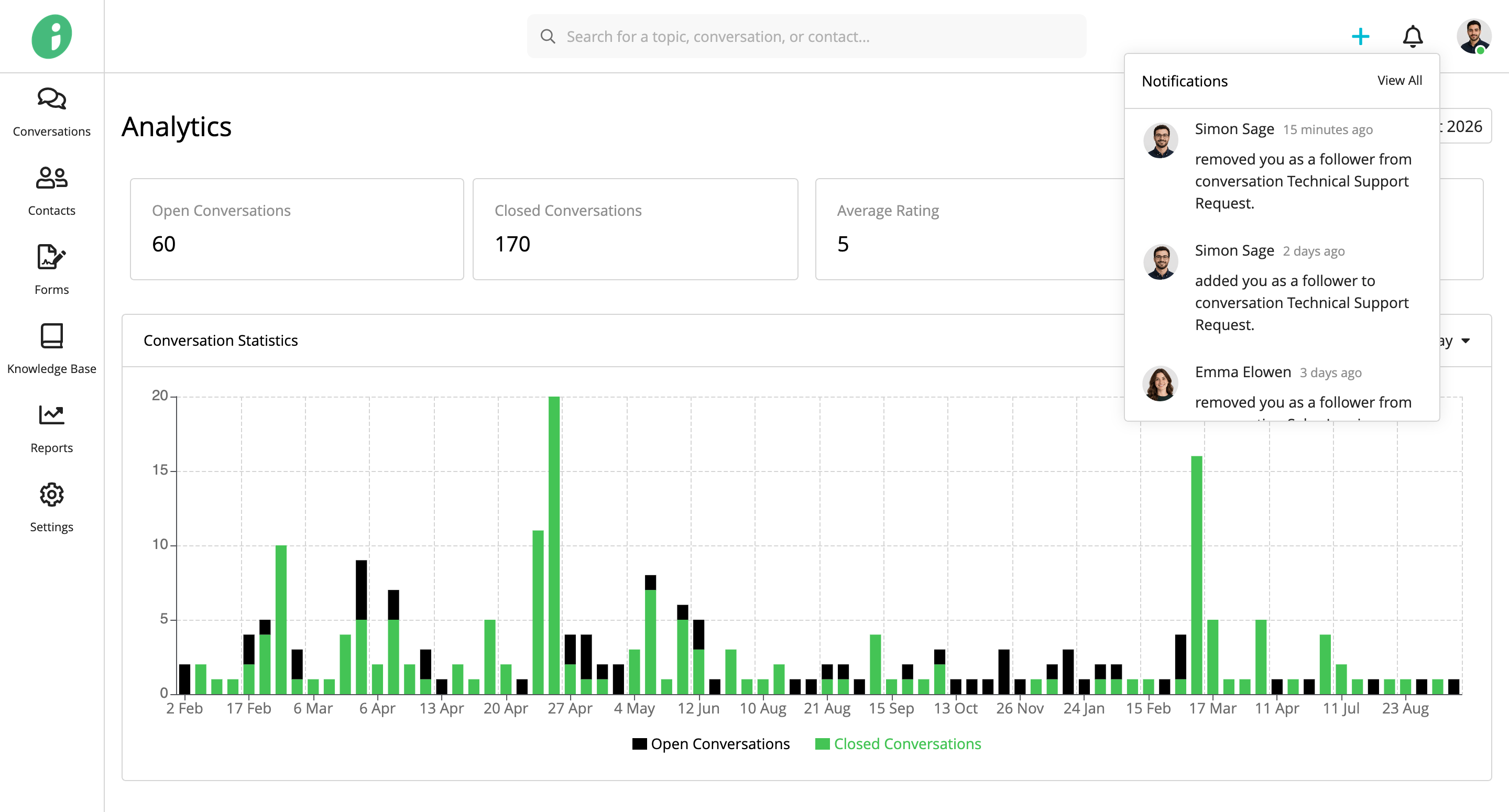
Click View All to open the full notifications list.
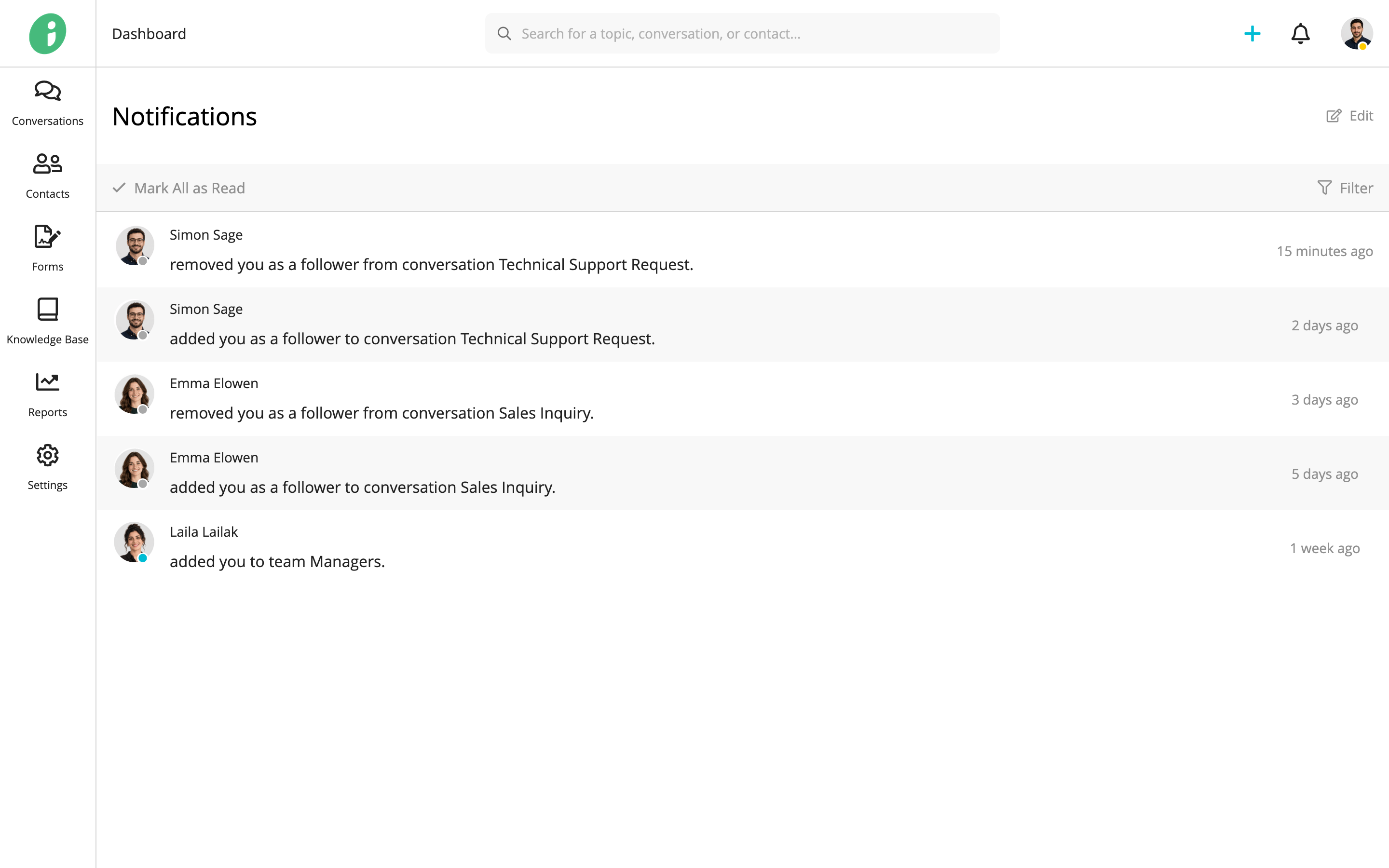
The list displays notifications with details about the activity, the agent involved, and when it occurred.
Click a notification to open the related item, such as a conversation, contact, agent profile, form, or inbox.
Use Mark All as Read to mark your unread notifications as read.
Configure Notification Settings
On the Notifications page, click Edit to open Notification Settings.
Basic Settings
Under Basic Settings, enable Email Notifications to receive email summaries of unread notifications.
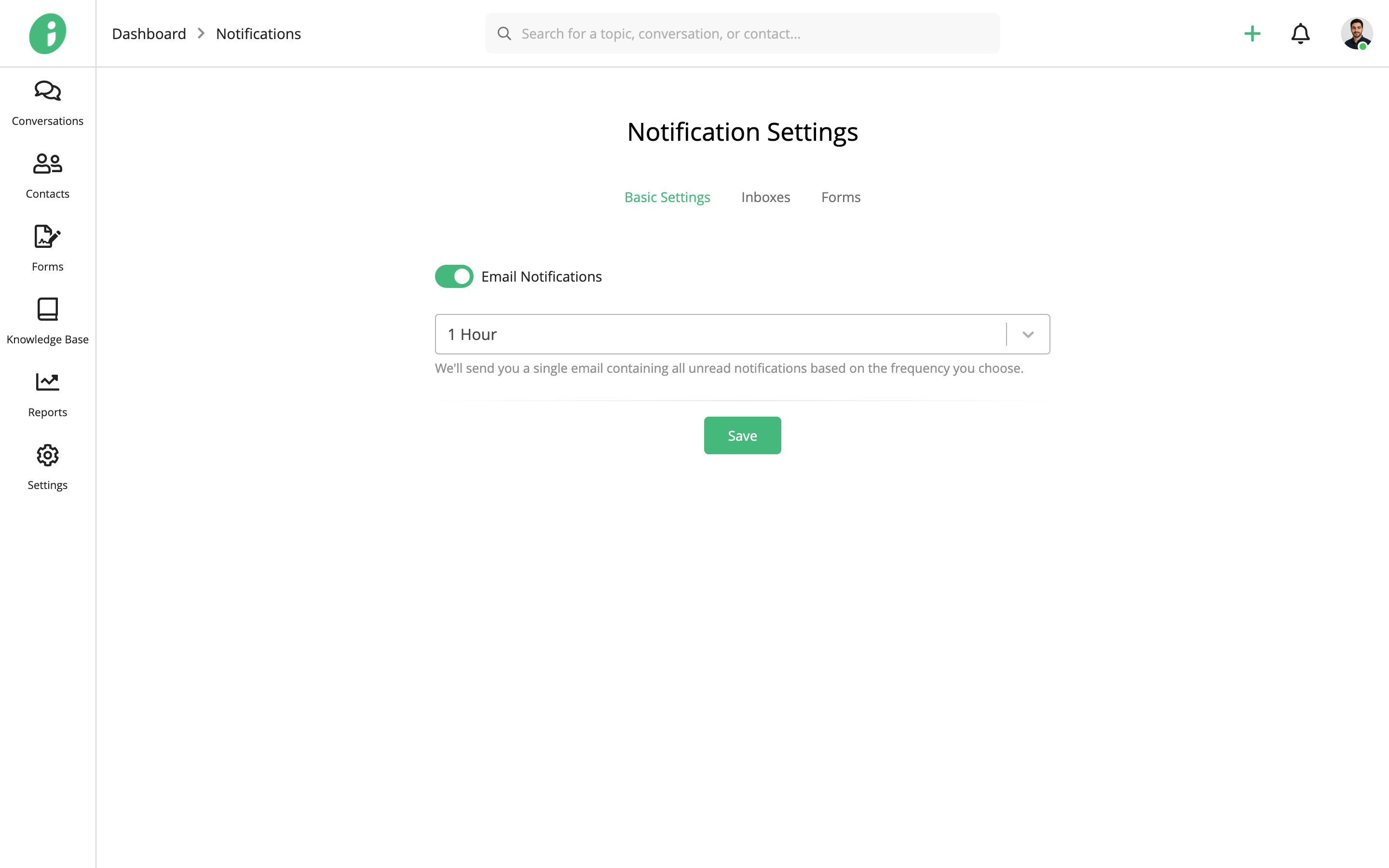
Choose how frequently you want to receive these summaries. Zaetoon combines unread notifications into a single email based on your selected frequency.
Click Save to apply your changes.
Inbox Notifications
Open the Inboxes tab to choose which inboxes you want to receive notifications from.
Enable or disable notifications for each inbox using its toggle.
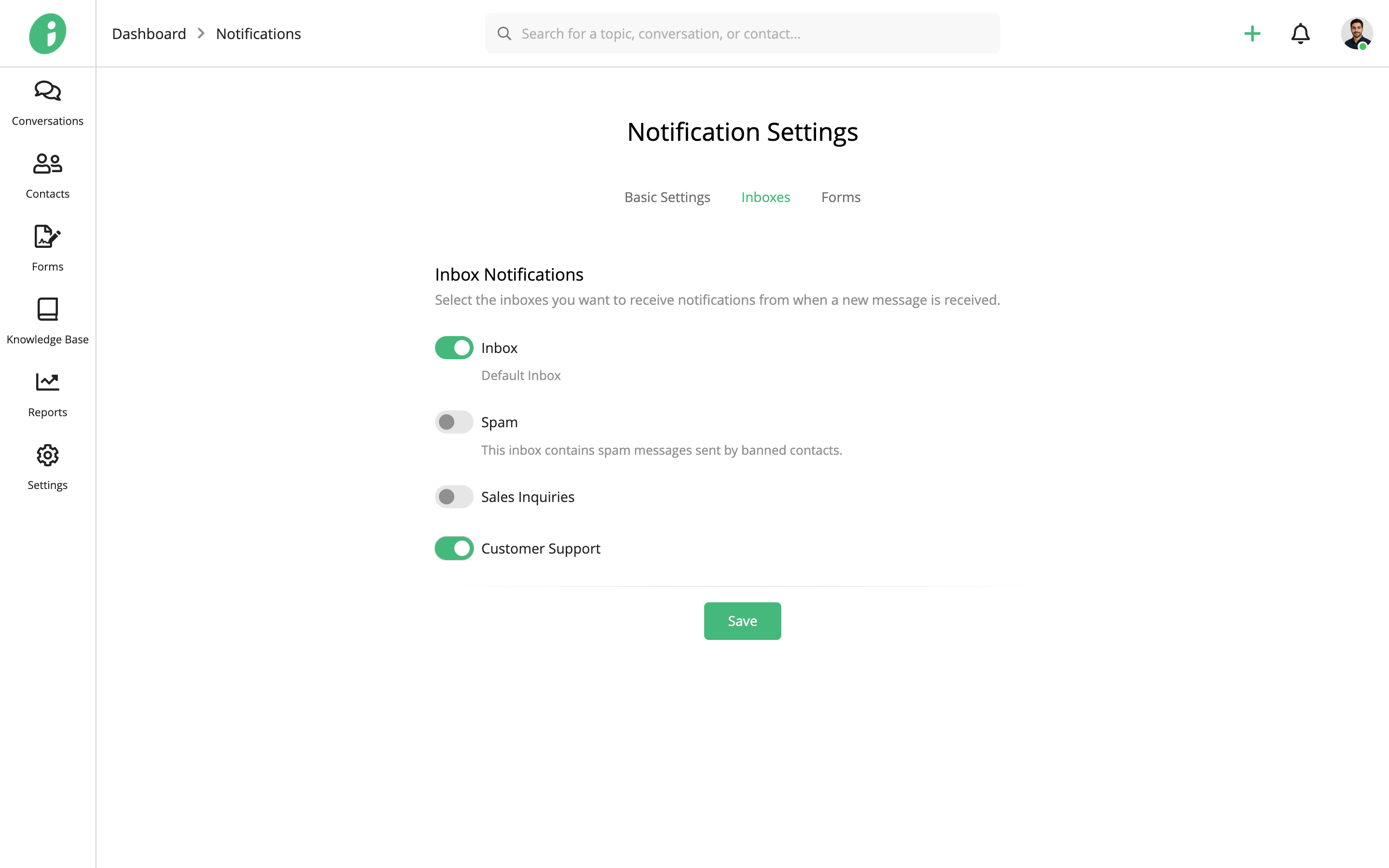
Click Save to apply your changes.
Form Notifications
Open the Forms tab to choose which forms you want to receive notifications from.
Enable or disable notifications for each form using its toggle.
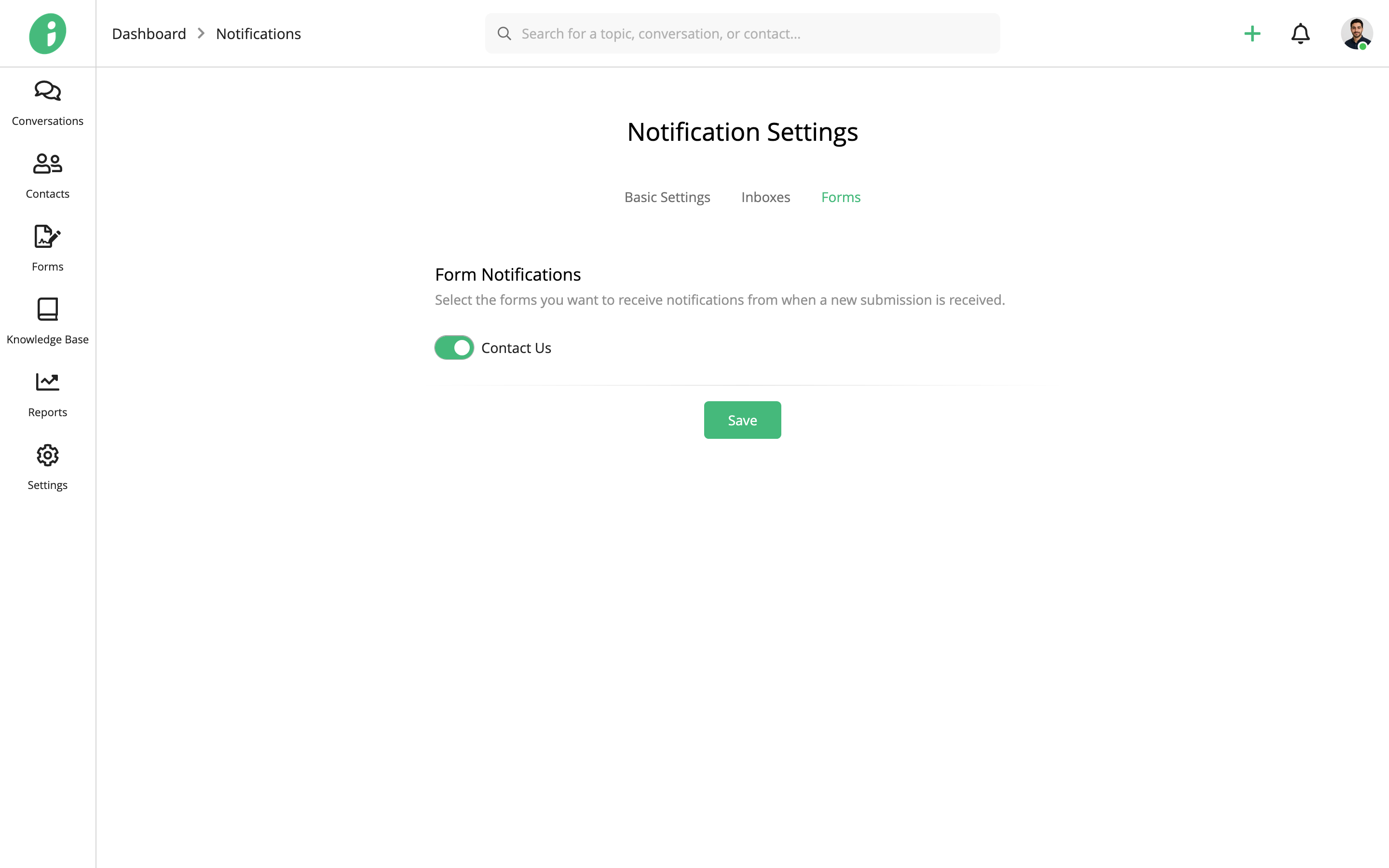
Click Save to apply your changes.