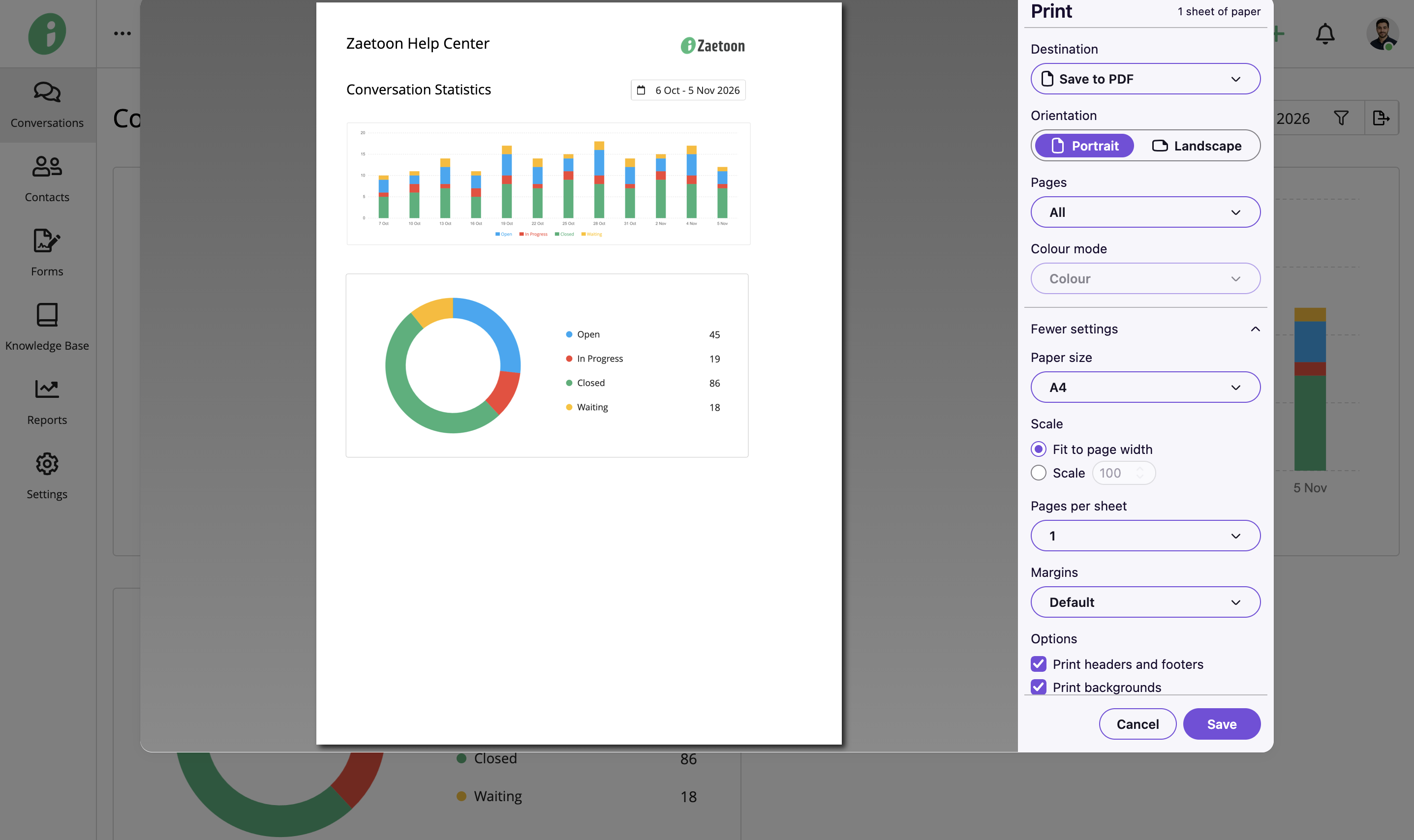
Use Conversation Statistics to track conversation activity, review status distribution, and analyze trends over a selected period.
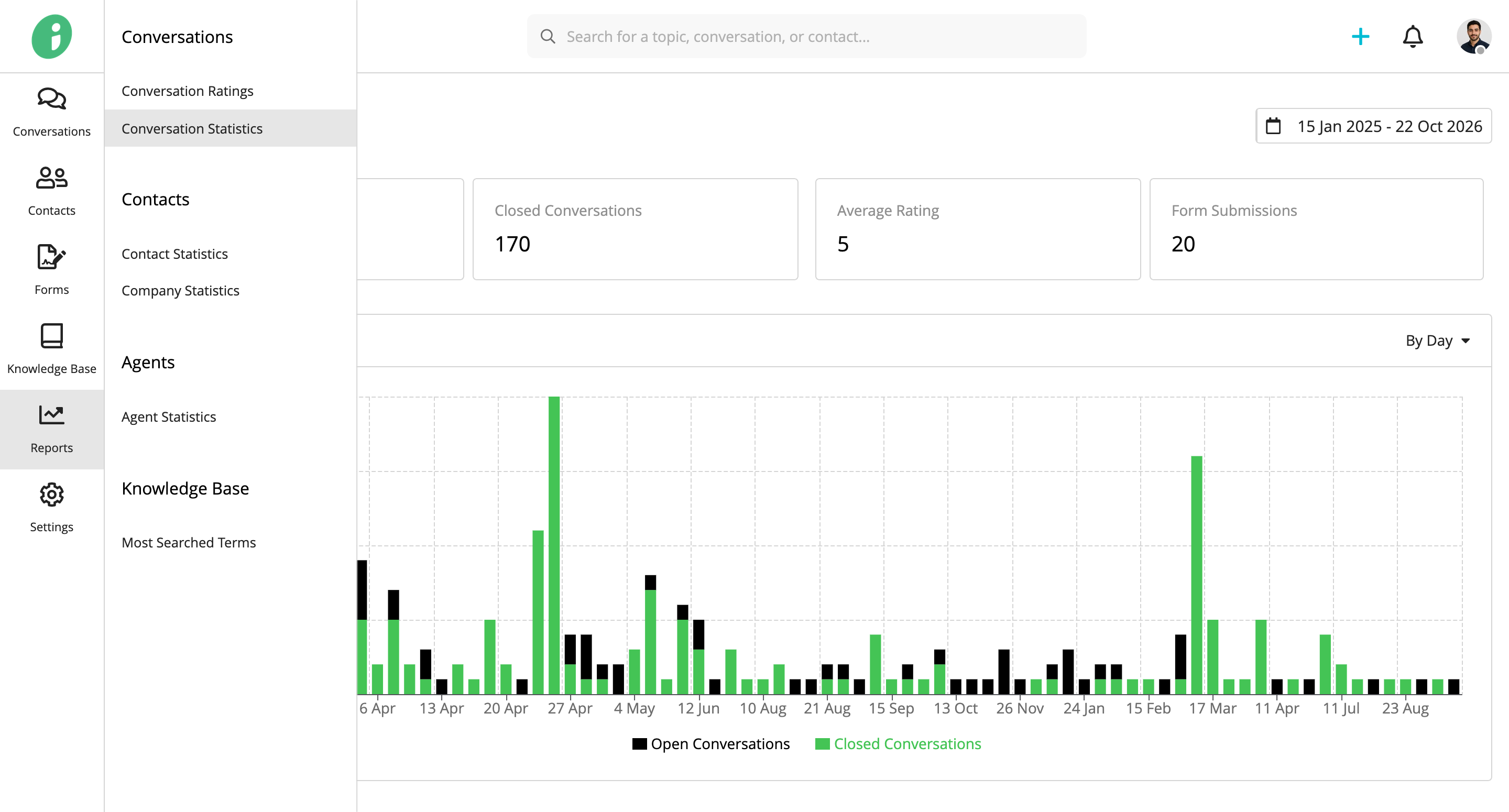
From your Helpdesk, go to Reports → Conversations → Conversation Statistics.
Conversation Activity and Status Distribution
The report includes two charts:
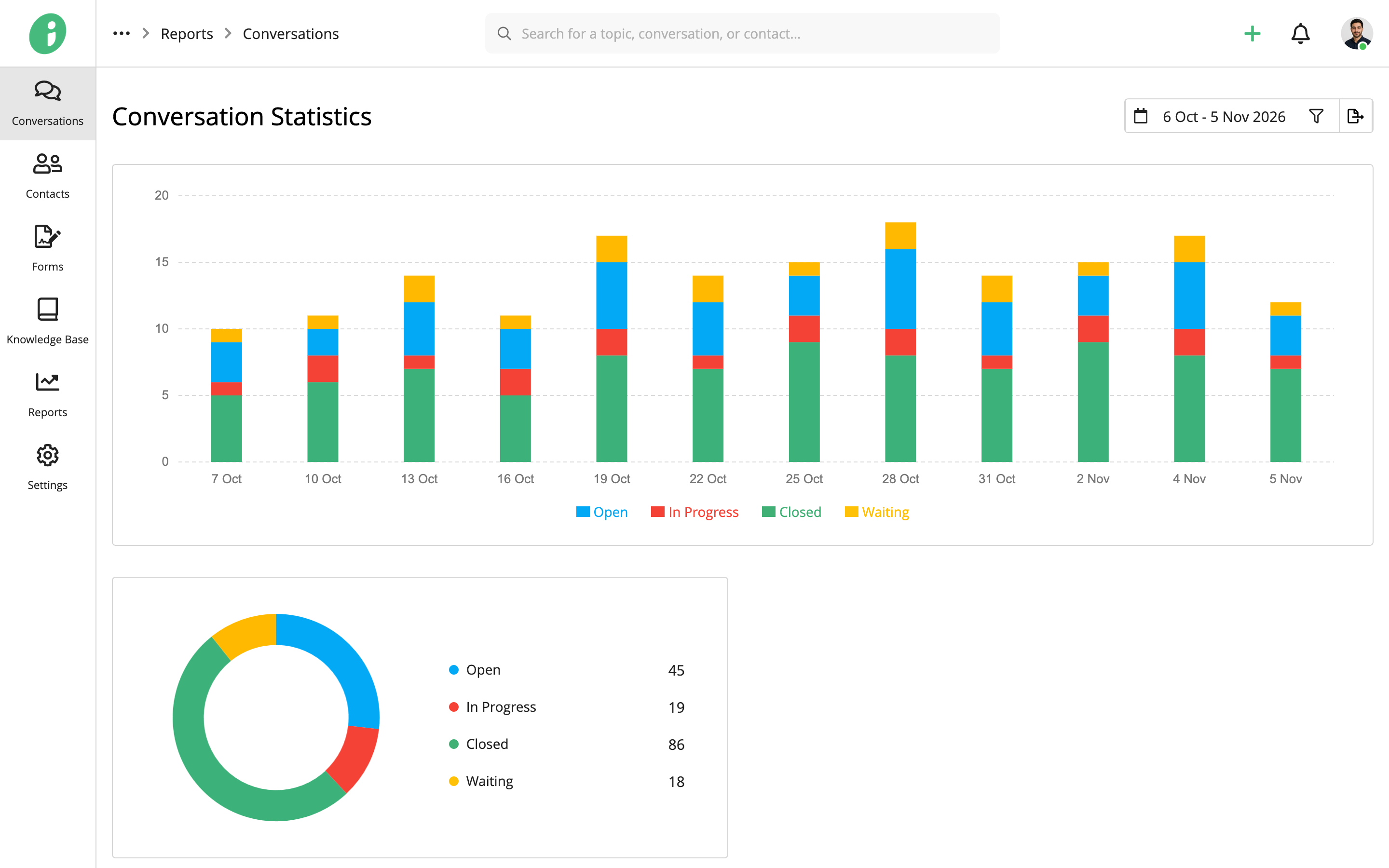
- Conversation Activity: A stacked bar chart showing conversation counts over time, grouped by status.
- Status Distribution: A doughnut chart showing the number of conversations in each status.
Each status is represented by a different color. The available statuses depend on how your Helpdesk is configured.
To learn how to customize statuses, see Configure Conversation Statuses.
Select a Date Range
Click the calendar icon to choose a predefined period: Today, Yesterday, Last 7 Days, Last Month, Last Year, or All Time.
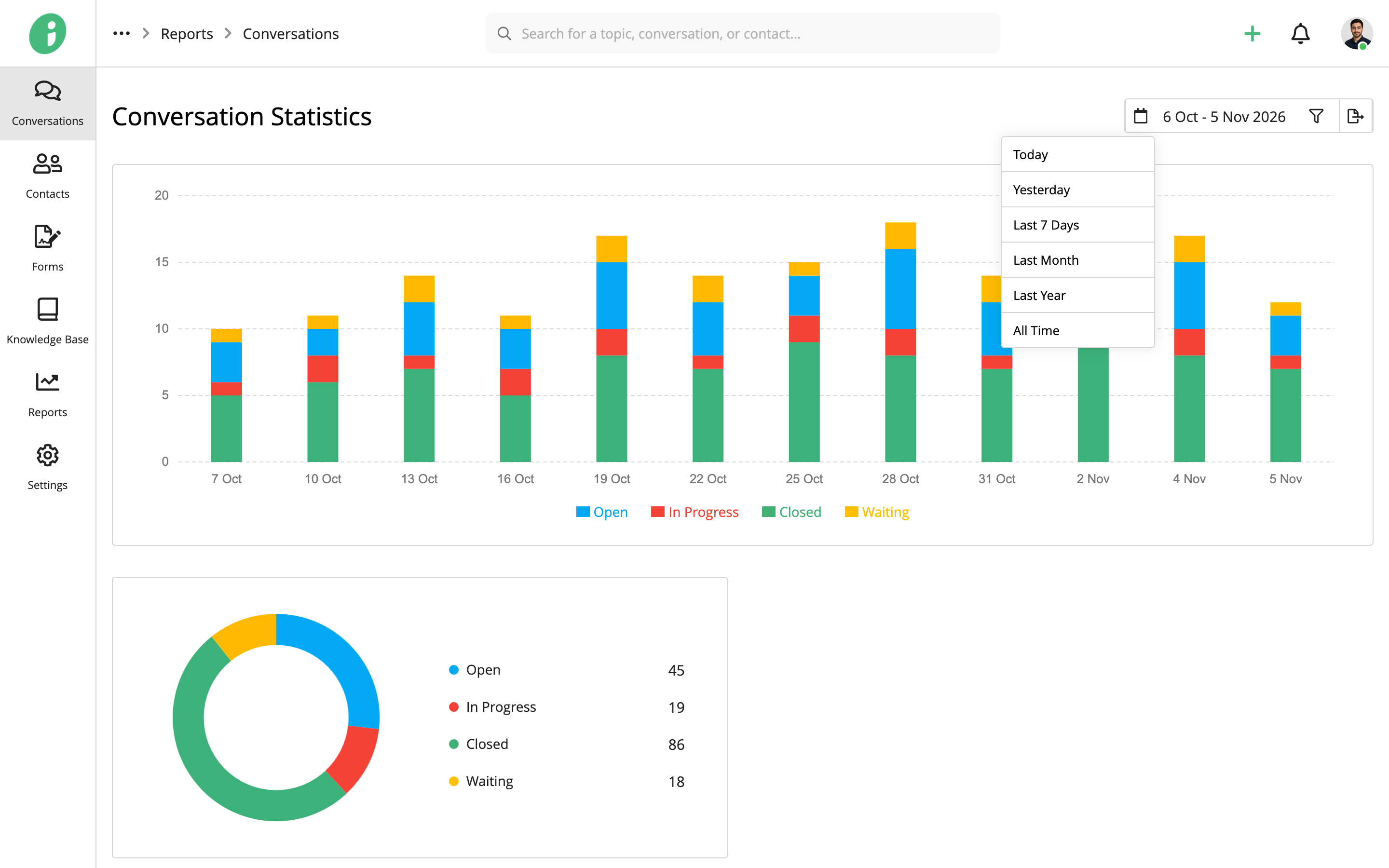
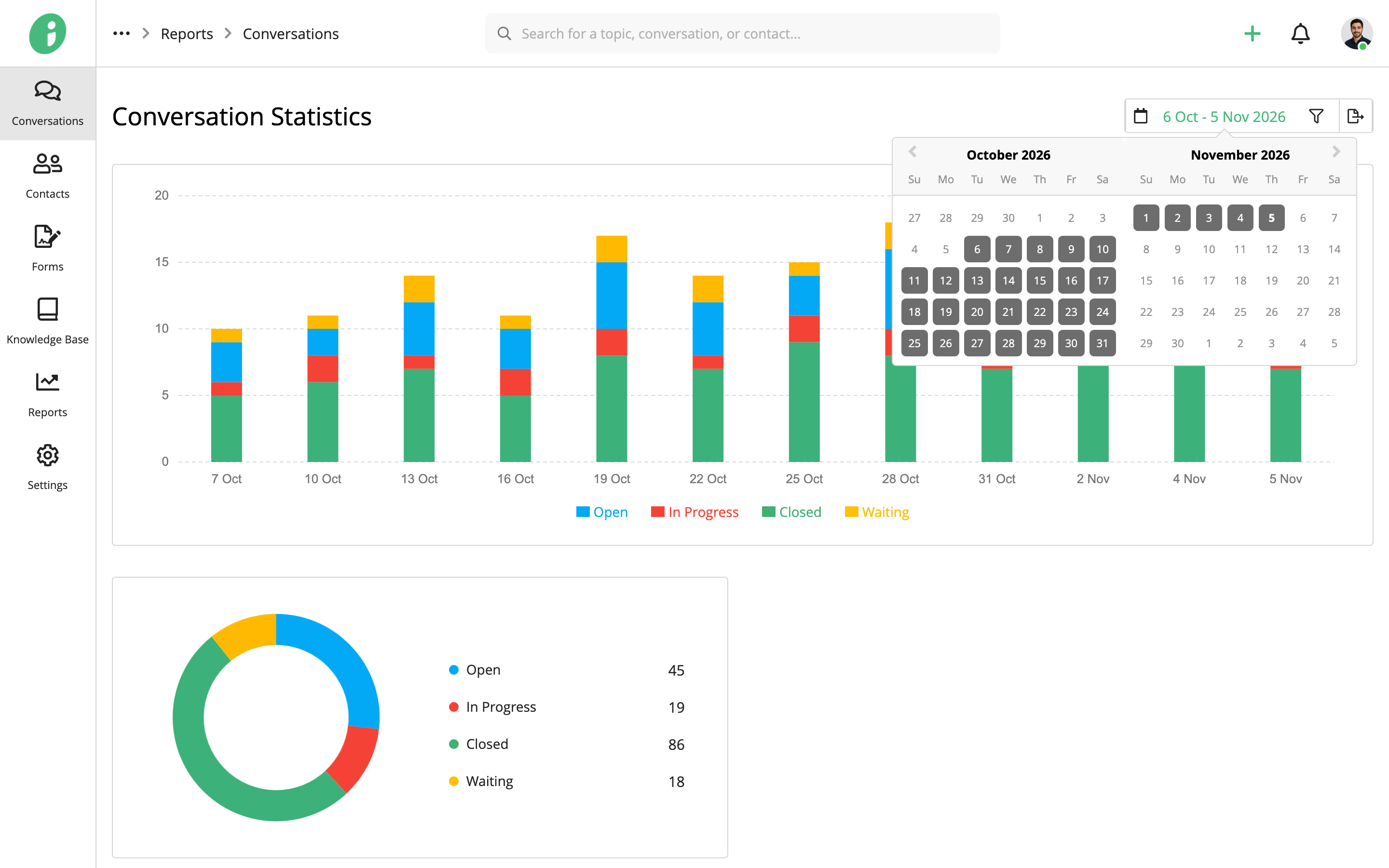
To specify a custom period, click the date range and select the start and end dates from the calendar.
Filter Conversation Statistics
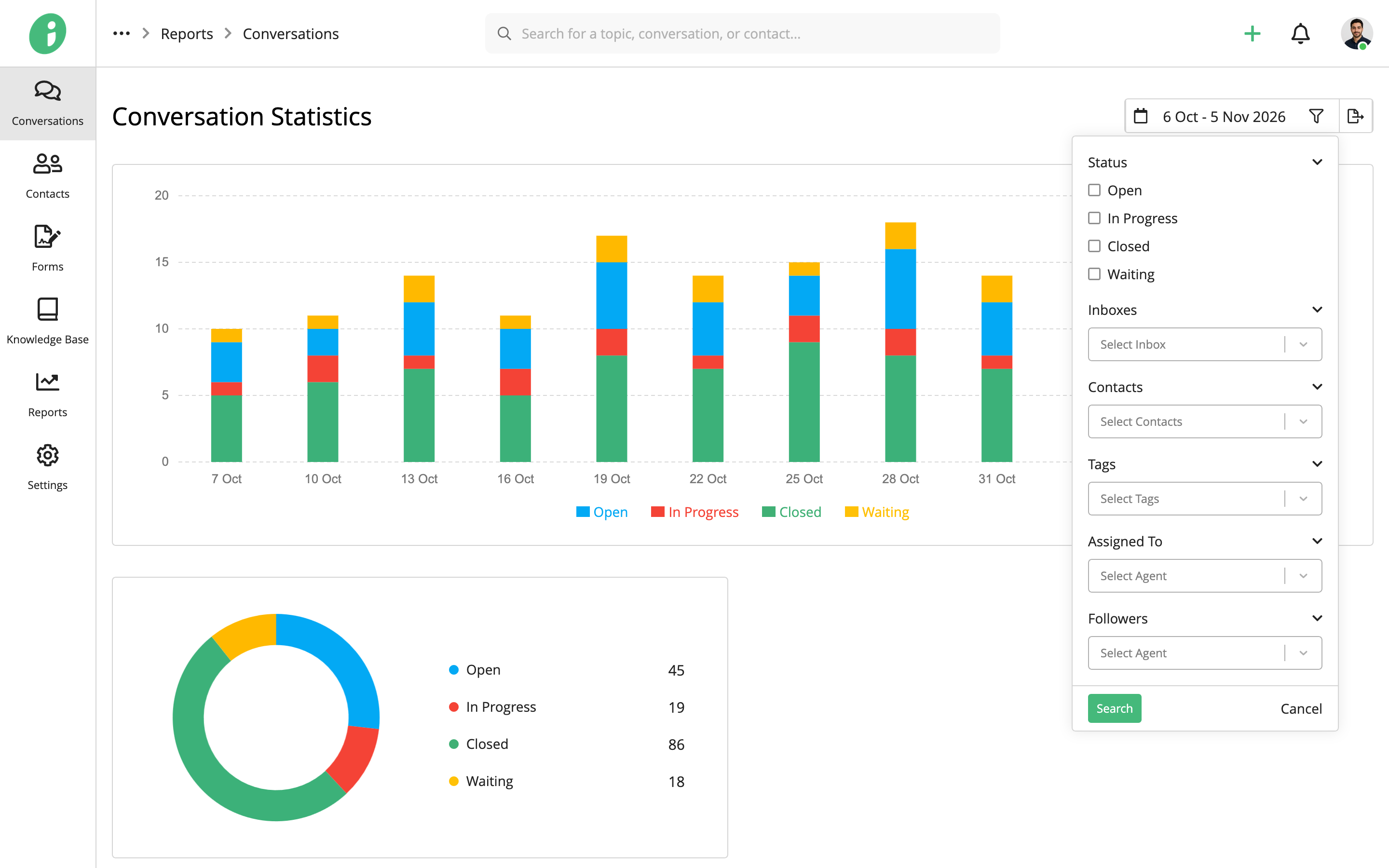
Click the filter icon in the upper-right corner to narrow the report by Status, Inboxes, Contacts, Tags, Assigned To, or Followers. Click Search to apply your selections.
Export Conversation Statistics
Click the export icon in the upper-right corner to open the report's print preview. Select Save to PDF as the destination to save a copy of the report.