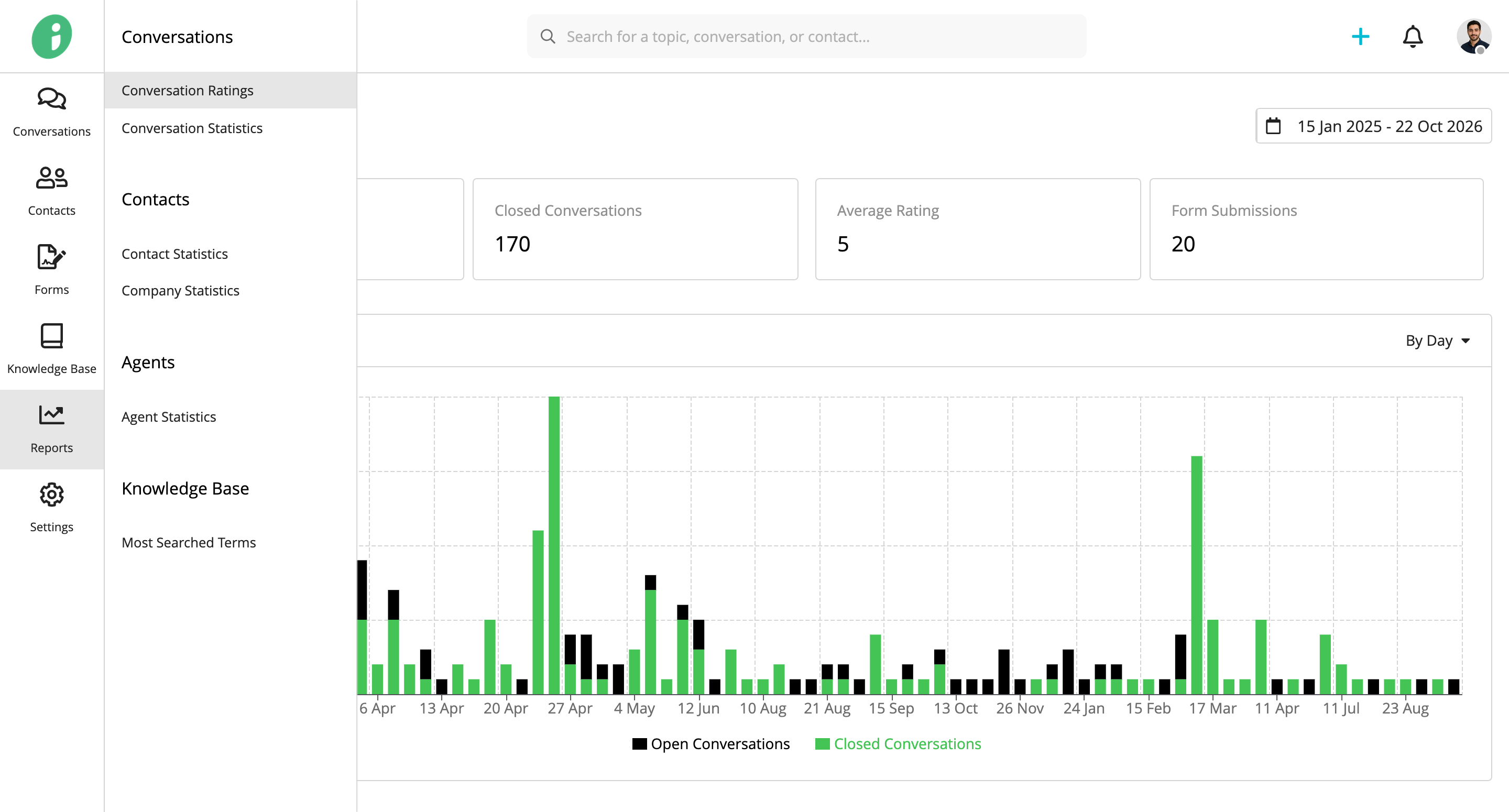
Use Conversation Ratings to review customer feedback and compare ratings across contact segments, inboxes, teams, and conversation tags.
From your Helpdesk, go to Reports → Conversations → Conversation Ratings.
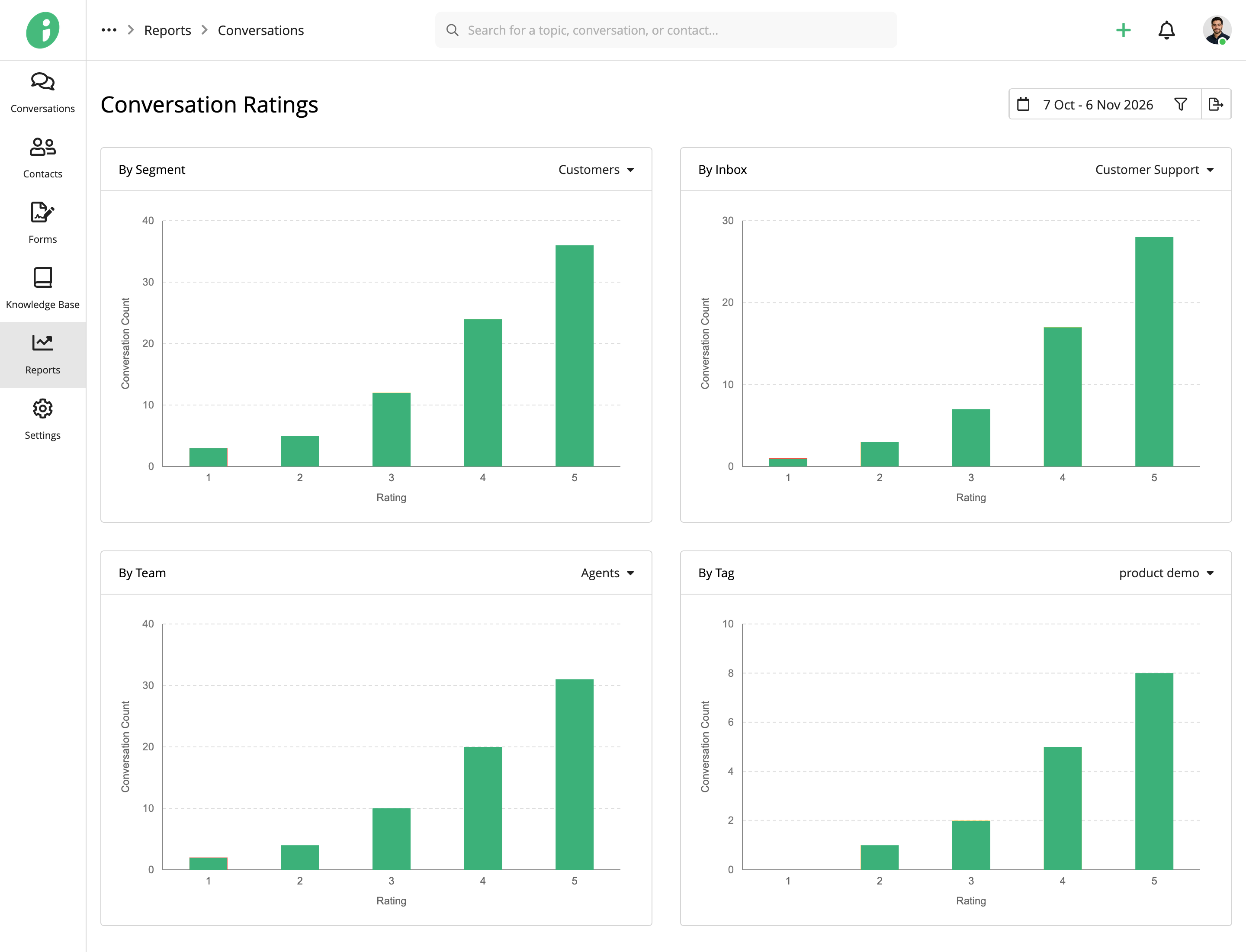
Ratings Overview
The report displays four charts showing how conversation ratings are distributed on a scale of 1 to 5. Use each chart's dropdown to view ratings for a selected segment, inbox, team, or conversation tag.
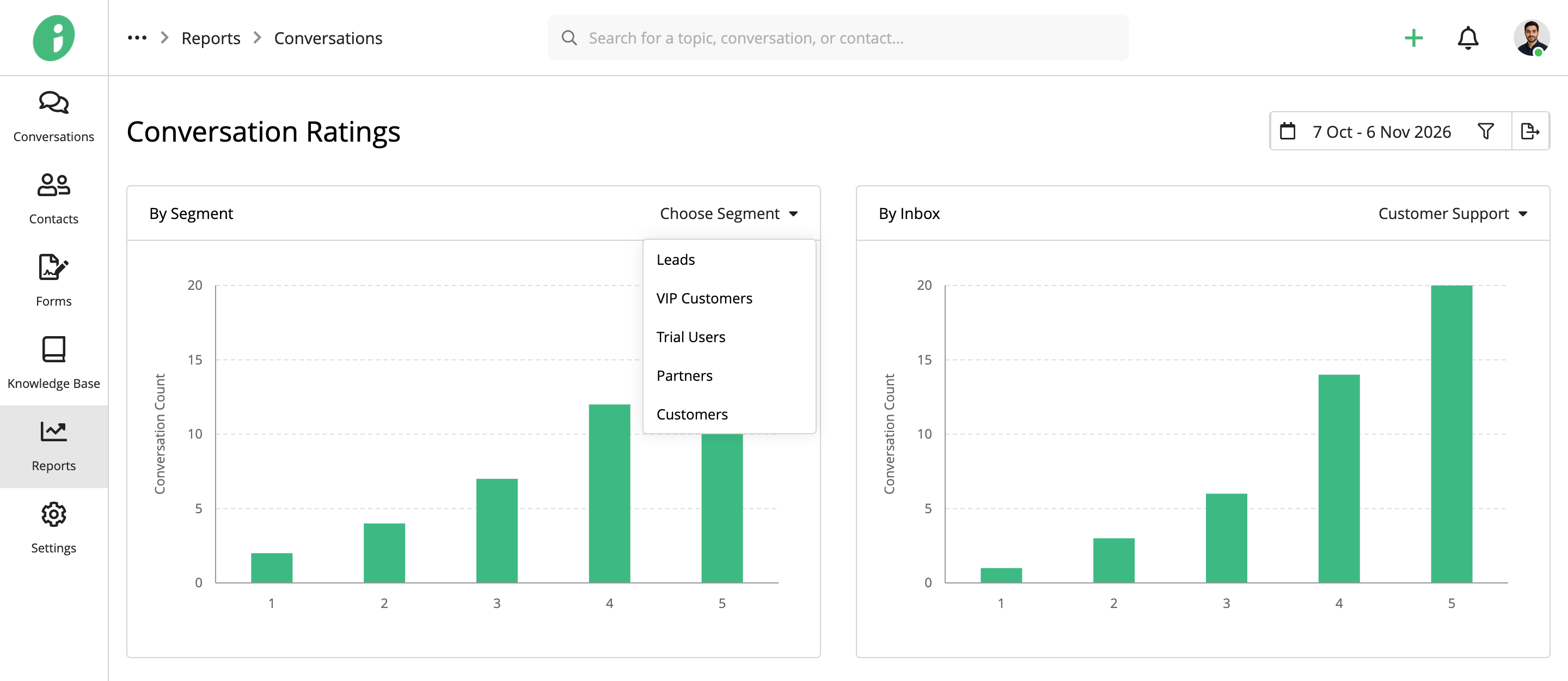
By Segment
The By Segment chart shows ratings for conversations associated with a selected contact segment.
Use the dropdown to choose a segment, such as Customers, Leads, or Trial Users.
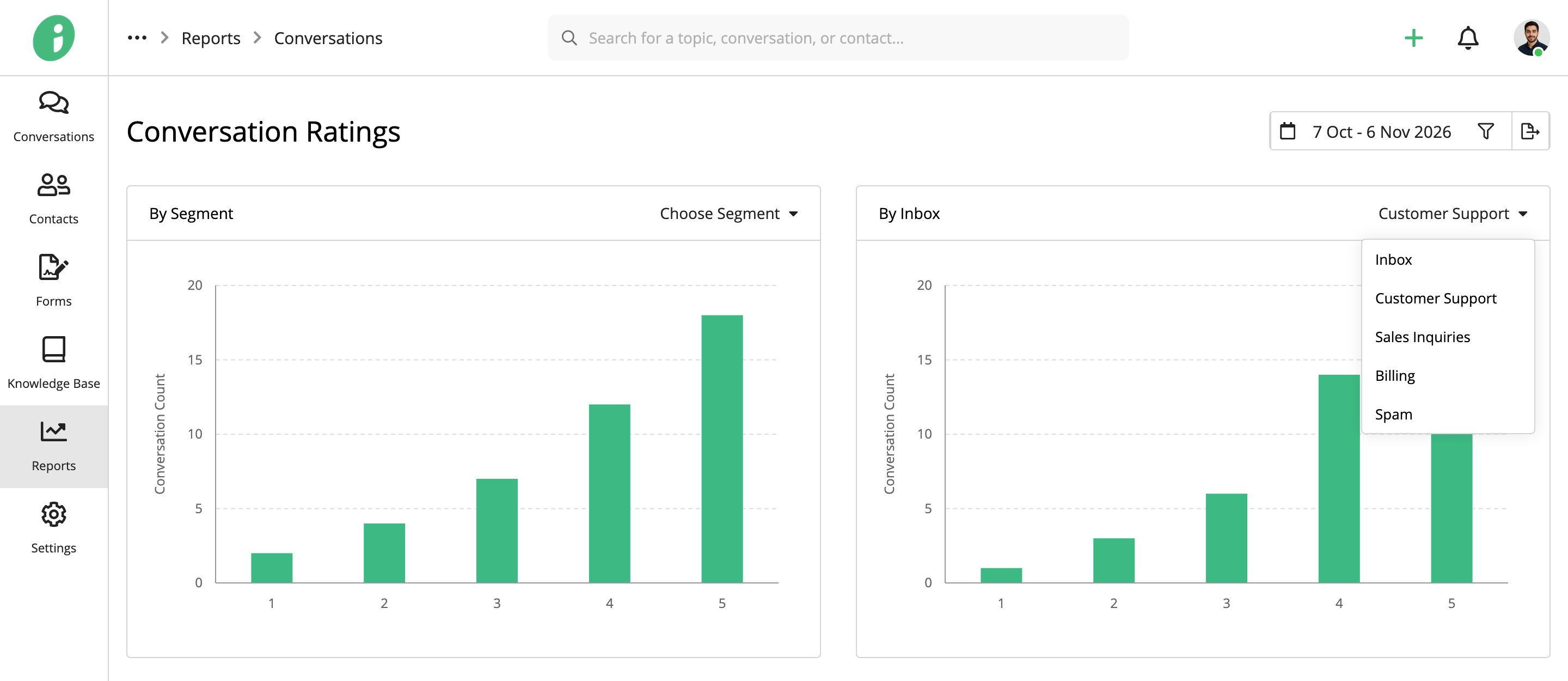
By Inbox
The By Inbox chart shows ratings for conversations handled through a selected inbox.
Use the dropdown to choose an inbox, such as Customer Support or Sales Inquiries.
By Team
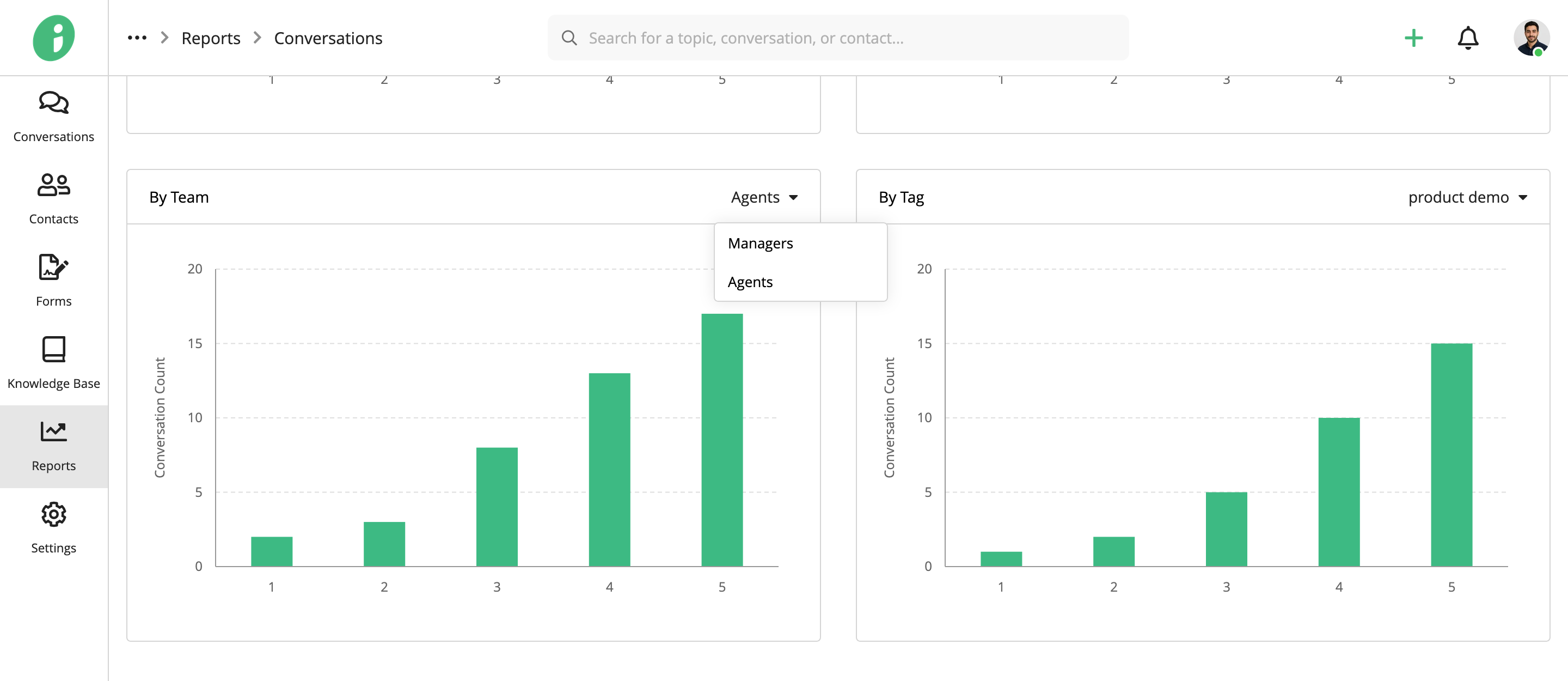
The By Team chart shows ratings for conversations associated with a selected team.
Use the dropdown to choose a team, such as Agents or Managers.
By Tag
The By Tag chart shows ratings for conversations associated with a selected conversation tag.
Use the dropdown to choose a tag, such as Product Demo.
The available segments, inboxes, teams, and tags depend on how your Helpdesk is configured.
Select a Date Range
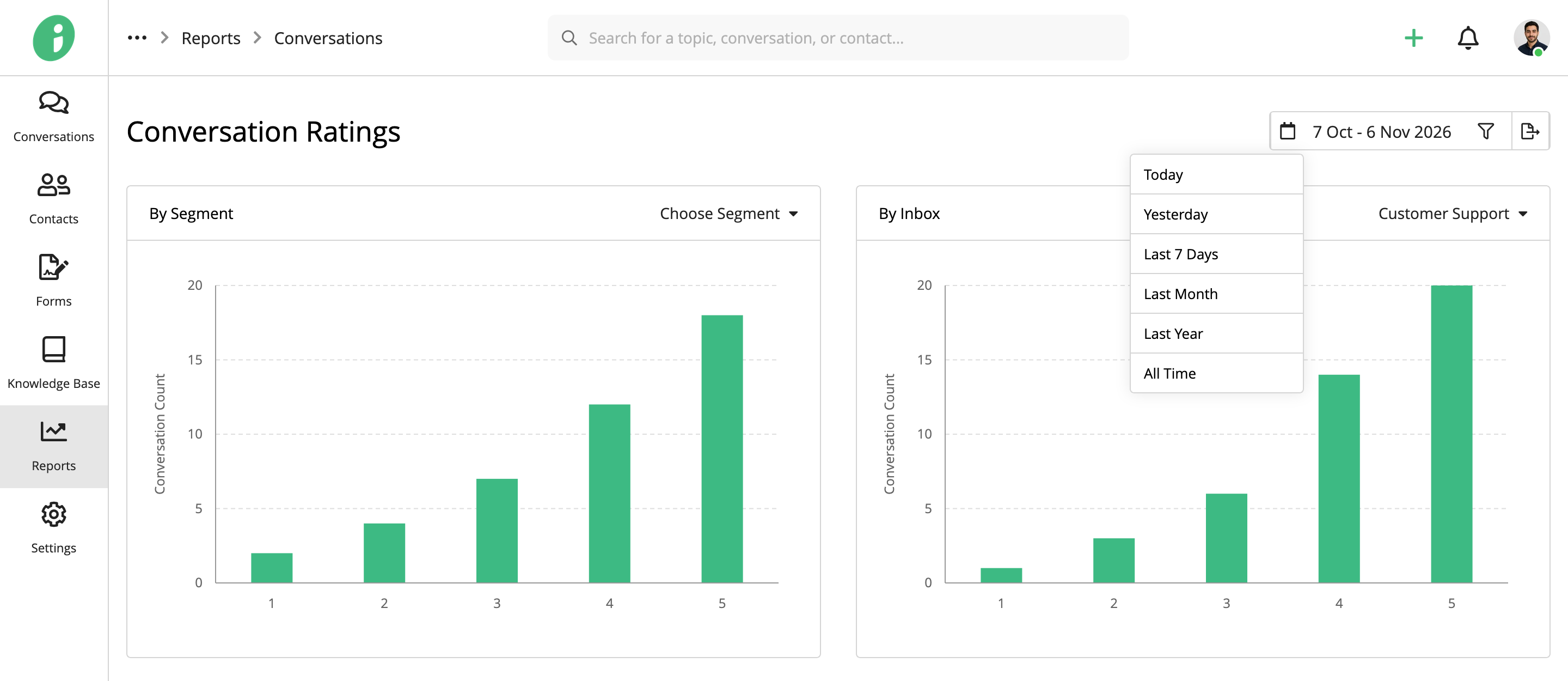
Click the calendar icon to choose a predefined period: Today, Yesterday, Last 7 Days, Last Month, Last Year, or All Time.
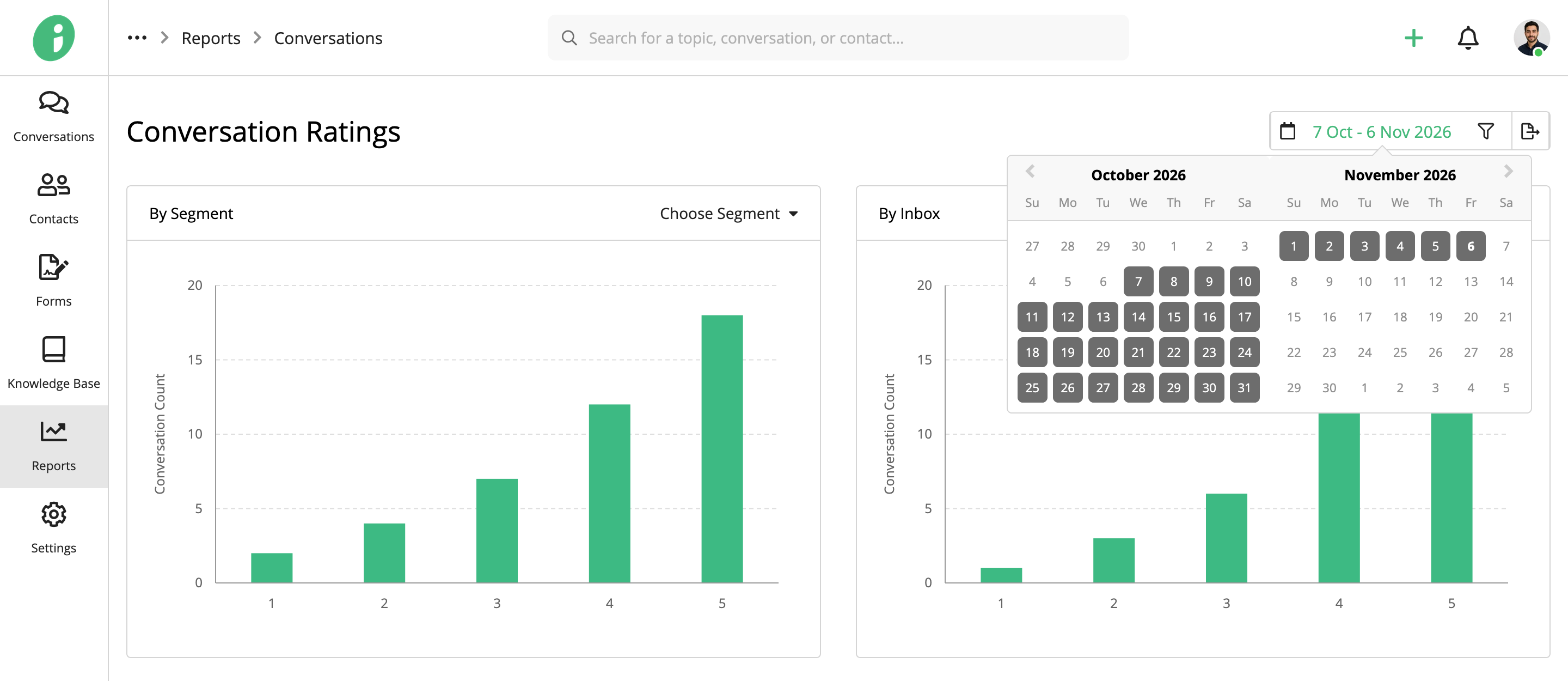
To specify a custom period, click the date range and select the start and end dates from the calendar.
Filter Conversation Ratings
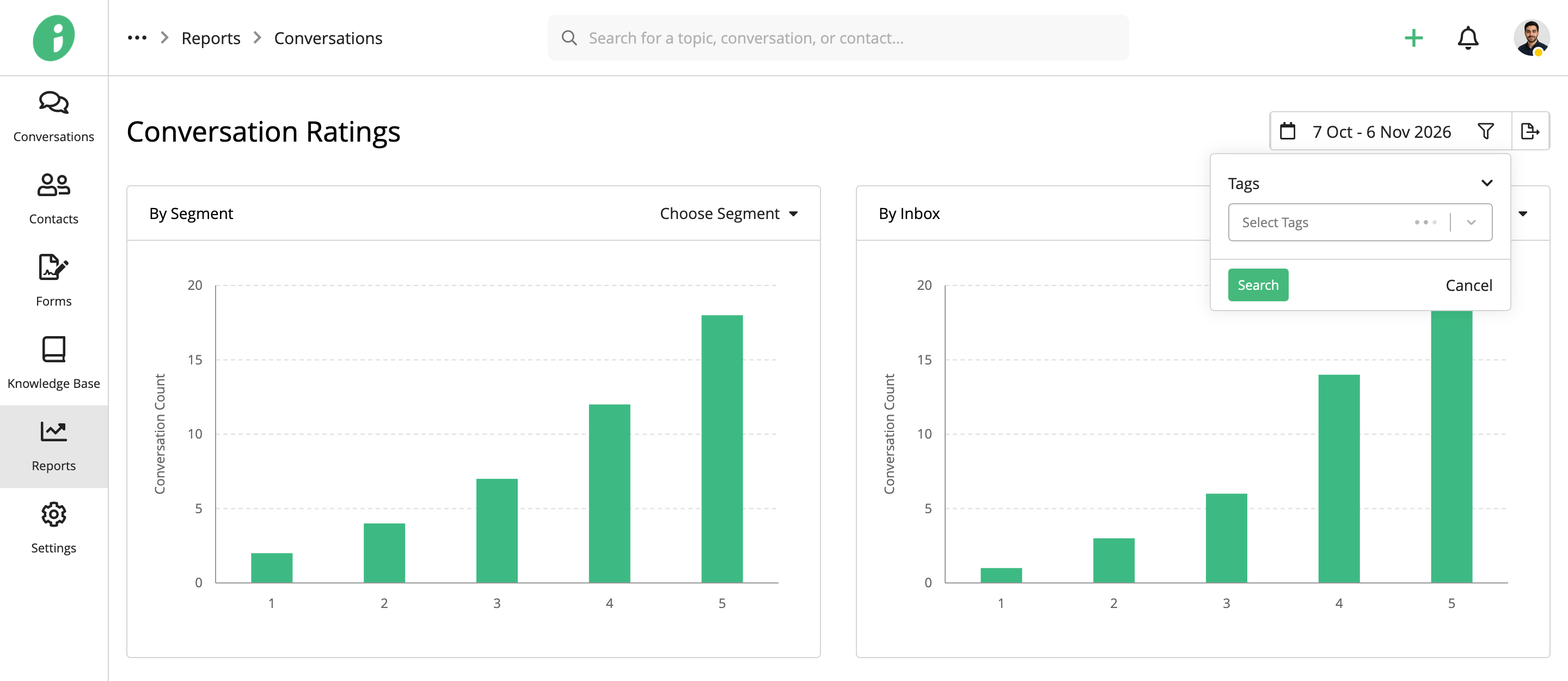
Click the filter icon in the upper-right corner, select Tags, and choose the conversation tags you want to filter by. Click Search to apply the filter.
Export Conversation Ratings
Click the export icon in the upper-right corner to open the report's print preview. Select Save to PDF as the destination to save a copy of the report.