Zaetoon Helpdesk includes two default teams: Managers, with full access to Helpdesk features and settings, and Agents, with more limited permissions.
You can create additional teams to organize agents and control their access to different parts of your Helpdesk.
Add a Team
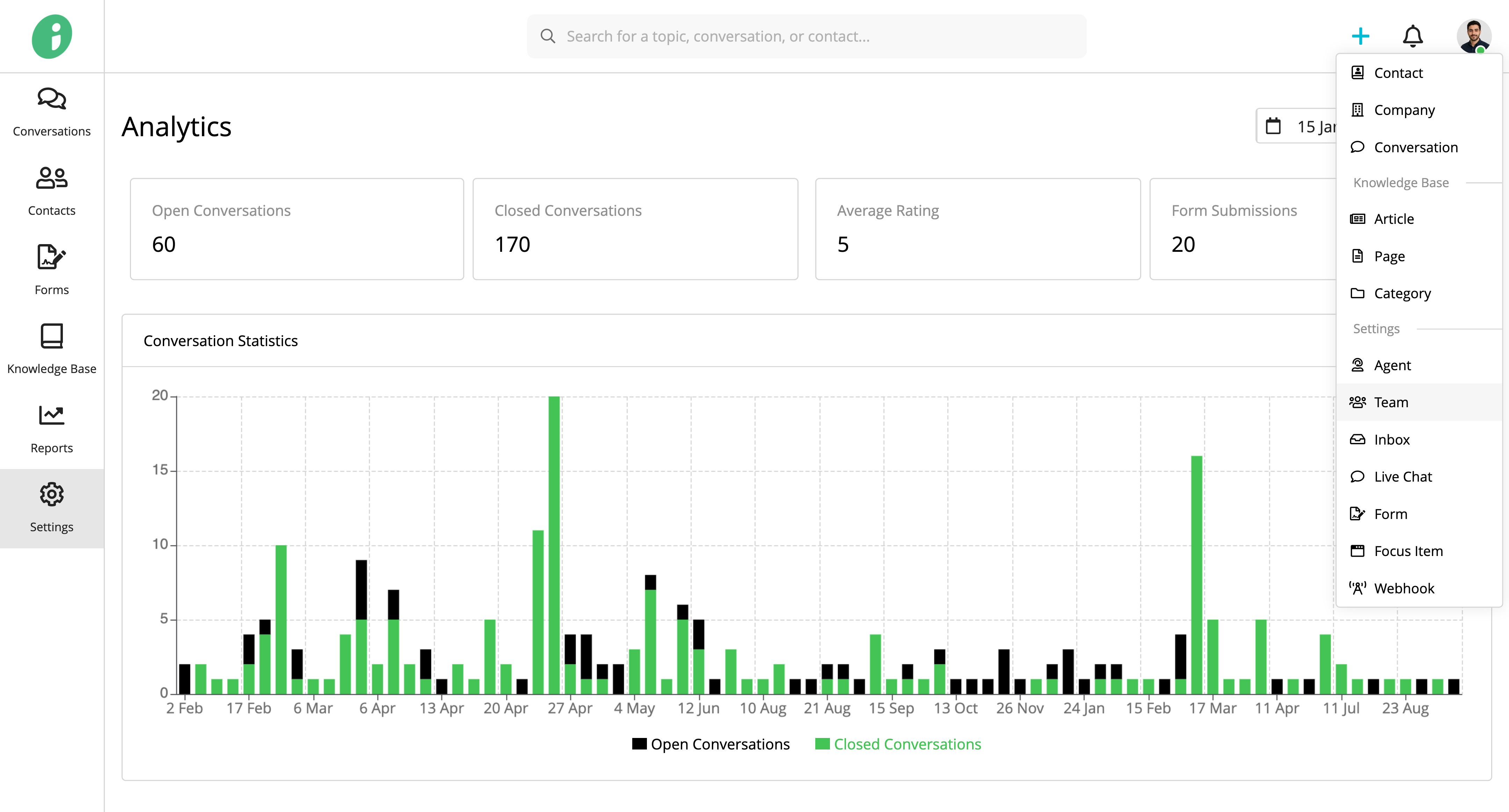
From your Helpdesk, click + Add in the top-right corner and select Team.
Basic Settings
Under Basic Settings, configure the following:
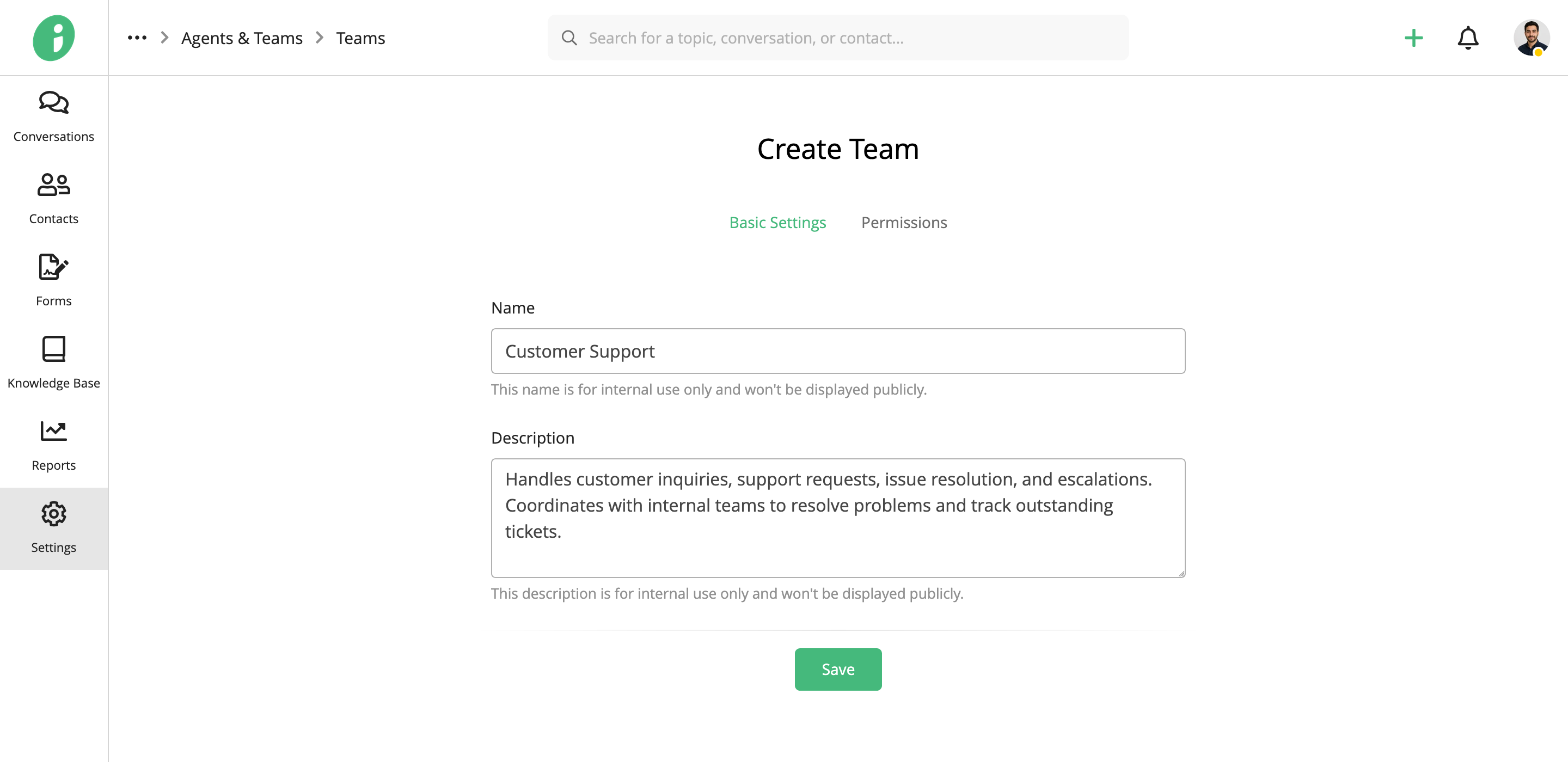
- Name: Enter a name for the team, such as Customer Support. This name is for internal use only and won’t be displayed publicly.
- Description: Add an optional description of the team’s responsibilities. This description is also for internal use only.
Permissions
Select Permissions to configure team membership and access.
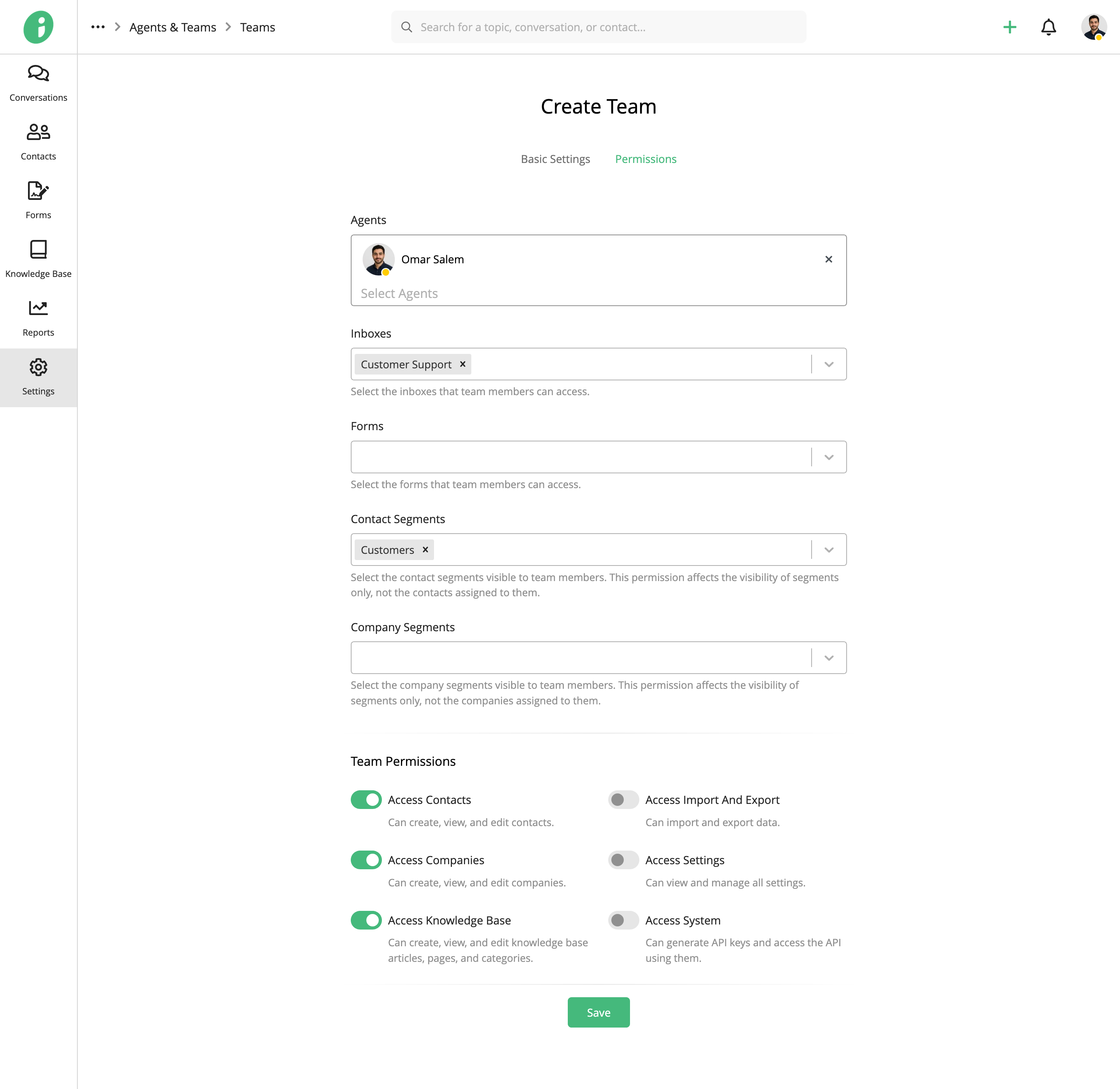
- Agents: Select the agents you want to add to the team.
- Inboxes: Select the inboxes that team members can access.
- Forms: Select the forms that team members can access.
- Contact Segments: Select the contact segments visible to team members. This setting controls segment visibility only, not access to the contacts within those segments.
- Company Segments: Select the company segments visible to team members. This setting controls segment visibility only, not access to the companies within those segments.
You can also enable the following permissions:
- Access Contacts: Create, view, and edit contacts.
- Access Companies: Create, view, and edit companies.
- Access Knowledge Base: Create, view, and edit Knowledge Base articles, pages, and categories.
- Access Import And Export: Import and export data.
- Access Settings: View and manage Helpdesk settings.
- Access System: Generate API keys and access the API.
Click Save to create the team.
Edit a Team
You can update a team’s details and permissions whenever needed.
From your Helpdesk, go to Settings → Agents & Teams → Teams.
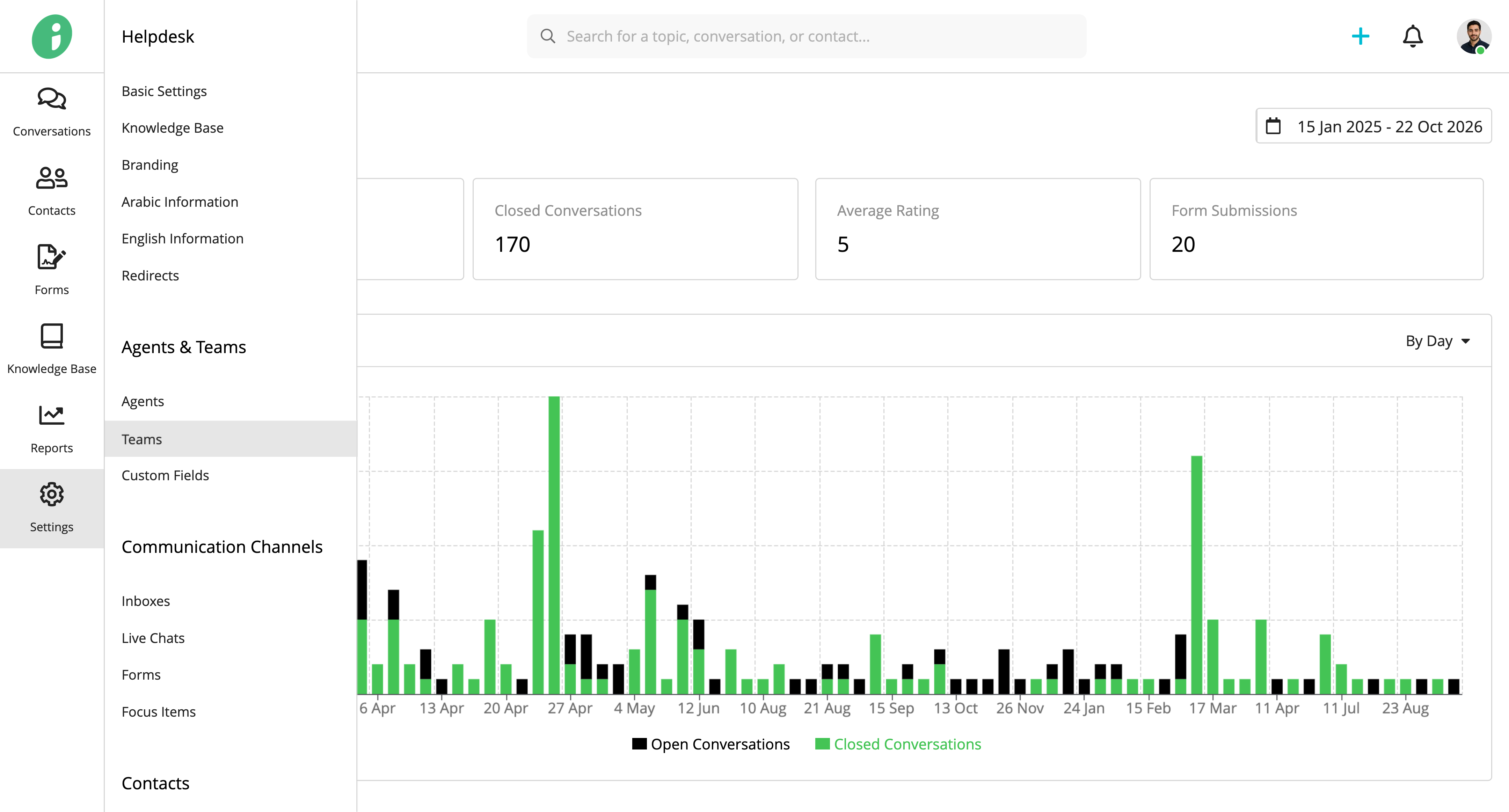
Find the team you want to update, open its options menu, and select Edit.
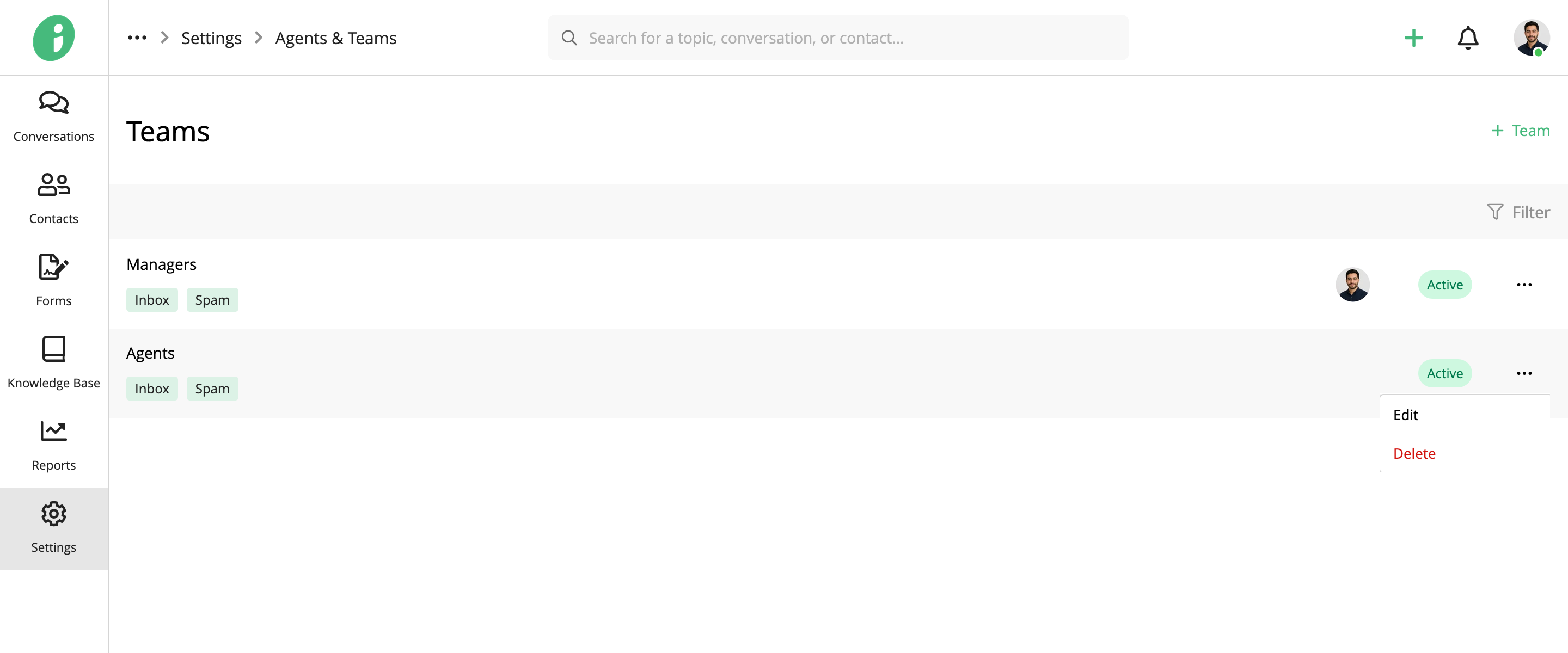
You can update the team’s Basic Settings and Permissions as described above.
Click Save to apply your changes.