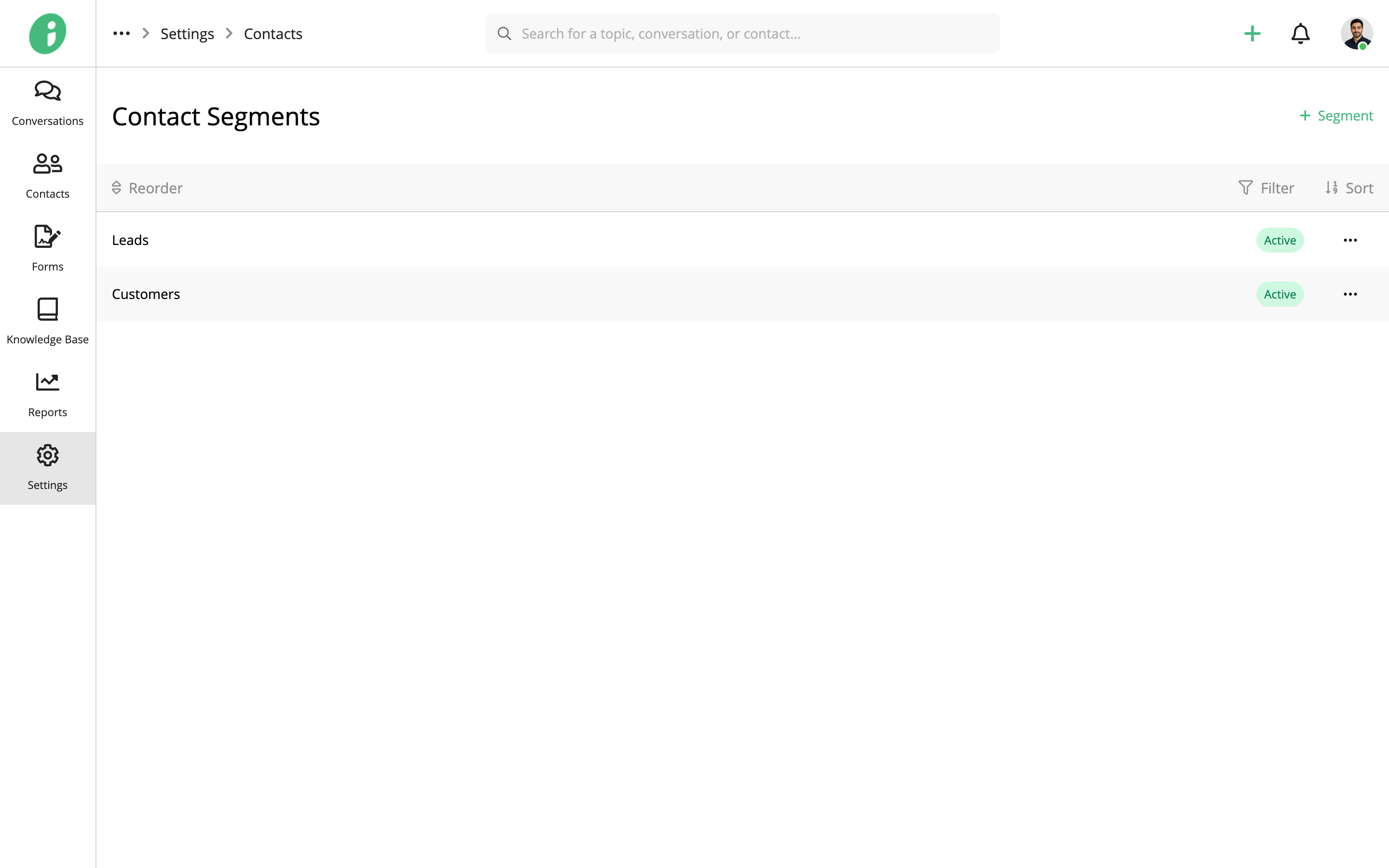
Zaetoon Helpdesk includes two default contact segments: Customers and Leads. You can create additional segments to organize contacts into groups and make it easier for your team to manage customer relationships.
Add a Contact Segment
From your Helpdesk, go to Settings → Contacts → Contact Segments.
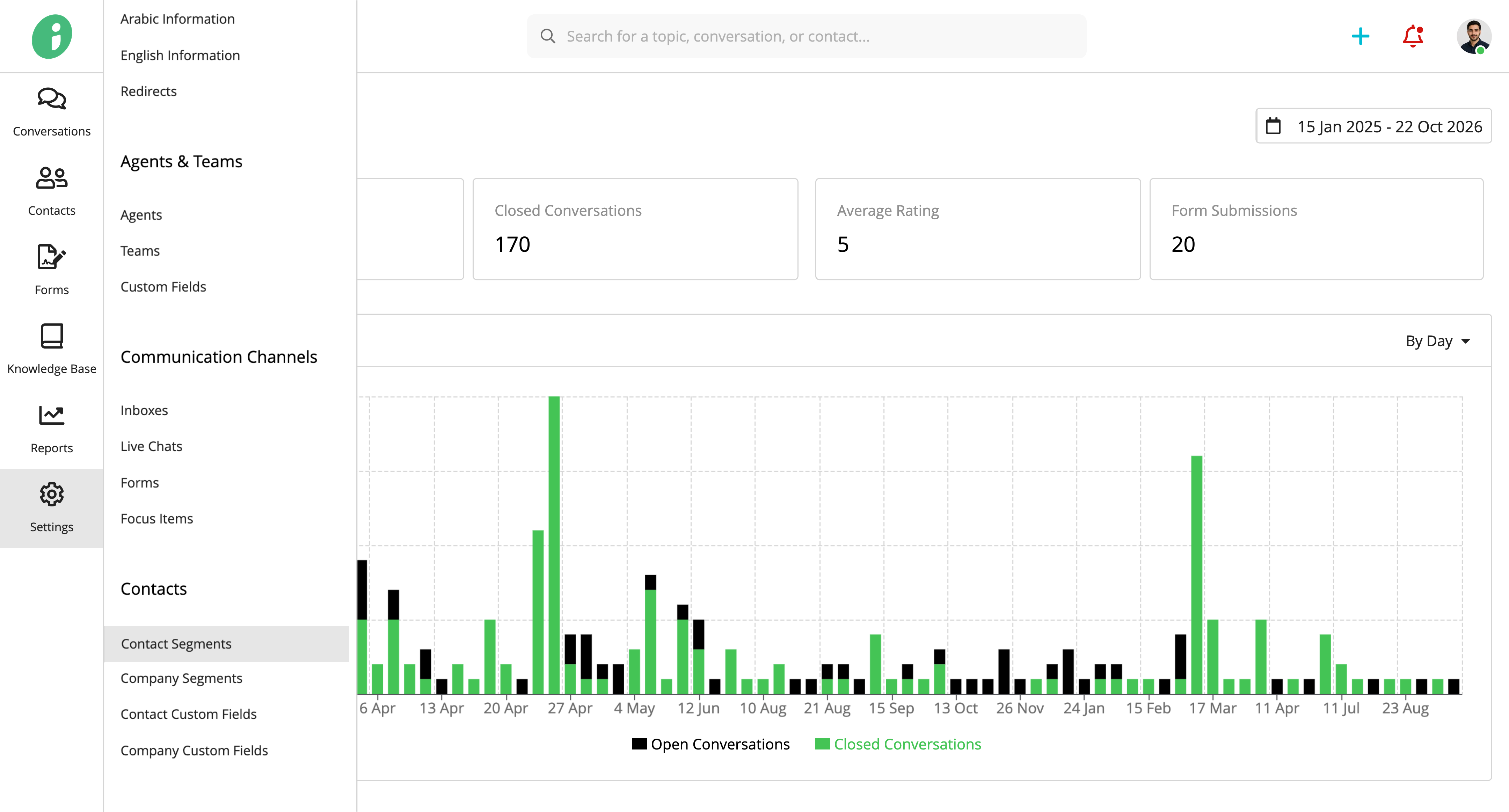
Click + Segment in the top-right corner.
Basic Settings
Under Basic Settings, configure the following:
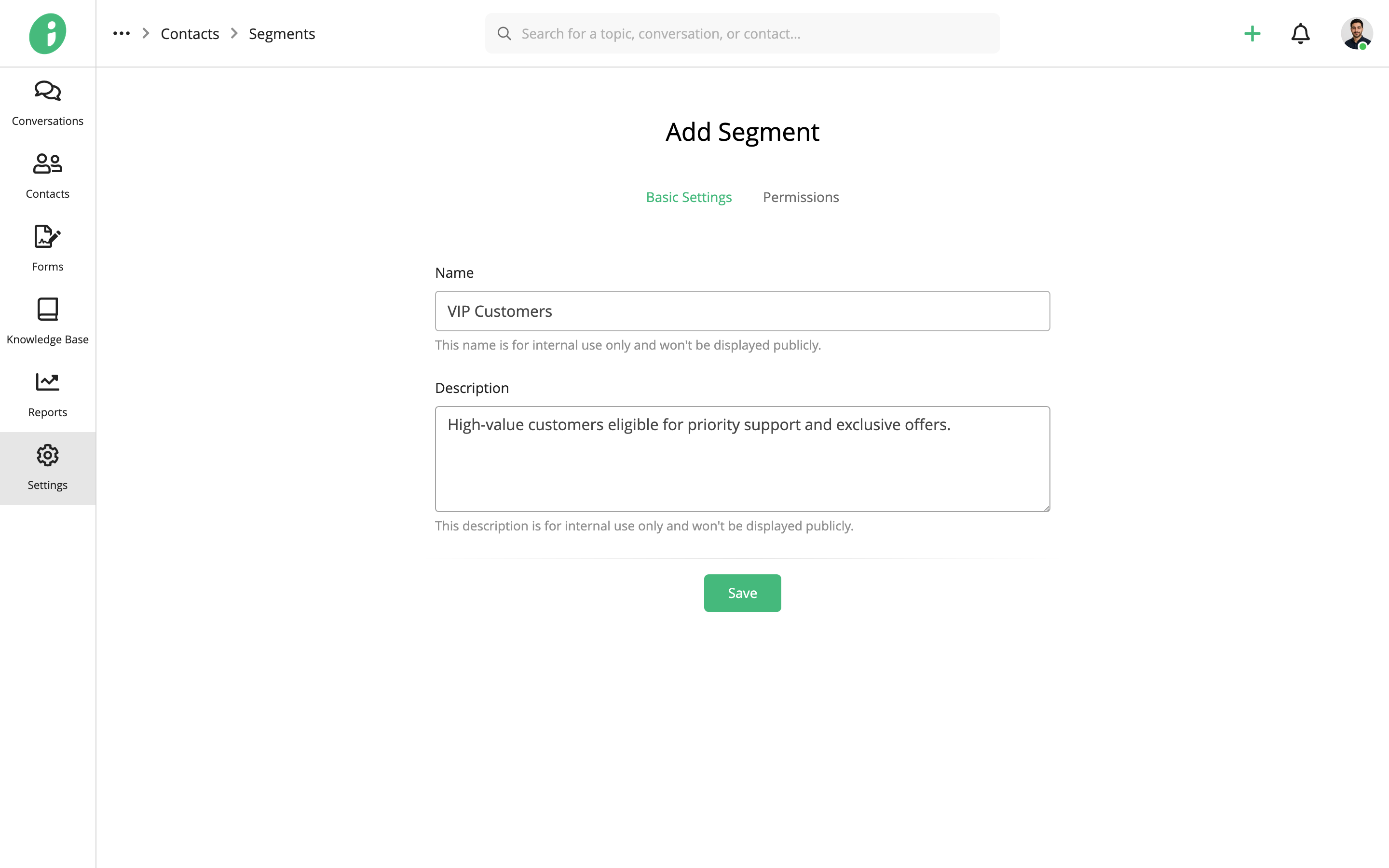
- Name: Enter a name for the segment, such as VIP Customers. This name is for internal use only.
- Description: Enter a brief description of the segment. This description is also for internal use only.
Permissions
Select Permissions to configure who can access the segment.
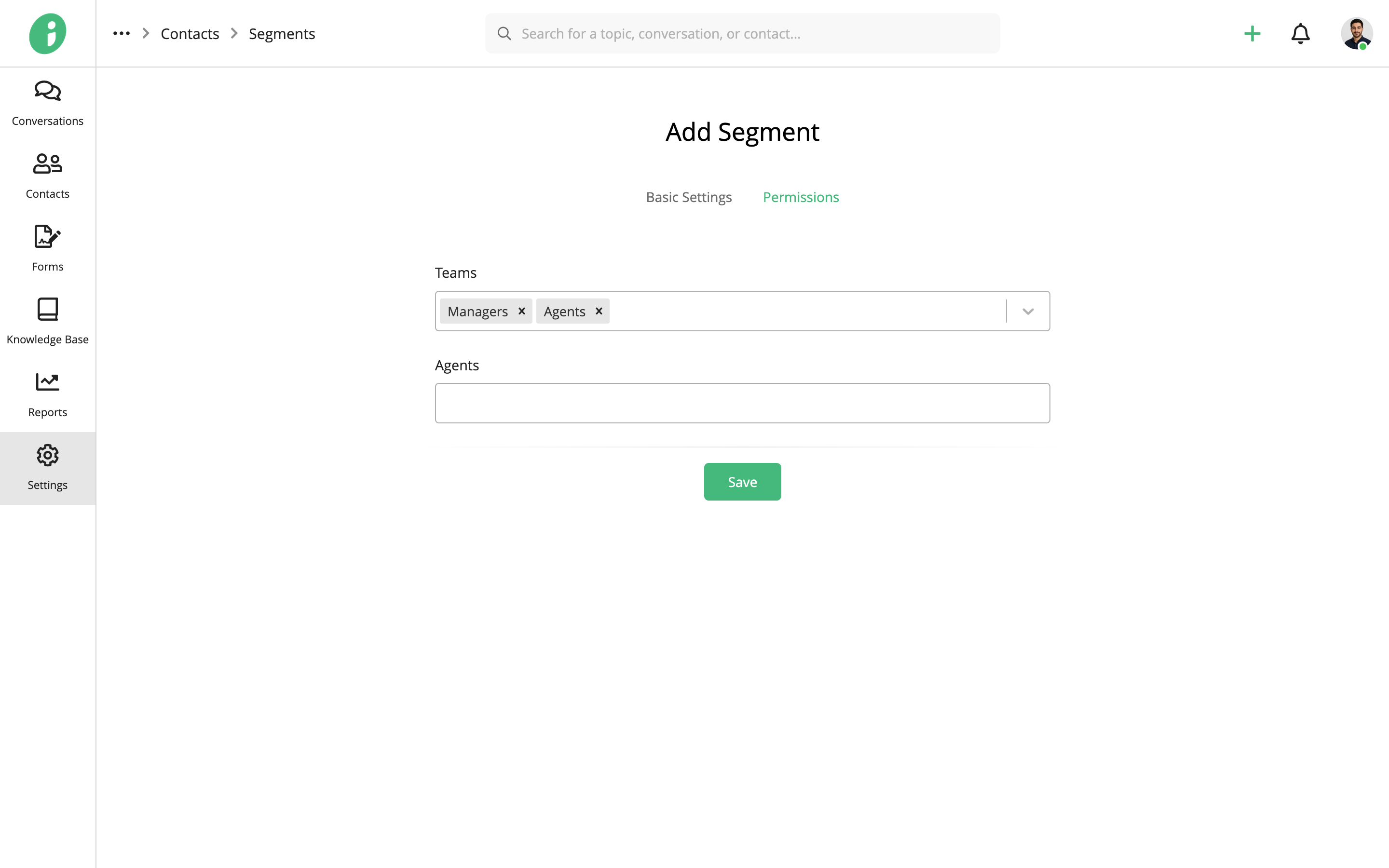
- Teams: Select the teams that can access the segment.
- Agents: Select the agents who can access the segment.
The contact segments will be visible to agents based on the permissions you configure.
Click Save to create the segment.
Edit a Contact Segment
From your Helpdesk, go to Settings → Contacts → Contact Segments.
Find the segment you want to update, open its options menu, and select Edit.
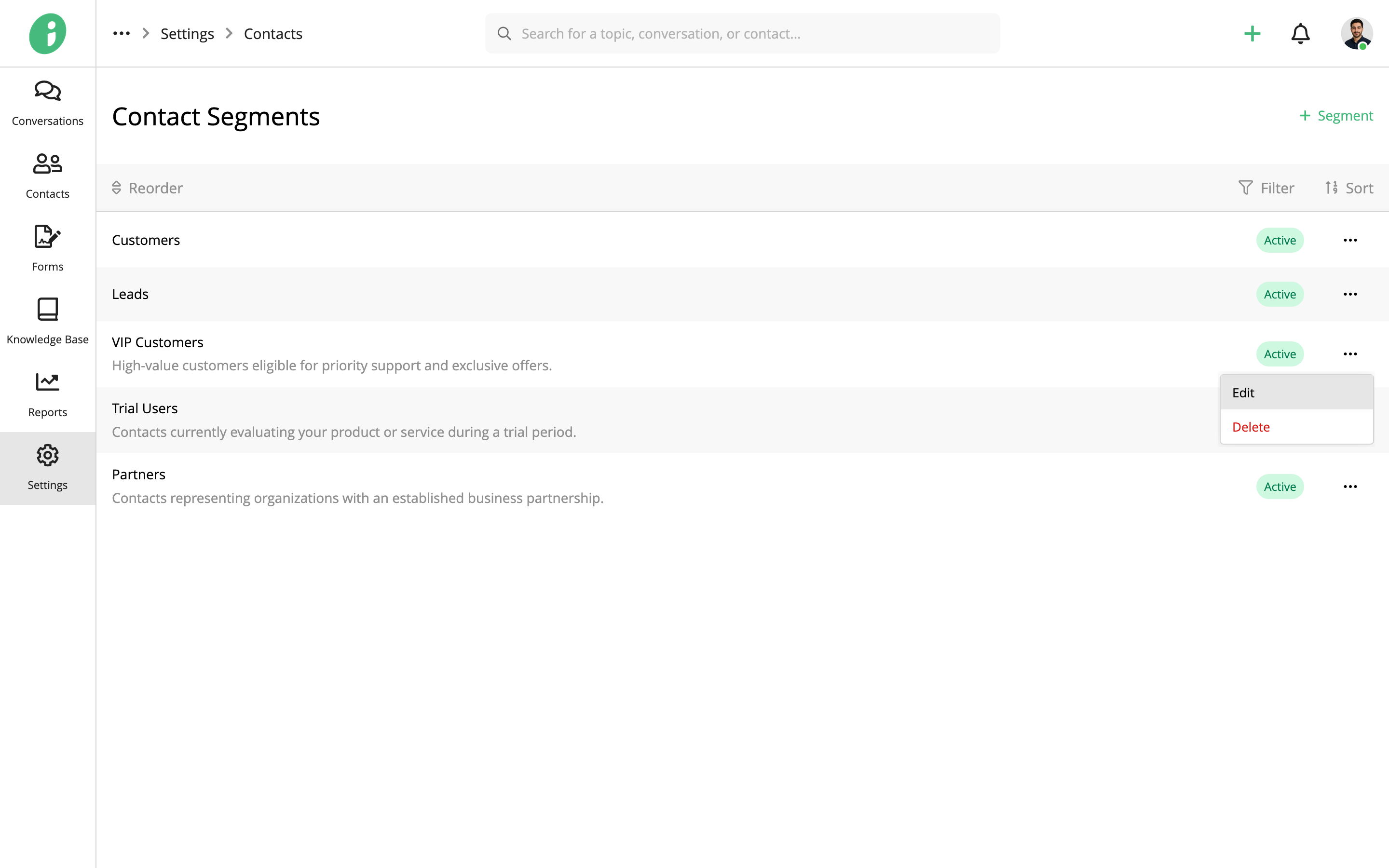
You can update the following settings:
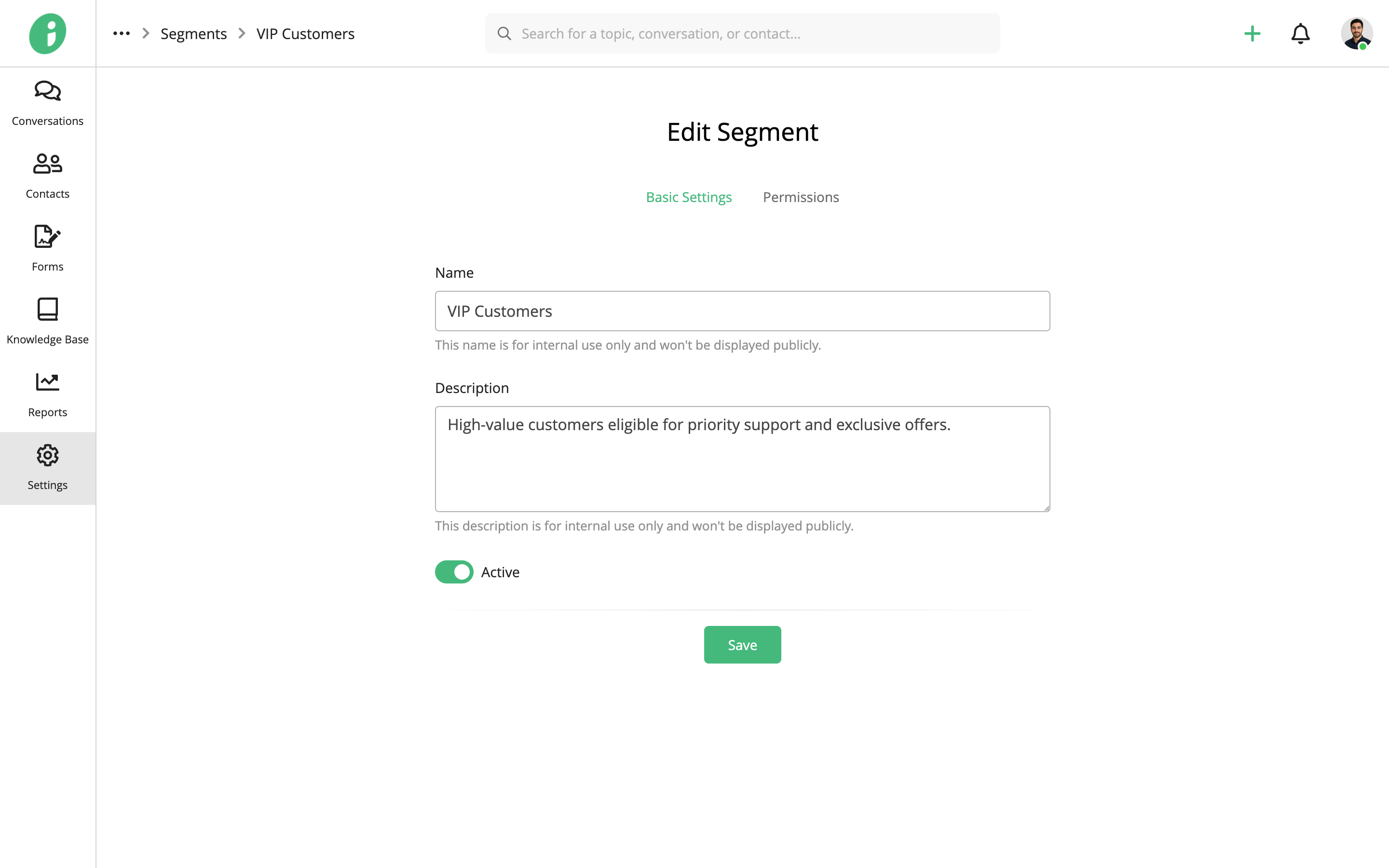
- Basic Settings: Update the segment’s name or description, or enable or disable it using the Active option.
- Permissions: Change which teams and agents can access the segment.
Click Save to apply your changes.
Add a Contact to a Segment
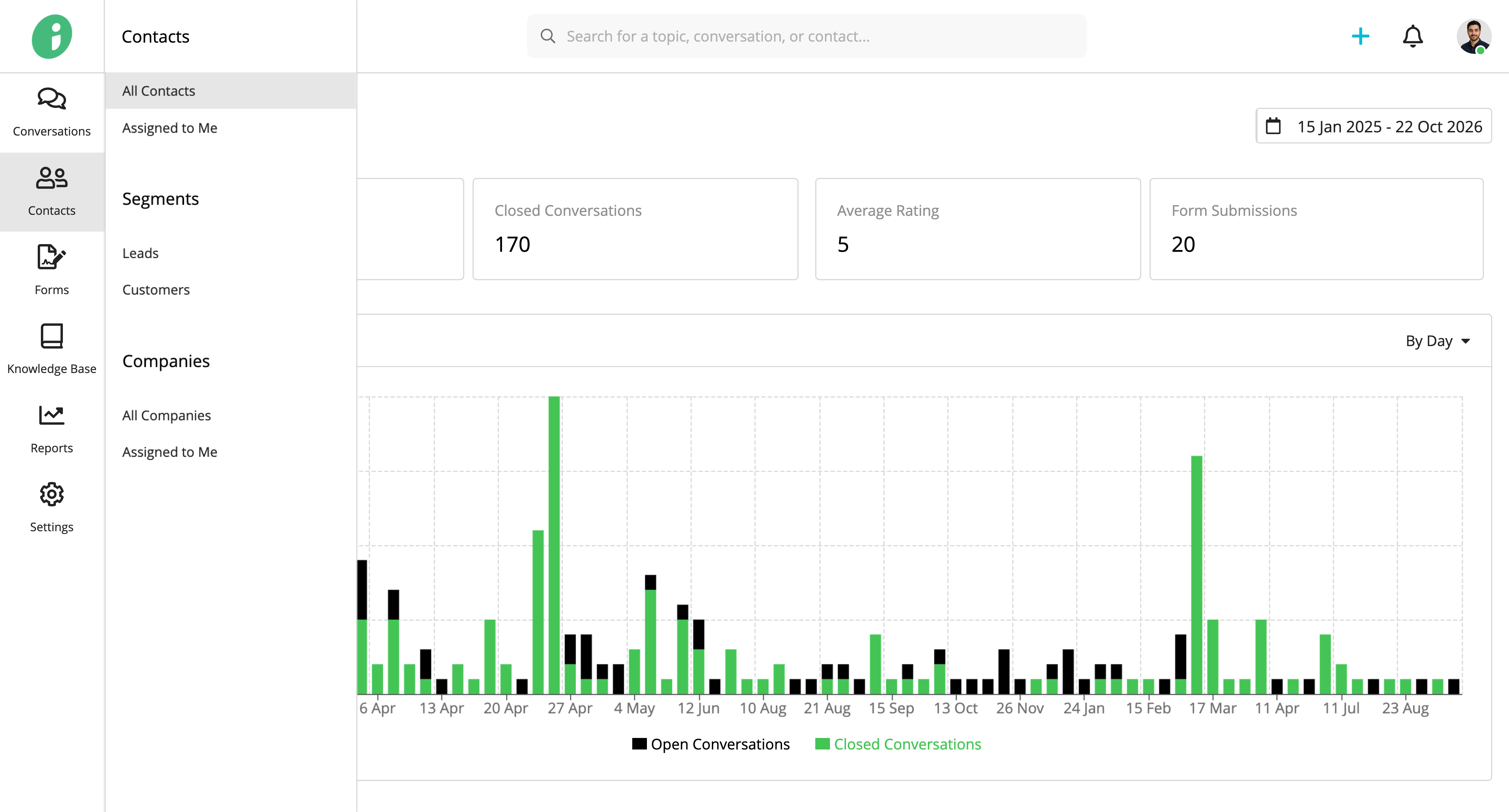
From your Helpdesk, go to Contacts → All Contacts.
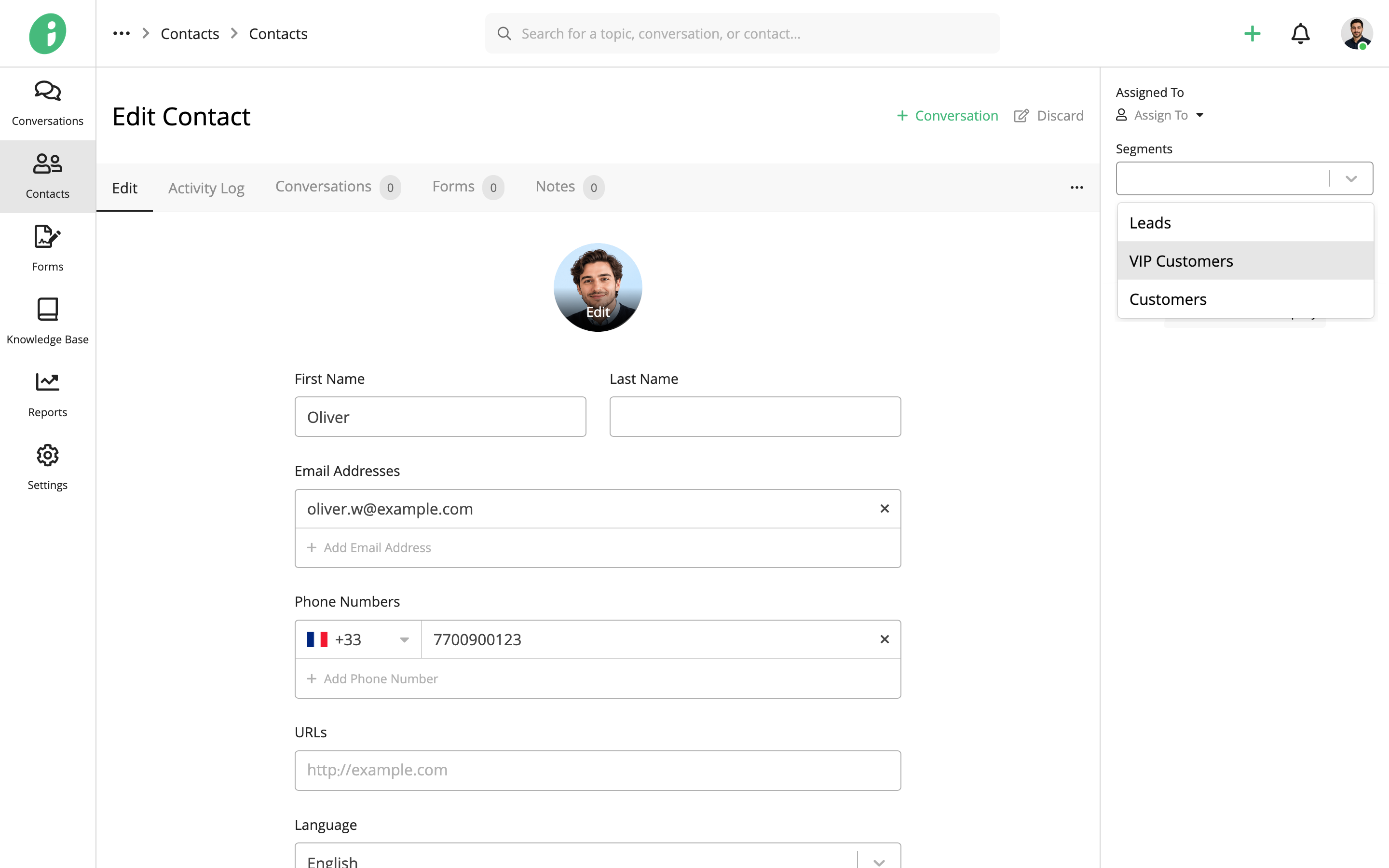
Find the contact you want to update, open their options menu, and select Edit.
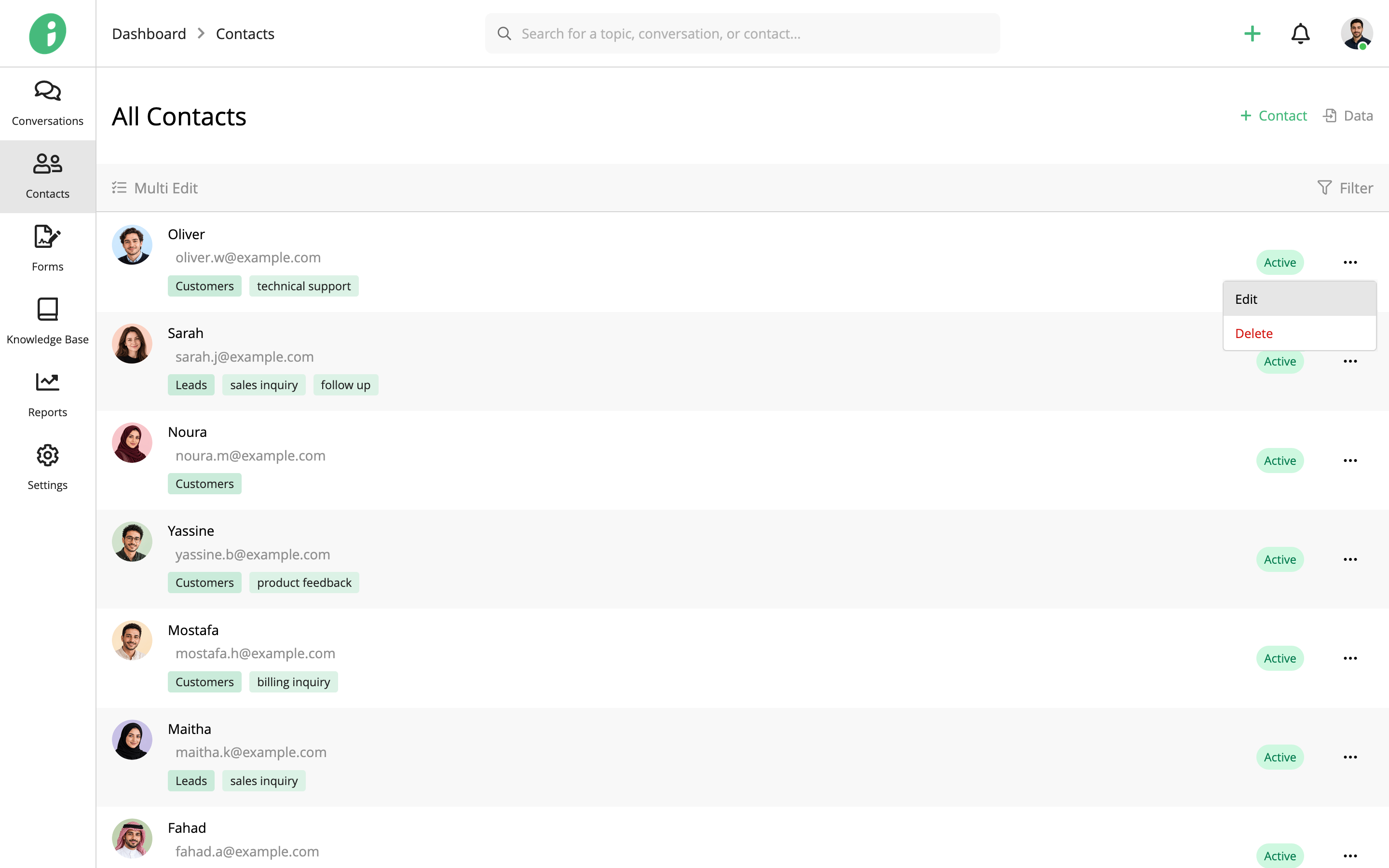
Under Segments, select the segments you want to add the contact to.
Click Save to save your changes.